
If you’re like most iPhone users, you’re probably not making the most of the many features your device offers. From customizing your Control Center to optimizing your battery life, there are hidden gems that can enhance your iPhone experience. Let me guide you through 11 features you might not be using—but definitely should.
Customizable Control Center
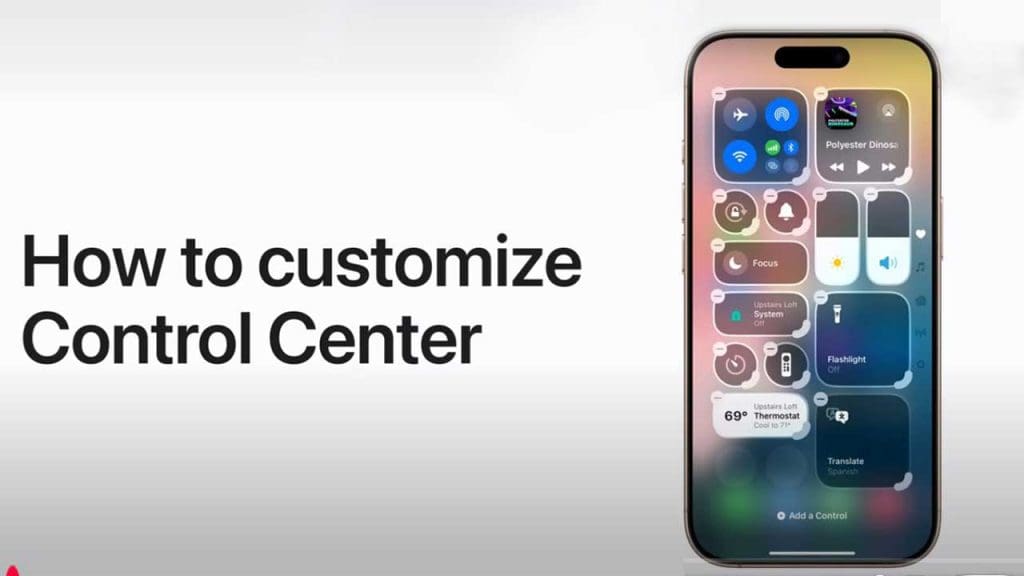
Customizing the Control Center can significantly improve your iPhone experience. It allows you to quickly access the features you use most. Simply go to Settings, tap on Control Center, and add or remove controls to tailor it to your needs.
Whether it’s adding shortcuts for your favorite apps or managing your smart home devices, the Control Center can be your personal command hub. You can learn more about this feature from this guide.
Back Tap Gesture
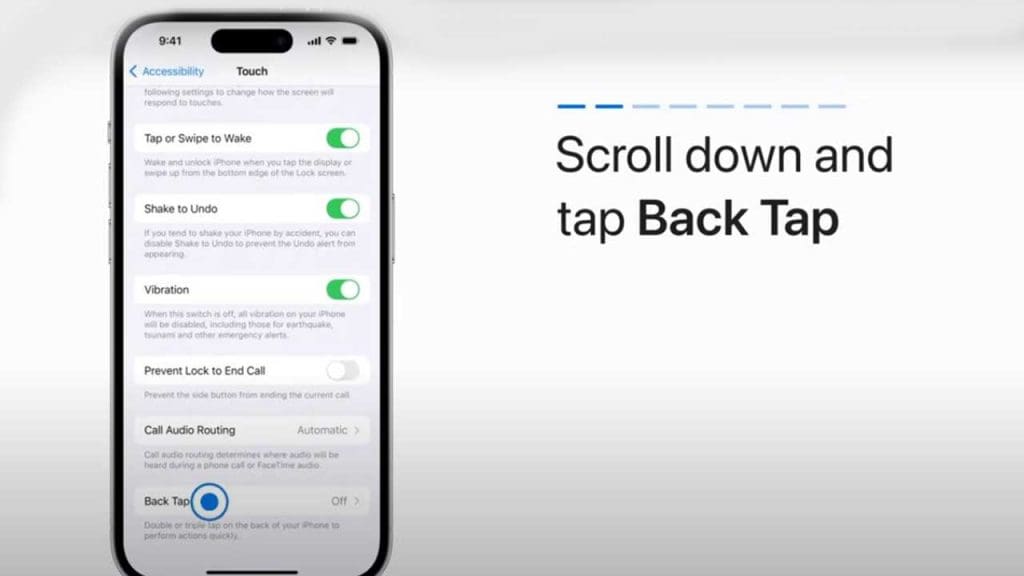
The Back Tap feature is a clever way to perform actions simply by tapping the back of your phone. Enable it by navigating to Settings, then Accessibility, and selecting Touch. Choose from a double or triple tap to trigger actions like taking a screenshot or activating Siri.
This feature is especially useful for quick access to tasks without having to navigate through menus. Check out these hidden iPhone features to discover more.
Focus Mode
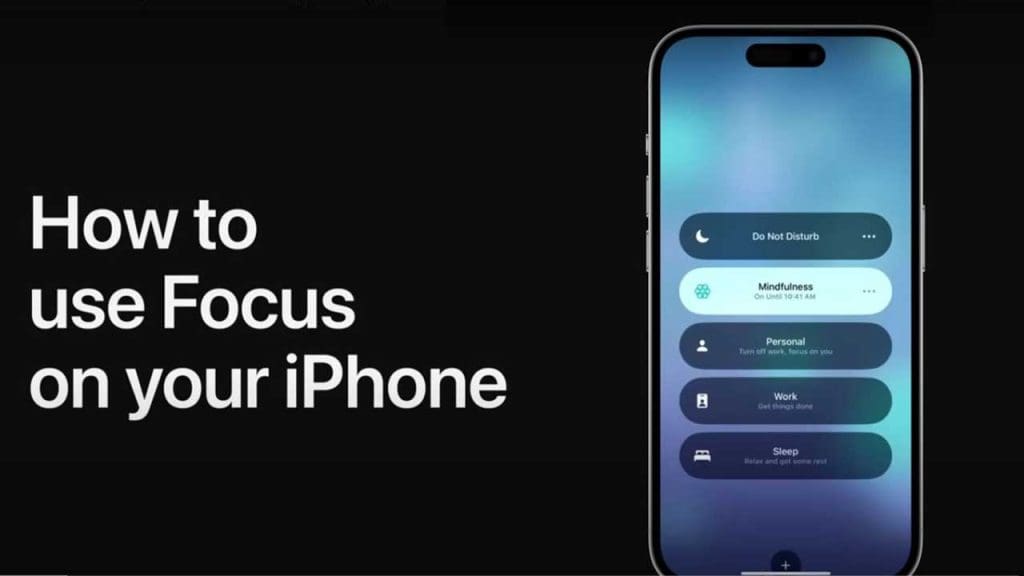
Focus Mode helps you minimize distractions by controlling which notifications you receive. You can customize settings for different scenarios like work or personal time. Adjust these in your Settings under Focus, and create a more productive environment.
By setting boundaries, you can ensure that only the most important notifications come through, allowing you to concentrate better. Learn how to adapt your iPhone’s features for your lifestyle with this detailed resource.
Live Text in Photos
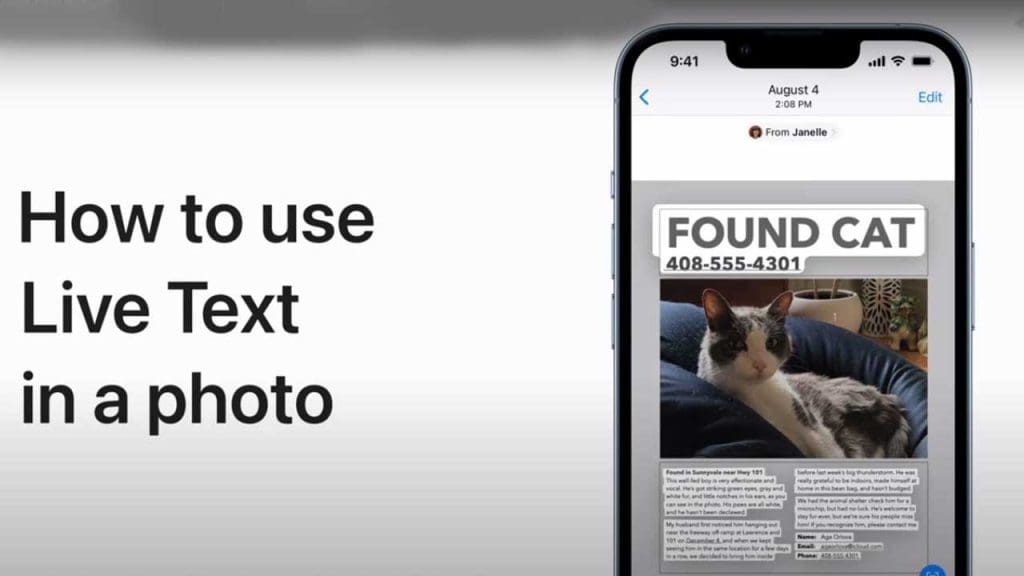
Live Text is a game-changer for capturing and interacting with text in your photos. By simply pointing your camera at text, you can copy, paste, and even translate text directly from your images. This feature can be switched on in Settings under Camera.
It’s perfect for converting written information into digital text quickly. For a deeper dive, check out this article on underrated iPhone features.
App Library Organization
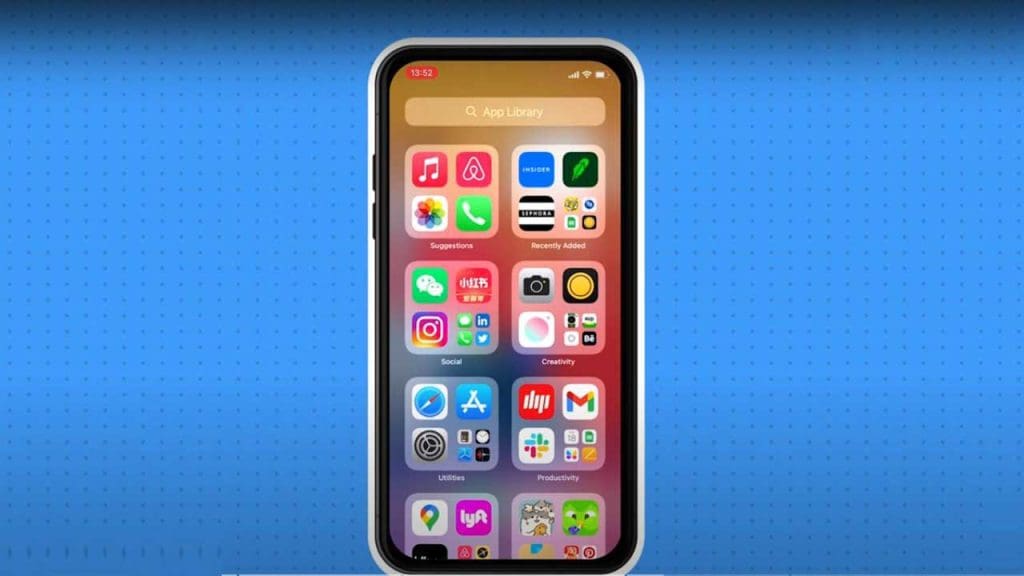
The App Library automatically organizes your apps into categories, making it easier to find what you need. Swipe left past all your Home screens to access it. You can also hide apps from the Home screen to declutter your phone.
This feature is great for those who want a clean interface without losing easy access to their apps. Learn more about its benefits in this guide.
Hidden Albums in Photos
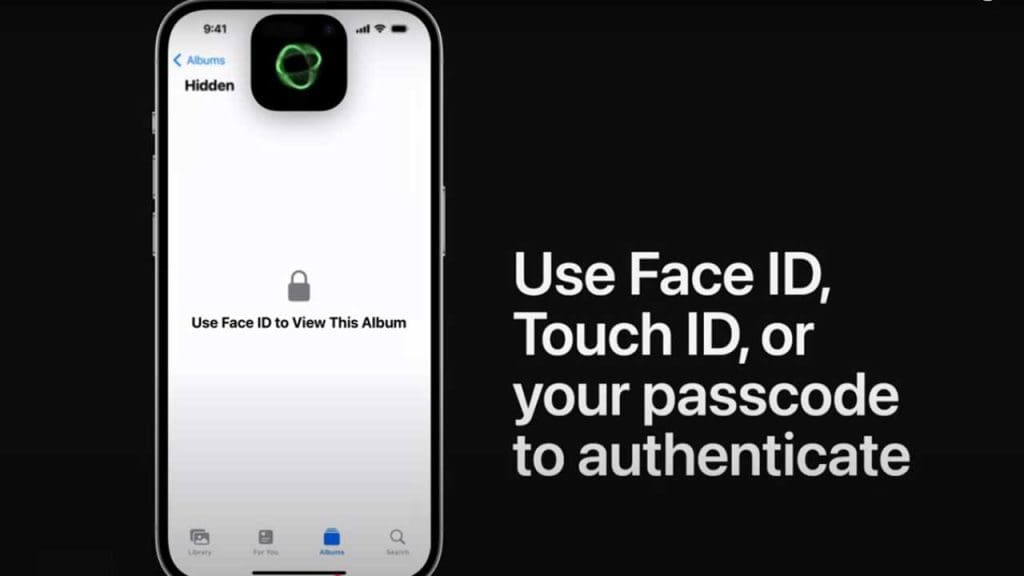
For privacy-conscious users, the Hidden Album feature in Photos allows you to keep certain photos away from prying eyes. Enable this in Settings under Photos by toggling on the Hidden Album option.
This feature is perfect for storing sensitive images that you don’t want immediately visible in your main photo library. Discover more about this and other useful settings in this tips and tricks guide.
Sound Recognition Alerts
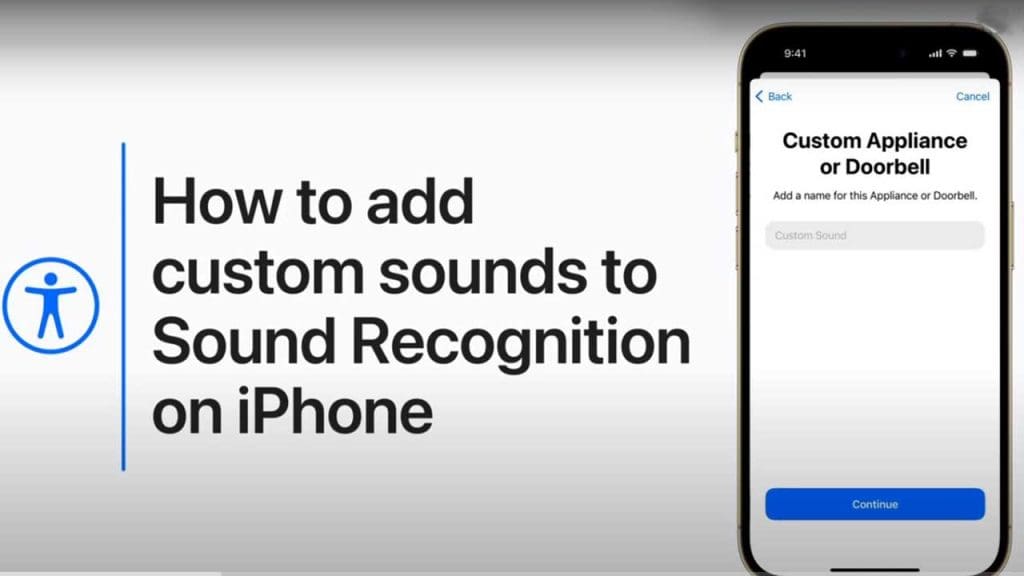
Sound Recognition turns your iPhone into an alert system for sounds like alarms or doorbells. Activate it through Settings under Accessibility, then Sound Recognition.
This is particularly helpful for individuals with hearing impairments, ensuring they don’t miss important auditory cues. Explore more ways to enhance your device usage in this article.
Optimized Battery Charging
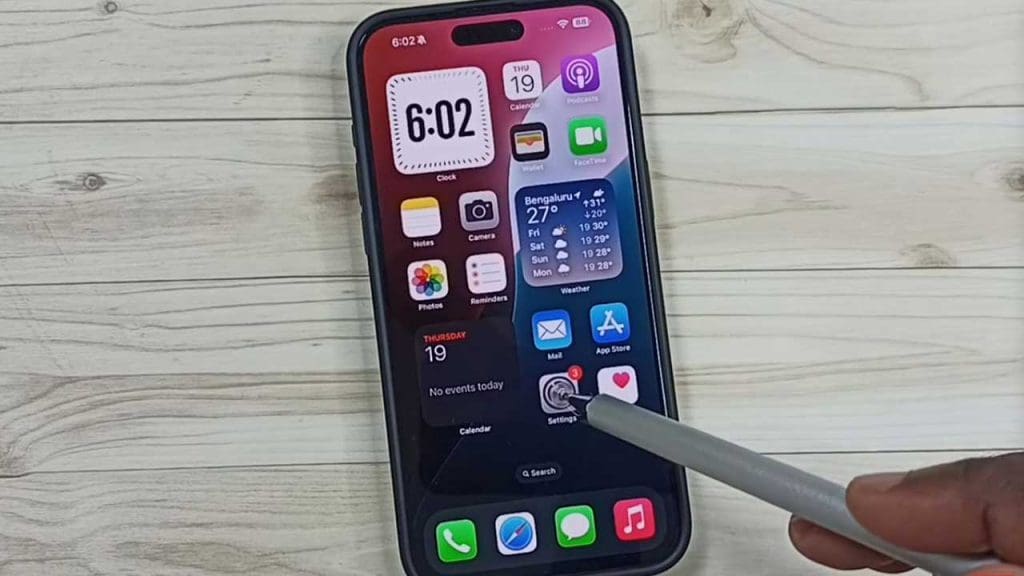
Optimized Battery Charging helps prolong your battery’s lifespan by learning your charging routine and reducing the time your phone spends fully charged. It’s enabled by default under Settings in Battery Health.
By slowing the battery aging process, you ensure better long-term performance. For more insights on maintaining your iPhone, see this resource.
Siri Shortcuts
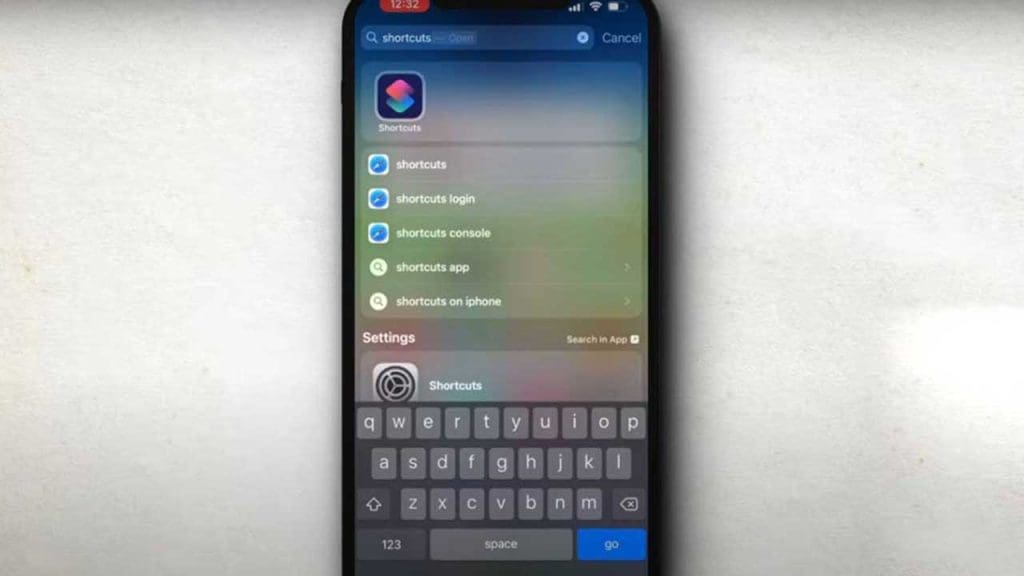
Siri Shortcuts can streamline tasks by allowing you to create custom voice commands for actions you perform frequently. Set these up in the Shortcuts app and watch your productivity soar.
From sending messages to launching apps, the possibilities are endless. Discover more about optimizing your iPhone with this guide.
Magnifier Tool
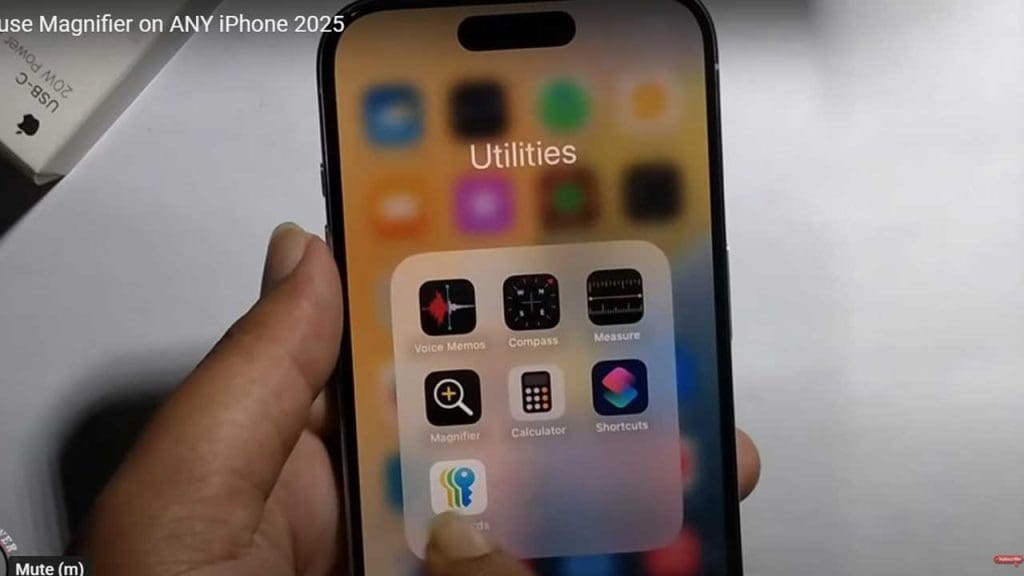
The Magnifier tool turns your iPhone into a magnifying glass, making it easier to read small text. Activate it under Settings in Accessibility, then enable the Magnifier.
This is a handy tool for anyone who needs a closer look at fine print or details. For more iPhone tips, explore this article.
Emergency SOS Features
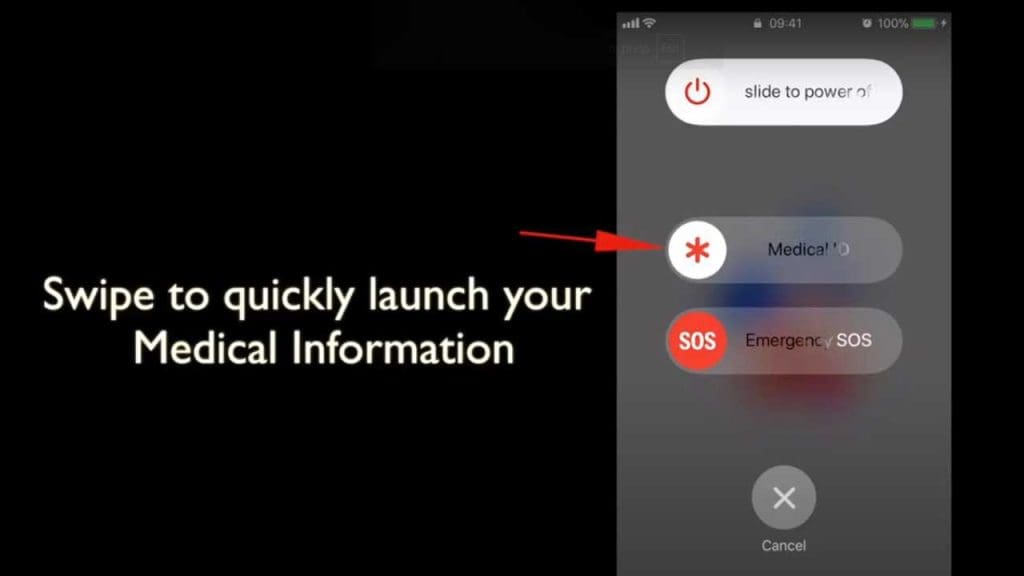
In emergencies, the SOS feature can be a lifesaver. Activate it by pressing the side button and volume button simultaneously. It will contact emergency services and share your location with emergency contacts.
Ensure you have this set up in Settings under Emergency SOS to be prepared for any situation. More tips on enhancing your iPhone’s safety features can be found in this article.
Exploring these features can significantly enhance how you interact with your iPhone, making it more than just a device for calls and texts. Start incorporating these tools into your daily routine and experience your iPhone’s full potential.
