As an iPhone user, I often find myself amazed by the plethora of features tucked away in my device. While some of these are well-known, others remain underutilized by many. From optimizing battery life to customizing the interface, these features can enhance the iPhone experience significantly. Here are nine iPhone features you might not be using but should definitely explore.
Optimized Battery Charging
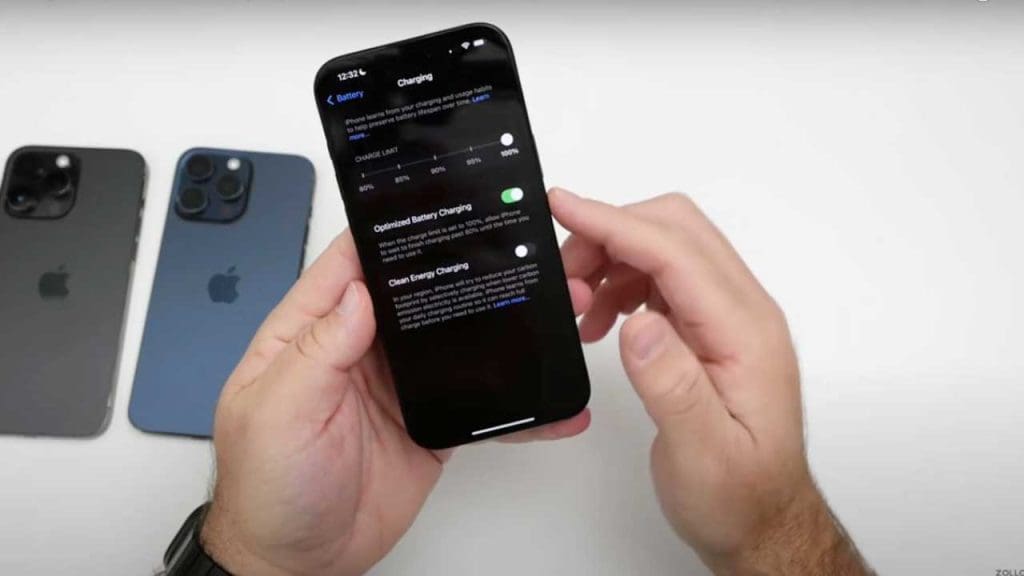
Optimized Battery Charging is a smart feature designed to enhance the lifespan of your iPhone’s battery. By learning your charging habits, it delays charging past 80% until you need your phone. I found this particularly useful for overnight charging, ensuring the battery stays healthy over time.
Using this feature can prevent battery aging and maintain performance. If you’re like me, always looking to get the most out of your device, this is a must-have. To enable it, navigate to Settings > Battery > Battery Health.
Back Tap Shortcuts
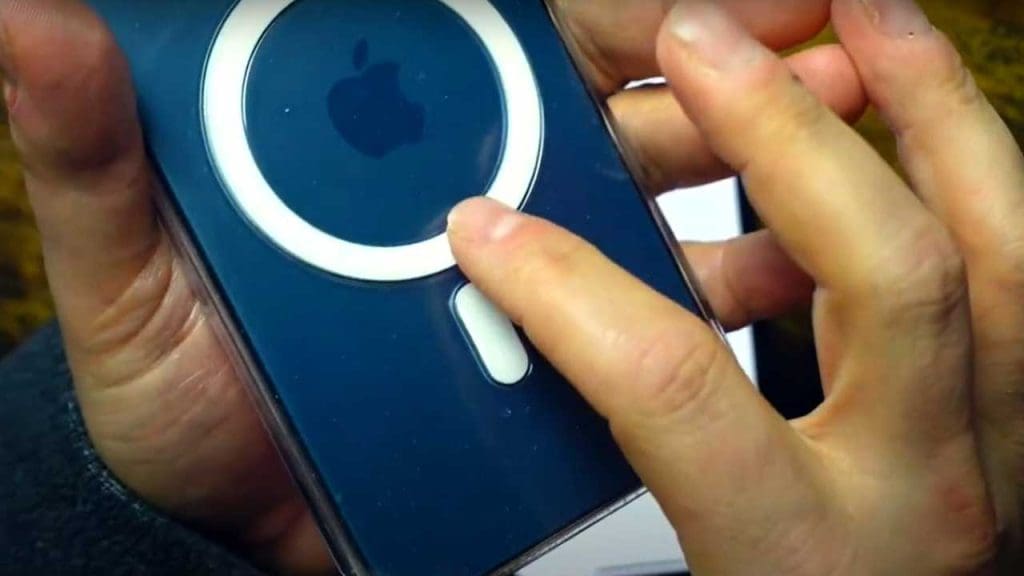
With Back Tap, you can trigger shortcuts by simply tapping the back of your iPhone. This feature allows me to assign tasks like taking a screenshot or opening an app with just two or three taps. It’s a game-changer for efficiency.
To set this up, go to Settings > Accessibility > Touch > Back Tap. Whether you’re launching apps or controlling volume, Back Tap makes multitasking seamless. Explore more on Reddit.
Magnifier Tool
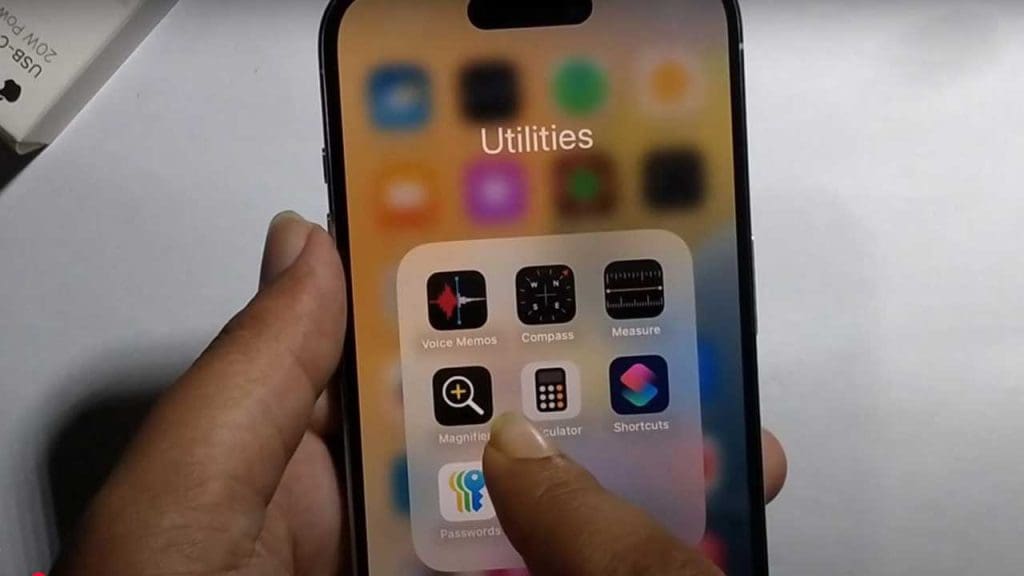
The Magnifier tool transforms your iPhone into a digital magnifying glass. It’s ideal for reading small print or examining details up close. I use it frequently when I forget my reading glasses at home.
Activate it via Settings > Accessibility > Magnifier, and you can access it quickly from the Control Center. It’s one of those features that becomes indispensable once you start using it.
Focus Modes
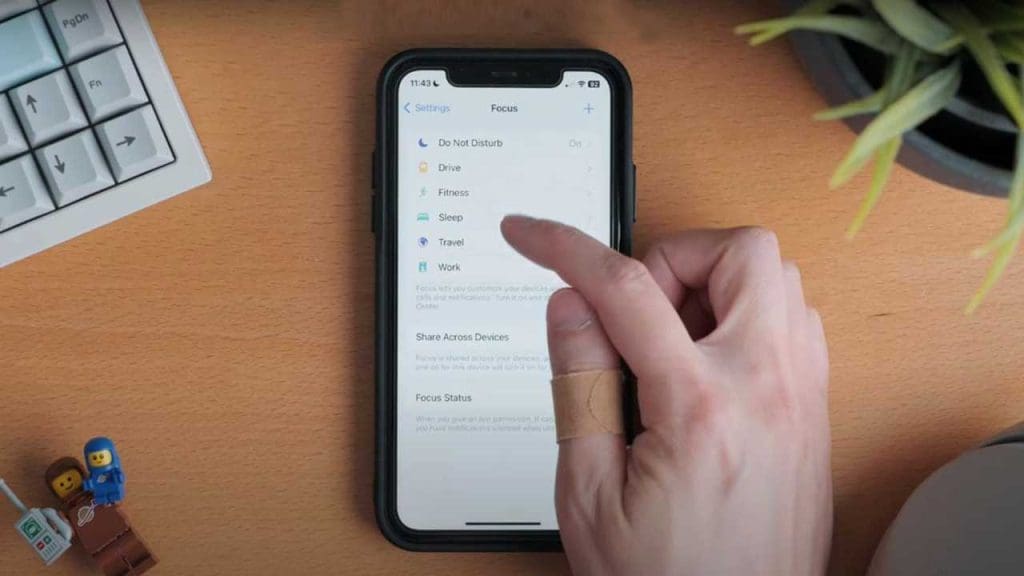
Focus Modes help me minimize distractions by allowing customization of notifications based on my activity. Whether working, sleeping, or exercising, I can tailor which apps and contacts can reach me.
Set up Focus Modes in Settings > Focus. It’s a fantastic tool for maintaining work-life balance and staying productive. Discover more ways to enhance your focus with Tom’s Guide.
Text Replacement
Text Replacement is a lifesaver for those of us who frequently type the same phrases. By creating shortcuts, I can type a few letters and let my iPhone fill in the rest.
To add replacements, head to Settings > General > Keyboard > Text Replacement. This feature streamlines communication, making typing more efficient.
Guided Access
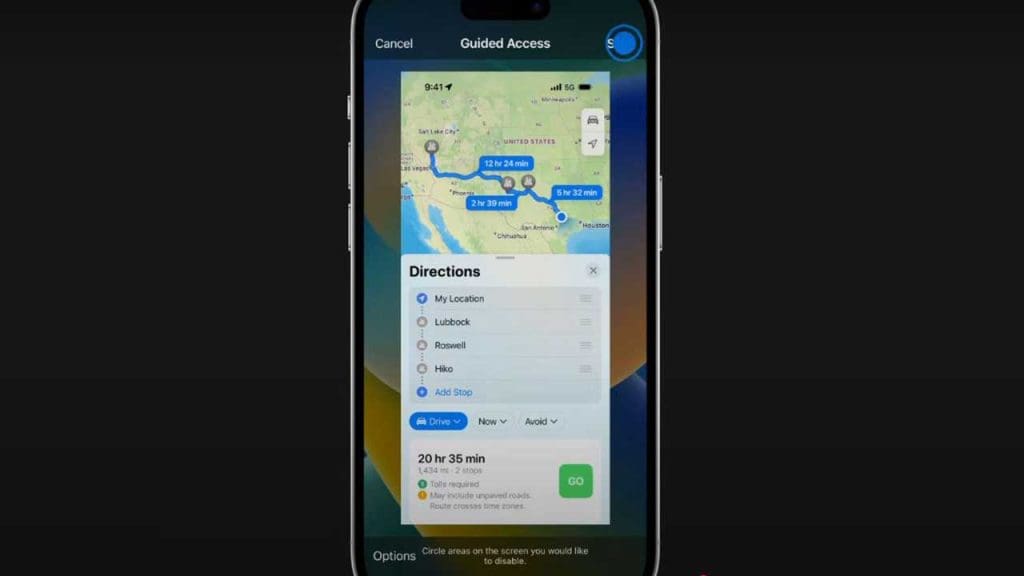
Guided Access limits your iPhone to a single app, which is perfect for keeping curious hands from wandering. I use it to focus on a task without distractions.
Enable it by going to Settings > Accessibility > Guided Access. It’s especially helpful when letting kids use your phone for specific activities.
Sound Recognition
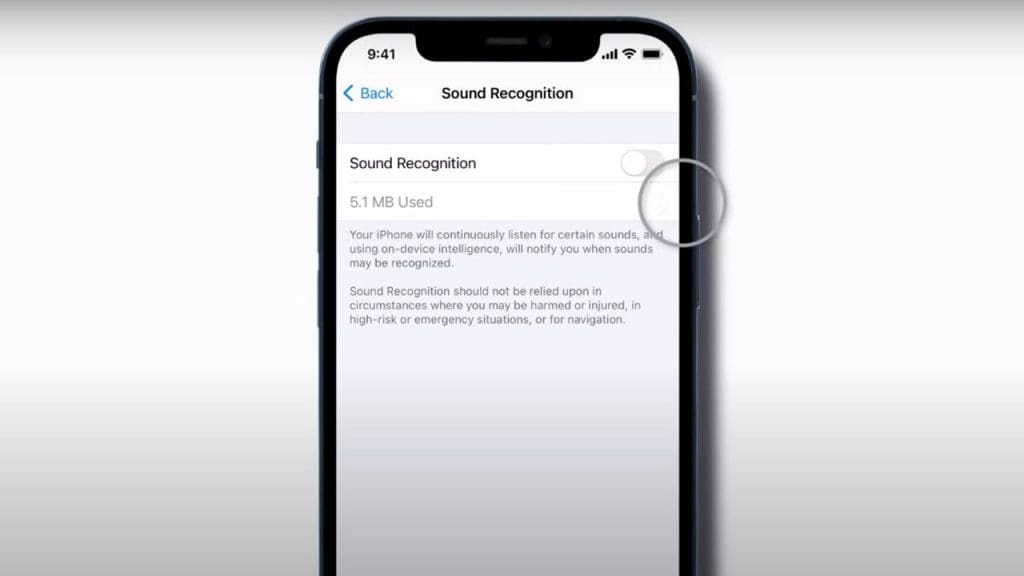
Sound Recognition uses your iPhone’s microphone to alert you to specific sounds like a doorbell or a crying baby. This feature is invaluable for individuals with hearing impairments.
Activate it via Settings > Accessibility > Sound Recognition. It adds an extra layer of awareness, ensuring you never miss important sounds. Learn more about hidden iPhone features.
Custom App Icons
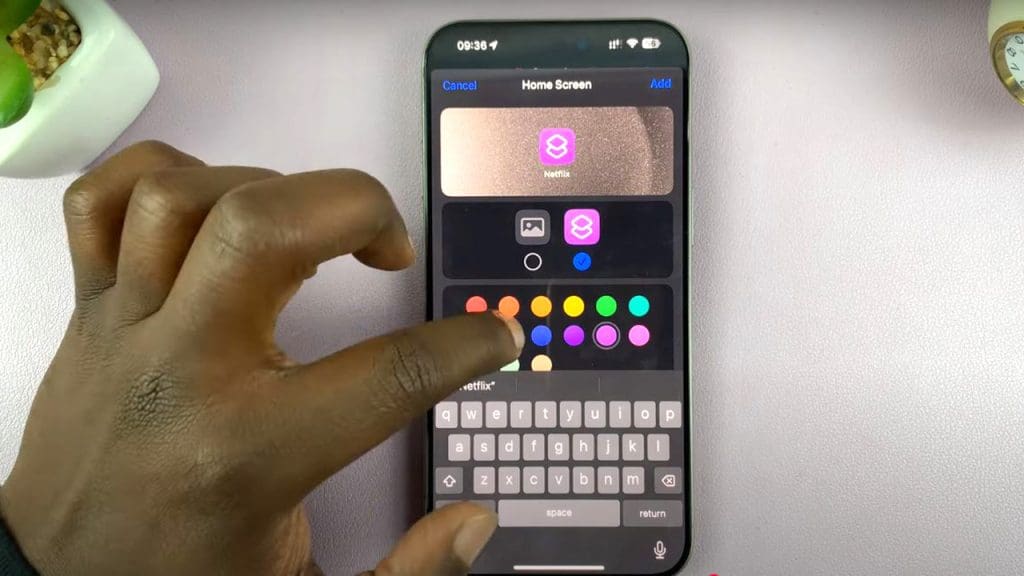
Customizing app icons lets me personalize my iPhone’s home screen to reflect my style. With the Shortcuts app, I can create unique icons for any app.
This feature brings creativity to your device, making it uniquely yours. Experiment with different themes and designs to make your iPhone stand out.
Siri Shortcuts
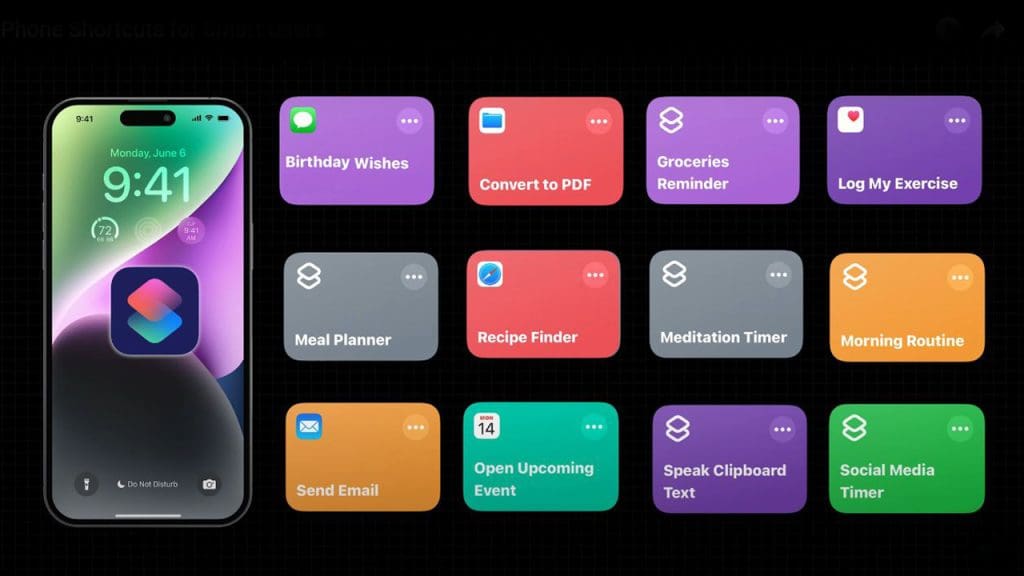
Siri Shortcuts automate routine tasks, making everyday activities more efficient. By setting up shortcuts, I can execute multiple actions with a simple voice command or tap.
Explore them in the Shortcuts app and find ways to streamline your workflow. For more automation tips, check out this comprehensive guide.
These underutilized iPhone features have the potential to transform your device into a more powerful and personalized tool. By exploring and incorporating them into your daily routine, you can enhance your iPhone experience significantly. Don’t let these hidden gems go unnoticed!
