
Optimizing your Mac’s settings can significantly enhance your productivity and user experience. Whether you’re looking to conserve battery life, streamline your workflow, or boost security, these adjustments are worth your time. Let’s explore seven essential Mac settings you might want to change right now.
Optimize Energy Saver Preferences
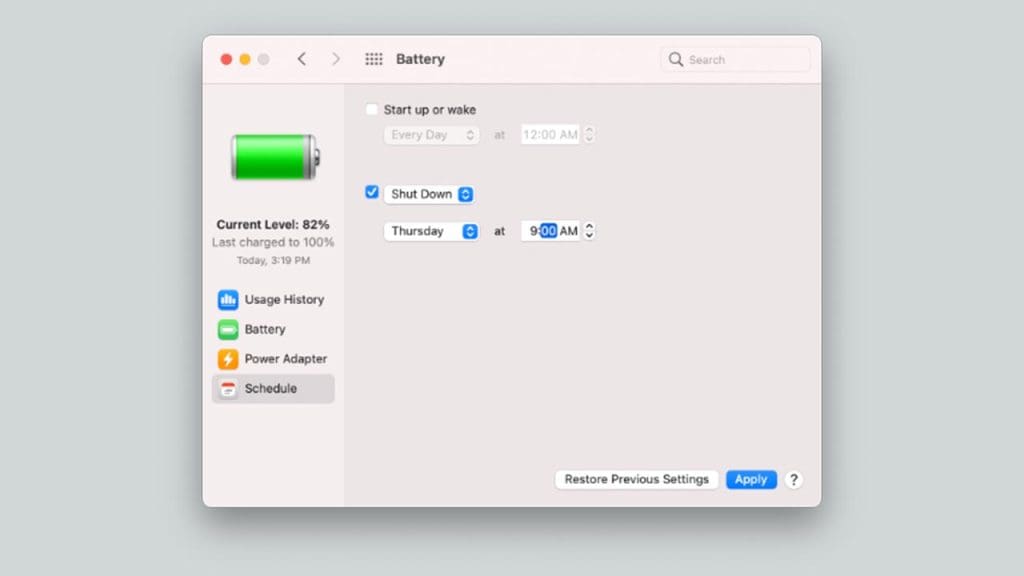
Managing your Mac’s energy saver preferences can extend battery life and improve performance. By adjusting settings such as display sleep and hard drive sleep, you can conserve power during periods of inactivity.
Additionally, enabling ‘Power Nap’ allows your Mac to perform useful tasks like email syncing while in sleep mode. These changes not only save energy but also ensure your device is ready when you are, making them a must for any Mac user.
Adjust Trackpad Gestures

Customizing trackpad gestures can make navigation more intuitive and efficient. Take advantage of the Mac’s multitouch capabilities by enabling or disabling gestures that suit your workflow. Whether it’s three-finger drag, pinch to zoom, or swiping between pages, personalizing these settings can streamline your workflow.
For those new to Mac, experimenting with different gestures can quickly enhance familiarity and fluency with your device’s interface.
Customize the Dock
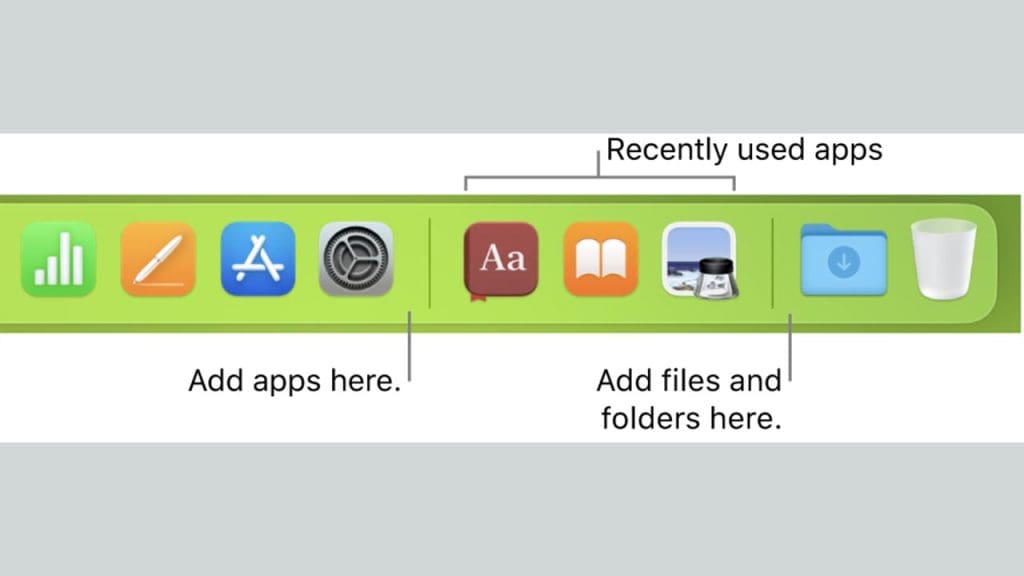
The Dock is your quick access toolbar, and customizing it can save you time every day. Add, remove, or rearrange apps to maintain easy access to frequently used programs. You can also adjust its size and position on the screen.
Experiment with the ‘Magnification’ feature, which enlarges icons as you hover over them, to enhance visibility. A well-organized Dock can simplify multitasking, making your Mac experience more streamlined and efficient.
Enhance Security and Privacy Settings
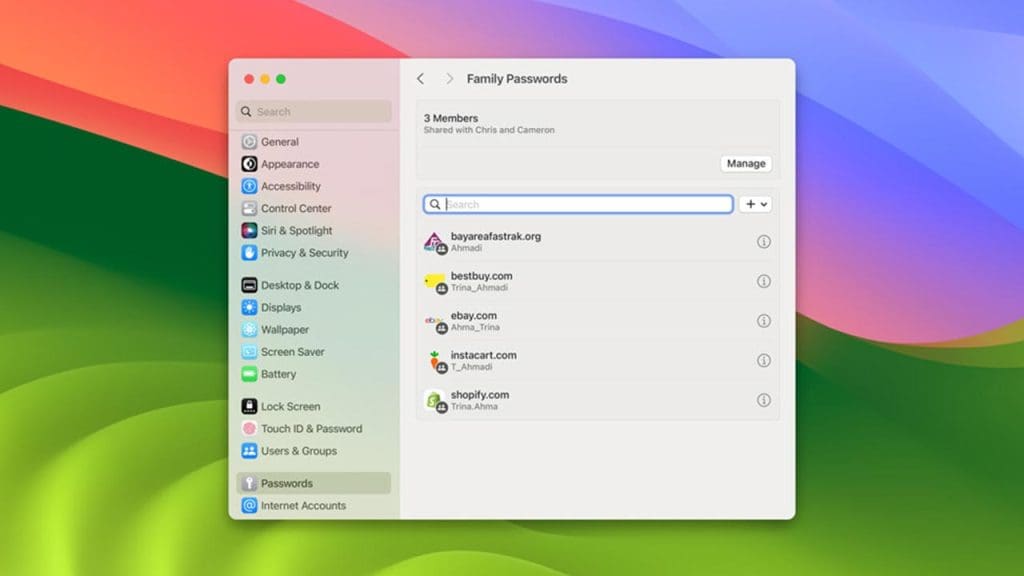
It’s crucial to enhance your Mac’s security to protect personal data. Begin by reviewing settings in the Security & Privacy pane. Activate the firewall, enable FileVault for disk encryption, and adjust app permissions to control what data apps can access.
Regularly updating your macOS ensures that you have the latest security patches, further safeguarding against vulnerabilities. These steps are vital for maintaining the integrity of your personal information.
Personalize Finder Preferences
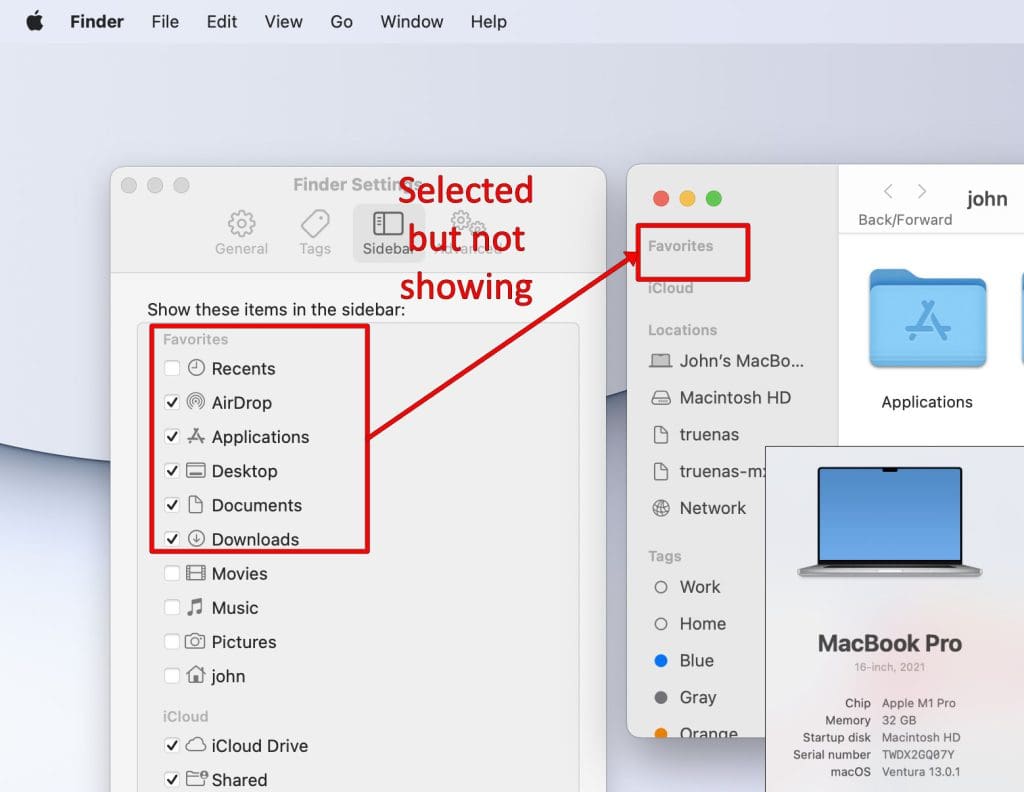
Finder is central to managing files on your Mac, and customizing its preferences can make file navigation more intuitive. Adjust settings to show file extensions, set new window locations, and customize the sidebar for quick access to frequently used folders.
By tailoring Finder to your needs, you streamline your workflow, saving time while keeping your files organized. This level of customization ensures that Finder works for you, not against you.
Tailor Keyboard Shortcuts
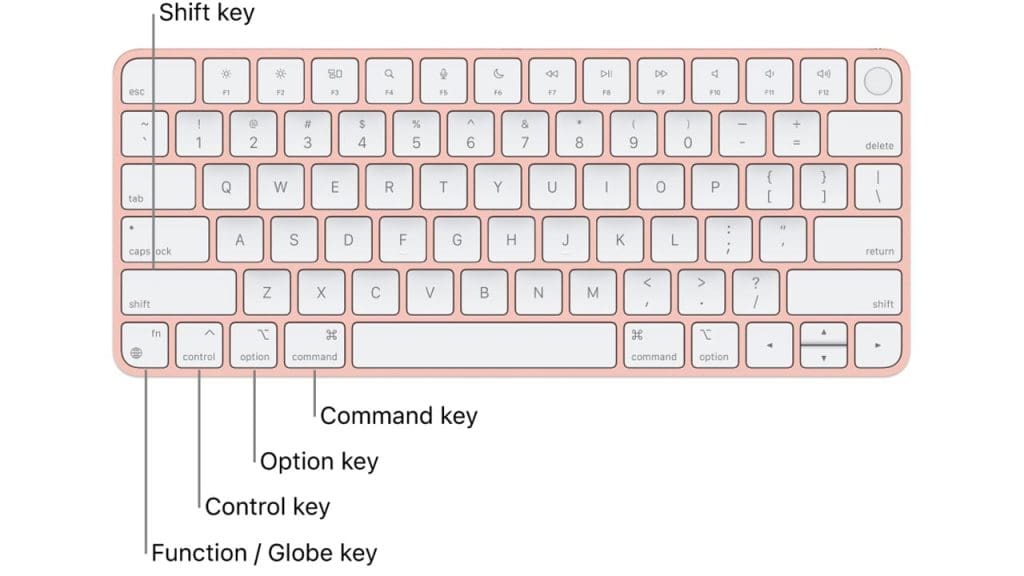
Keyboard shortcuts can dramatically enhance productivity by reducing reliance on the trackpad or mouse. In the Keyboard settings, you can enable shortcuts for specific tasks or create your own. Focus on frequently used commands like switching between applications or taking screenshots.
By tailoring shortcuts to your workflow, you can perform tasks faster and more efficiently, making your Mac experience smoother.
Refine Notification Center Alerts
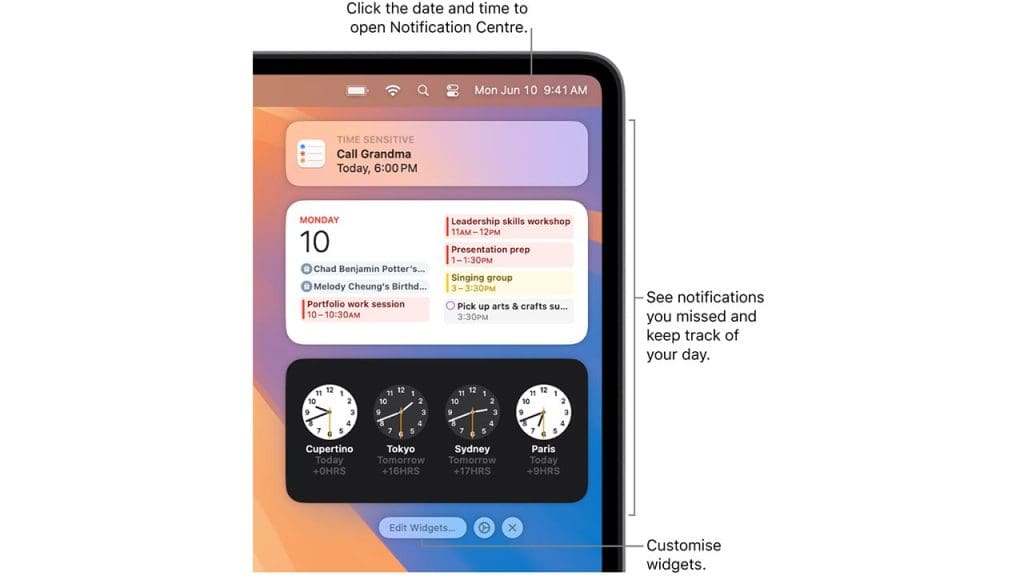
Managing Notification Center alerts can limit distractions and help you stay focused. In the Notifications preferences, control which apps can send alerts and how they appear on your screen. Opt for alerts that are actionable and necessary while reducing those that interrupt your workflow. By refining these settings, you create an environment that supports productivity while keeping you informed about the most important updates.
