
As a tech enthusiast, I understand the allure of Alexa’s vast capabilities. However, some hidden features may compromise your privacy or lead to unintended consequences. Here’s a list of 10 Alexa commands you might want to reconsider using. By doing so, you can ensure a more secure and personalized experience with your smart speaker.
None: Disable Drop-In Feature
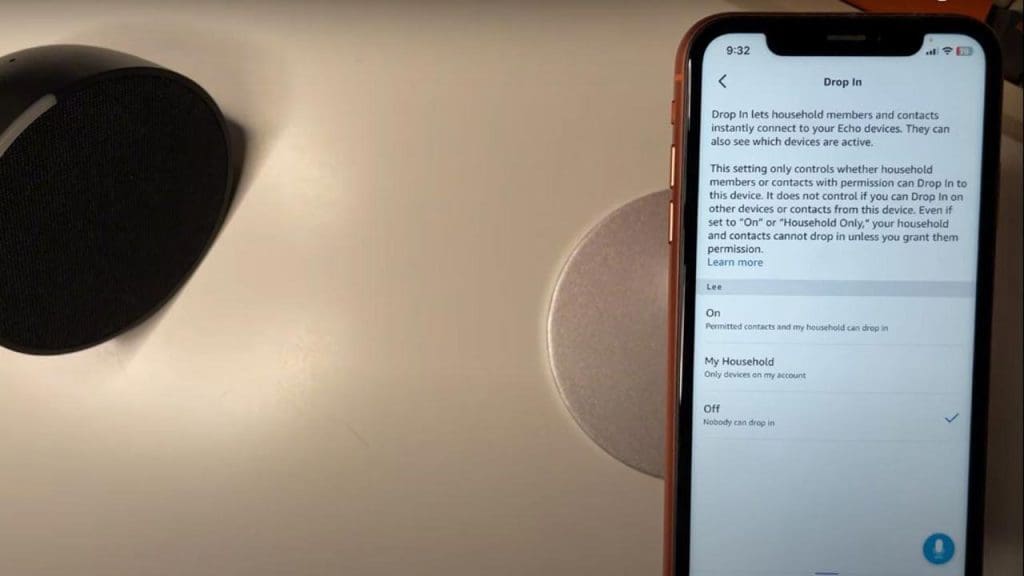
Alexa’s Drop-In feature allows for instant communication, acting like an intercom between Echo devices. While convenient, it poses privacy risks since it enables others to connect to your device without prior approval.
To disable it, open the Alexa app, go to Settings, select your device, and toggle off Drop-In. By doing so, you’ll prevent unexpected interruptions and maintain better control over who can access your device. For more tips on managing Alexa, check out these hidden commands.
None: Turn Off Voice Purchasing
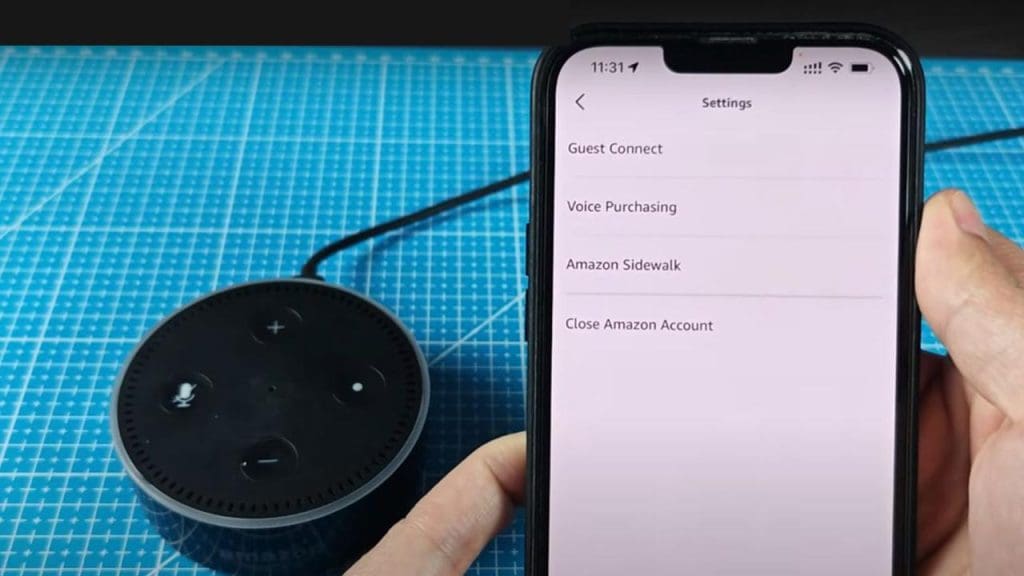
Voice purchasing is a handy feature, but it can lead to unintended purchases, especially if you have young children. To prevent accidental orders, turn off voice purchasing by opening the Alexa app, selecting Alexa Account, and navigating to Voice Purchasing.
Toggle off the feature or set up a voice code for added security. This ensures you won’t be surprised by unexpected deliveries.
None: Limit Permissions for Third-Party Skills
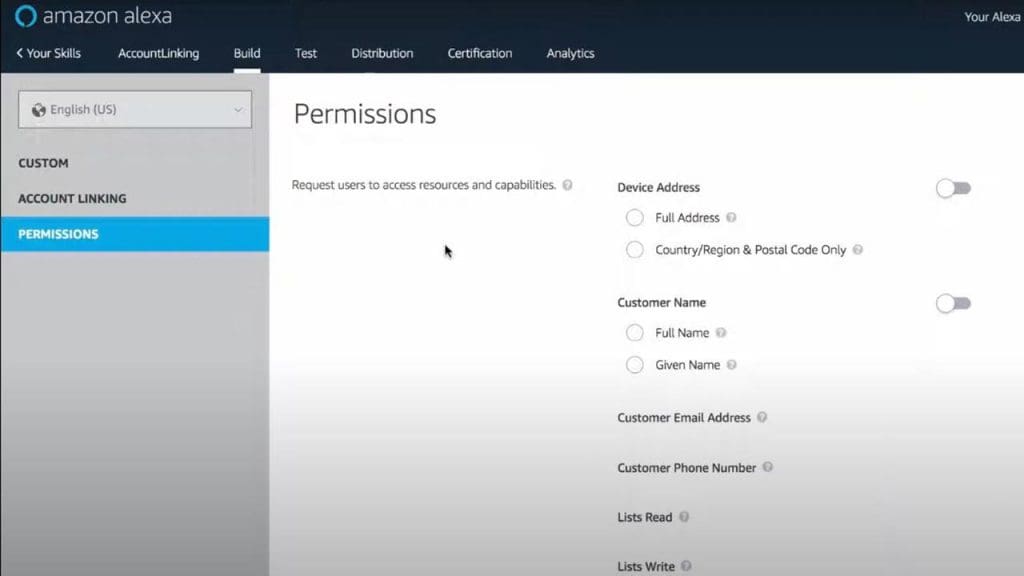
Third-party skills enhance Alexa’s functionality but often require access to personal information. Limit these permissions by reviewing individual skill settings in the Alexa app. Go to Skills & Games, select a skill, and adjust its permissions. This practice safeguards your data and ensures that only trusted skills have access to your information.
For further understanding of Alexa’s capabilities, visit this guide to Alexa commands.
None: Block Explicit Music
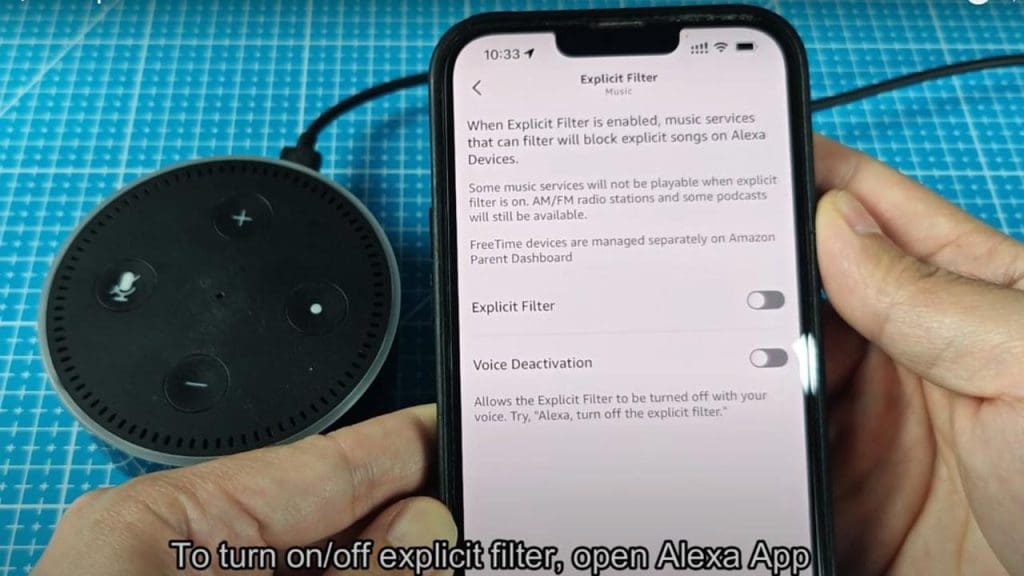
If you have children or prefer cleaner content, blocking explicit music is a smart choice. To do this, open the Alexa app, go to Settings, select Music, and enable the Block Explicit Songs option. This prevents Alexa from playing any tracks with explicit lyrics, giving you peace of mind when listening to music around family members.
None: Deactivate Hunches Suggestions
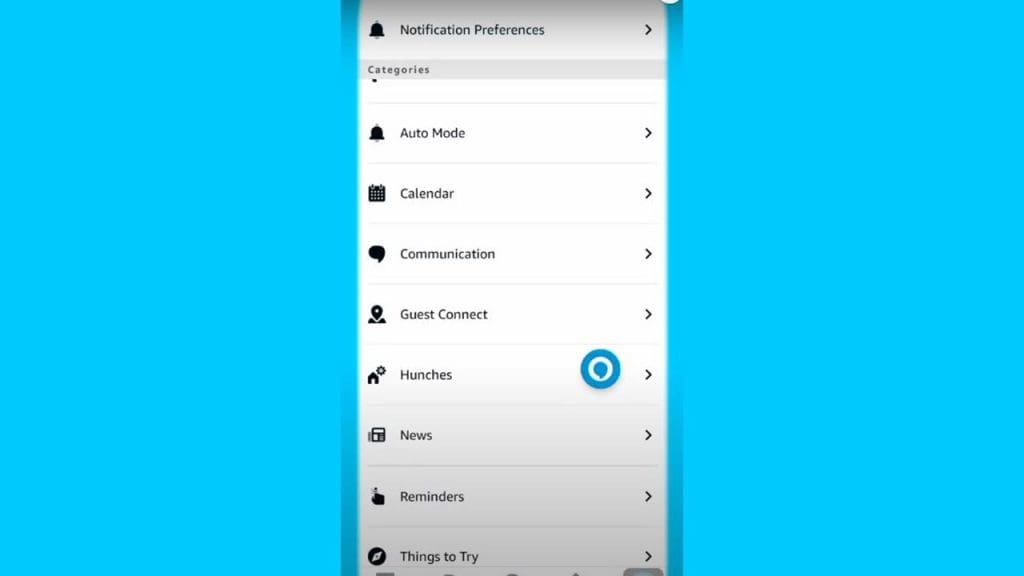
Alexa’s Hunches feature offers suggestions based on your habits, but it can become intrusive. To deactivate it, open the Alexa app, go to Settings, tap on Hunches, and turn it off. Disabling Hunches means you won’t receive unsolicited advice, allowing for a more streamlined interaction with your device.
None: Mute Brief Mode
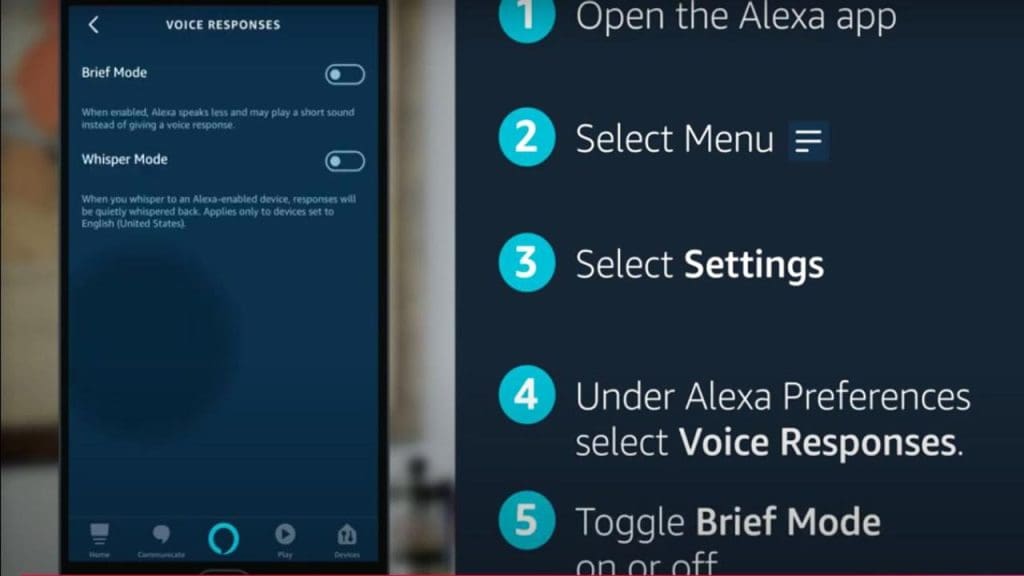
Brief Mode helps reduce Alexa’s verbal responses, but it might cause confusion if you prefer clear confirmations. To mute Brief Mode, head to Settings in the Alexa app, tap Voice Responses, and toggle off Brief Mode. This way, you’ll receive full responses from Alexa, ensuring you’re always in the loop.
None: Stop Automatic Updates

Automatic updates keep your device current, but you might want more control over when they occur. While there isn’t a direct toggle to stop updates, you can manage them by adjusting your device’s settings and ensuring they happen at convenient times. This approach helps avoid disruptions during critical moments.
None: Restrict Location Sharing
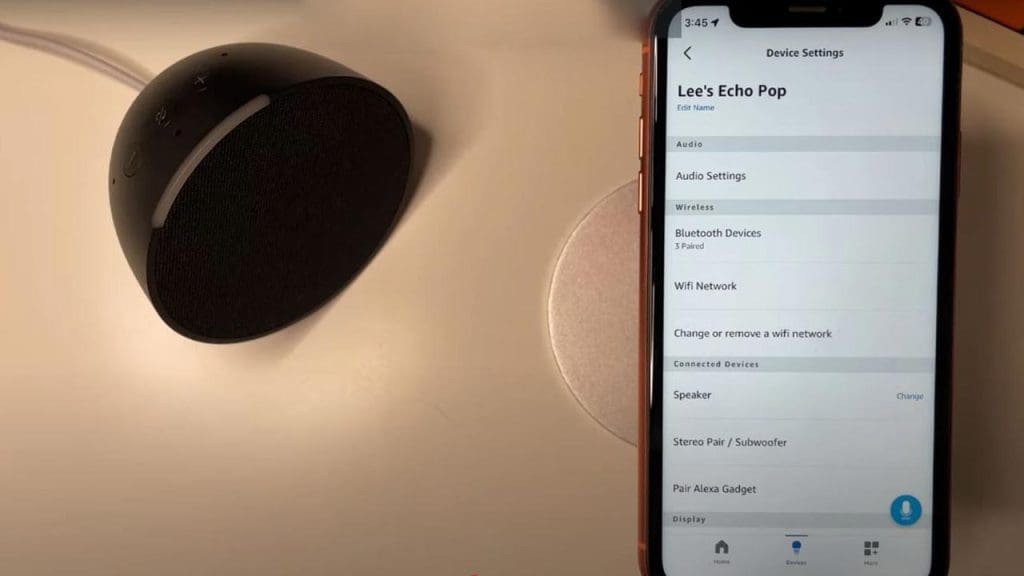
Location sharing can enhance Alexa’s functionality but also poses privacy concerns. Limit this by going to Settings in the Alexa app, selecting your device, and adjusting location permissions. This ensures that Alexa only uses location data when absolutely necessary, protecting your privacy while maintaining functionality.
None: Disable Whisper Mode

Whisper Mode allows Alexa to respond quietly, which might not be suitable for all users. To disable it, open the Alexa app, go to Settings, tap Voice Responses, and toggle off Whisper Mode. This ensures that Alexa responds at a normal volume, preventing any miscommunication due to faint responses.
None: Turn Off Notifications for Deals and Recommendations
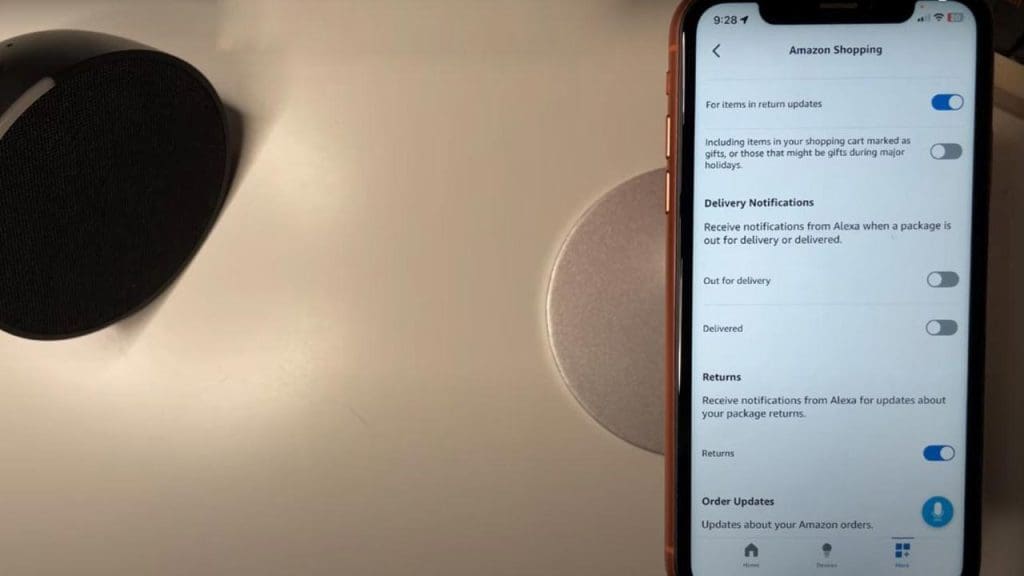
Alexa’s notifications for deals and recommendations can become overwhelming. Turn these off by opening the Alexa app, going to Notifications, and adjusting the settings for specific categories.
This way, you’ll only receive notifications that are relevant to you, avoiding unnecessary distractions. For more fun with Alexa, explore fun questions you can ask Alexa.
