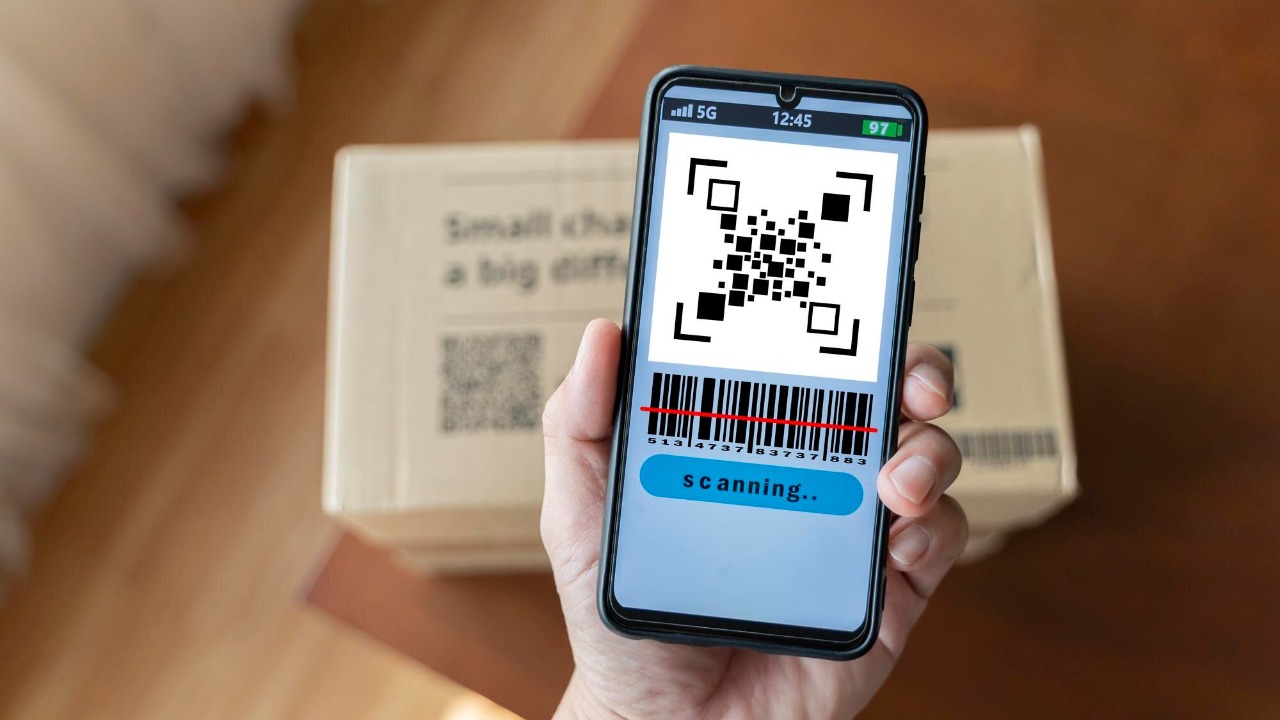

Your smartphone already carries a capable barcode and QR code scanner, tucked into tools you probably open every day. With a couple of taps, you can turn the camera into a fast way to open websites, pull up menus, log into Wi‑Fi, or check product details without installing anything new.
I am going to walk through how to unlock that hidden scanner in seconds on both iPhone and Android, then show practical ways to use it for shopping, travel, work, and security. Once you know where to look, scanning codes becomes as routine as taking a photo.
Why your phone’s camera is secretly a barcode scanner
Modern phones treat barcodes and QR codes as just another kind of visual information, so the same camera you use for photos can also read the patterns and translate them into links, text, or payment details. Instead of relying on separate hardware or clunky third party apps, the operating system now does the decoding in the background and surfaces a simple prompt when it recognizes a code. Guides aimed at everyday users stress that Key Takeaways include the fact that You can use your phone’s camera to scan barcodes and QR codes fast and that you do not need extra apps for basic scanning.
That shift matters because it turns scanning into a default behavior instead of a niche trick. When the camera app itself can recognize codes, you can point it at a restaurant table tent, a parcel label, or a boarding pass and expect the phone to respond intelligently. On both iOS and Android, the system is designed so that you simply open the camera, hold it steady until the code is clear, and then tap the notification that appears, which is why scanning has quietly become part of the standard camera experience rather than a separate feature.
How iPhone turns the Camera app into a code reader
On iPhone, the built in Camera app is the primary gateway to this hidden scanner. When you open Camera on your iPhone and point it at a QR code, the software looks for the square pattern inside the frame and, once it locks on, shows a banner you can tap to open the link or action. Official instructions describe how to Use the camera to read a QR code by choosing Open Camera, then adjusting the view so the code sits clearly in the viewfinder.
The same process is repeated in regional support pages that spell out the steps in more detail. You can Open Camera on your iPhone from the Home Screen, then Position the device so the QR code appears inside the camera frame, at which point a notification appears with a link to the relevant website or app. In practice, that means you can scan a code on a poster, a smart TV screen, or a product box in a couple of seconds without changing modes or digging into settings.
The “hidden” iPhone scanner in Control Center
Beyond the main camera, iOS also hides a dedicated code reader behind a quick shortcut. Instead of launching the full camera interface, this tool opens a streamlined scanner that focuses on reading QR codes and barcodes as quickly as possible. Coverage of iPhone tips notes that Yes, you can already scan QR codes using the shortcut in Control Center, or just open the camera app, and that both of those methods work just fine for everyday scanning.
To make that shortcut truly feel like a hidden app, you can customize the pull down menu on newer iPhones. On most Apple devices, you swipe down from the top right corner of the screen to open Control, then add the code scanner tile so it is always one gesture away. Guides that walk through this process explain that on most Apple devices you can adjust Control settings and tap Add next to the code scanner option, which effectively pins the scanner to your quick controls.
Three fast ways to scan codes on iPhone
Once you know where to look, iPhone actually offers several parallel routes to the same result, which is helpful if you are juggling the phone one handed or working from the Lock Screen. The most obvious is to open the Camera app, point it at the code, and wait for the banner to appear, but you can also swipe to access shortcuts that jump straight into scanning. Step by step tutorials on Scanning QR and Bar Codes on iPhone describe how, Once you have the code inside the brackets on your screen, the phone automatically recognizes it and surfaces the relevant action.
Apple’s own documentation reinforces that you can Open the Camera app from the Home Screen, Lock Screen, or Control Centre, or from the Camera Control on supported models, which gives you flexibility in how you start a scan. The instructions to Open the Camera from the Home Screen, Lock Screen, Control Centre, or Camera Control make it clear that you do not need to unlock the phone fully or hunt for an app icon, you can simply wake the device, swipe, and be scanning in seconds.
Android’s built in QR and barcode tools
On Android, the story is similar, although the exact path can vary slightly between manufacturers. The core idea is that the default camera app can recognize QR codes and, on many devices, standard barcodes as well, then show a small prompt you can tap to open a website, payment link, or product page. Official guidance on Scanning QR codes on Android explains that you open your camera app, point it steadily at the code, and then tap the notification that appears at the bottom of your Android device when the system recognizes it.
Those same instructions emphasize that you do not need a separate scanner app for most situations, because the camera is already tuned to look for both objects and QR codes. When you want to scan QR codes, you simply follow the prompt that appears after the camera has focused, and at that point a notification with the relevant details will pop up, whether it is a website, payment link, product information, or contact card. The reminder that you can use the camera for both objects and QR codes is repeated in the section that begins with “Want to scan QR codes,” which underlines how deeply this capability is now baked into Android.
Pixel shortcuts: Quick Settings and automatic detection
Google’s own Pixel phones add another layer of convenience with a dedicated quick toggle. Instead of opening the camera first, you can pull down the notification shade and tap a button that jumps straight into scanning mode, which is particularly handy when you are boarding a train or paying at a kiosk. The official camera help describes how to Use the Quick Settings button by opening Quick Settings, then choosing Tap Scan QR if you see it in the grid.
Once you are in the camera view, the phone does most of the work for you. You simply hold the device so the code is visible and then Wait for a moment while the software analyzes the image. The documentation notes that Wait for a moment, Your camera automatically recognizes the code and shows a bubble or link on the screen, which you can tap to open the associated content. In practice, that means scanning a Wi‑Fi code in a café or a login code on a laptop screen becomes a one tap action.
Android 14 and Pixel 8: scanning without extra apps
With Android 14 and devices like the Pixel 8, Google has leaned even harder into making QR scanning feel like a system level feature. The built in QR code reader is presented as a quick and easy way to scan codes without installing anything from the Play Store, and it is tied directly into the operating system’s security and permissions model. A community support video that walks through how to scan QR codes on Pixel 8 highlights that if you are looking for a quick and easy way to scan QR codes, then the built in QR code reader in Android 14 is a good option because it works out of the box.
In my experience, this integration matters because it reduces the temptation to download random scanner apps that may collect more data than you expect. When the system camera and quick toggles already handle the basics, you can stick with the tools that are maintained as part of the core Android updates. That is especially relevant on phones like the Pixel 8, where Google controls both the hardware and software and can tune the scanning behavior to be fast, accurate, and consistent across updates.
Turning your Android phone into a point of sale helper
Beyond casual scanning, Android phones can also stand in for dedicated barcode readers in small retail or inventory settings. When paired with the right software, the camera becomes a way to log items, check prices, or move stock without investing in separate handheld scanners. Setup guides for business tools describe how, once you have configured the app, you can tap the 123 button in the bottom left of the keyboard to switch to a compact numeric keypad that will not get in the way of the screen while you continue to scan the next item, which is a small but important detail for speed. That specific instruction about the 123 button shows how the interface is optimized for repeated scanning.
Using a phone this way can be particularly useful for pop up shops, market stalls, or back room stock checks where every extra piece of hardware is one more thing to charge and carry. Because the camera is already capable of reading standard retail barcodes, the main task is to ensure the app you choose can interpret those codes into product records or transactions. Once that is in place, the phone effectively becomes a pocket point of sale helper that can move between roles, from scanning items on shelves to checking a QR based loyalty card at the counter.
Everyday scenarios where the hidden scanner saves time
Once you start thinking of your phone as a scanner that happens to take photos, a long list of everyday uses opens up. At restaurants, QR codes on table tents or receipts can pull up menus, tip options, or loyalty programs without touching a shared kiosk. On public transport, codes on station posters or ticket machines can link directly to schedules, mobile ticket purchases, or delay alerts, which is often faster than navigating through a website manually. Because the camera can recognize both QR codes and traditional barcodes, you can also point it at product packaging to compare prices or read detailed specifications before you buy.
There are also quieter but equally useful scenarios at home and at work. Many modern routers print a QR code on the label that encodes the Wi‑Fi network name and password, so a quick scan can connect a guest phone without typing anything. Two factor authentication apps and password managers increasingly offer QR based setup, where you scan a code on your computer screen to link a new device or account. In all of these cases, the same underlying behavior applies: you open the camera or quick scanner, hold it steady until the code is clear, and then tap the prompt that appears, relying on the system level tools described in the Key Takeaways for fast, app free scanning.
More from MorningOverview