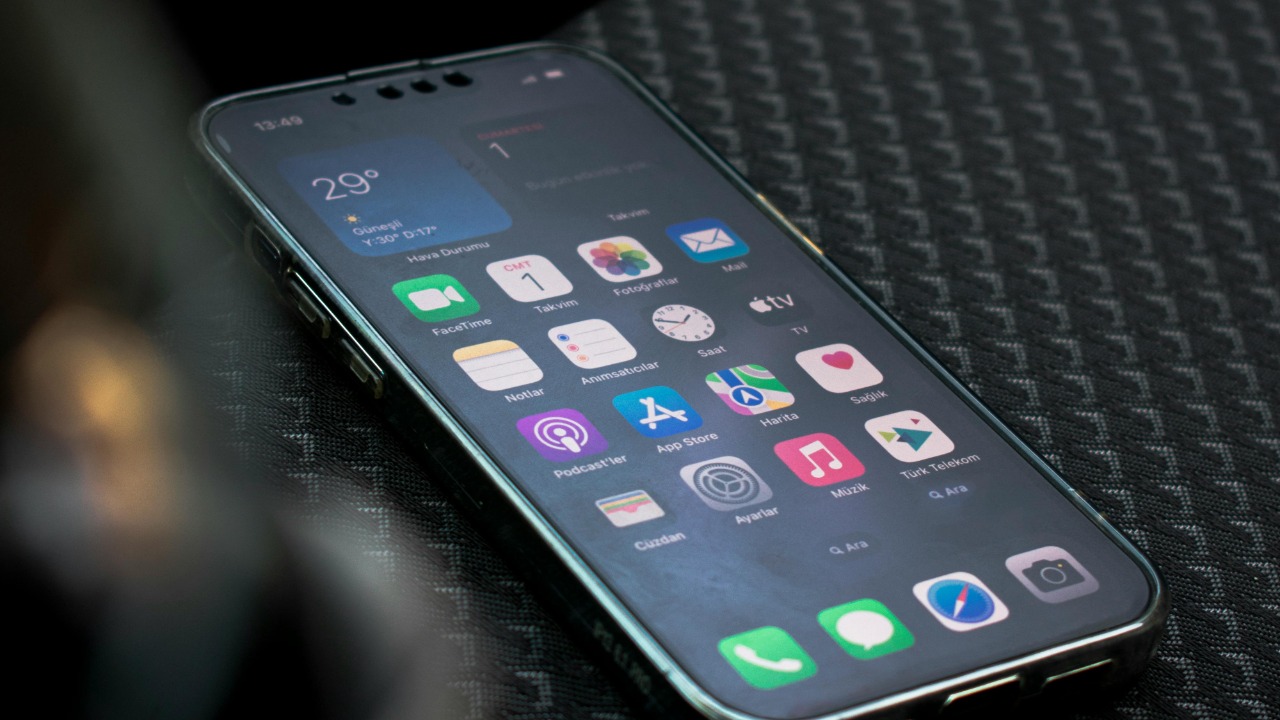

Apple removed the physical Home button from its flagship iPhones years ago, but the core idea never really went away. Buried inside the Accessibility settings is a floating control that can behave almost exactly like the old hardware key, complete with a single tap to go Home and shortcuts for your most-used actions. With a few tweaks, that virtual button can make modern iPhones feel faster, more comfortable and, for some people, far more usable.
At the center of this is AssistiveTouch, a feature designed for people who find complex gestures or physical buttons difficult, but which quietly doubles as a customizable on-screen Home control. Once it is switched on, you can park a small, movable button on any edge of the display and turn it into a one-tap hub for navigation, screenshots, volume and more.
From missing Home button to hidden replacement
When Apple shifted to all-screen designs, starting with the D22 iPhone that introduced the so-called home indicator, the company effectively replaced the old circular key with swipe gestures and a thin bar that could be hidden during some activities. Earlier reporting on that D22 software made clear that, Instead of a mechanical switch, Apple wanted a virtual layer that could disappear when you were watching video or playing games. For many users, that transition felt natural, but for anyone who relied on the tactile certainty of a button, the change was jarring.
What often gets missed is that Apple shipped a safety net at the same time. AssistiveTouch, originally built so people with motor challenges could adapt the touchscreen to fit their needs, can place a persistent button on the display that behaves like a classic Home key. Apple’s own documentation explains that Use of this feature starts in Settings, under Accessibility and Touch, where turning it on immediately drops a small circular control onto the screen.
How AssistiveTouch becomes a virtual Home button
At its core, AssistiveTouch is a software layer that turns taps into shortcuts, so it is perfectly suited to recreating the feel of a Home button. Apple notes that when you Turn it on, You can drag the button to any edge of the screen and leave it there until you move it again, which means you can park it exactly where your thumb expects a button to be. By default, tapping that icon opens a menu with options like Home, Control Center and Siri, but the real power comes from changing what a single tap does.
Guides aimed at everyday users spell this out in practical terms. One walkthrough explains that AssistiveTouch is an accessibility feature that lets you create a virtual Home button and then set what happens when you tap, double tap or long press it, advising people to Turn the feature on and assign Home to the primary action. Another section of the same guidance shows how to Revive the feel of the old key by mapping Home to a single tap, App Switcher to a double tap and Screenshot to a long press, effectively turning one floating control into a three-in-one navigation tool.
Step-by-step: surfacing the hidden button
Turning this hidden control into something you use every day takes less than a minute. Tutorials consistently start in the same place, telling you to open the Settings app, Scroll down to Accessibility, then, Inside the Accessibility menu, tap Touch to find the AssistiveTouch toggle. Apple’s own support pages echo that path and emphasize that once you switch it on, a Use case opens up where You can use AssistiveTouch to adjust volume, lock your screen or replace gestures that require complex onscreen swipes.
Video creators have boiled the process down even further. One short clip walks through how to get a Home button on any iPhone by opening Settings, using search to find Accessibility and then toggling AssistiveTouch, with the host noting that Jun users can activate the onscreen Home button in seconds. Another tutorial from Jun shows that you can add a customizable Home button on your iPhone screen, calling it an AssistiveTouch menu and demonstrating how Jun viewers can drag it around and tailor the shortcuts inside it. A separate short explains that you can add a virtual Home button on your iPhone screen, stressing that it is called assistive touch and that, besides acting as a Home button, it can trigger other actions, something the creator highlights for Jun audiences who miss the old layout.
Why a floating Home button still matters in 2026
On paper, swipe gestures are more modern, but a persistent on-screen control can be faster and more forgiving in real life. One detailed explanation of AssistiveTouch points out that You can use it to perform multi-finger gestures, open Siri, control volume and more, framing it as a way to handle tasks that would otherwise require precise swipes or multiple button presses, and urging people to Accessibility settings as a toolkit rather than a last resort. Another overview of iPhone features in 2026 goes further, telling readers to Think of AssistiveTouch as an on-screen control hub that can simplify gestures, give you quick access to system actions and make one-handed use easier, especially on larger devices like the iPhone 15 Pro Max.
There is also a strong nostalgia factor. One Reddit user described an Old home button simulation for their father, who is still on an 8 Plus and refuses to give up the familiar feel, explaining in the TLDR that the trick is to use the action button as a Home button and, crucially, to Old instructions that say go to settings → accessibility → assistive touch → and configure the shortcut. For people like that, the floating button is not just a convenience, it is a bridge between the muscle memory of older hardware and the realities of modern all-screen phones.
Customizing the button for speed and comfort
Once AssistiveTouch is visible, the next step is to tune it so it feels like a natural part of your phone rather than an add-on. Apple’s support material explains that you can go into the AssistiveTouch settings and assign custom actions to single tap, double tap and long press, and that you can drag the button to any edge of the screen where it will stay until you move it again, a level of control detailed in the section that begins with Accessibility and Settings. Another Apple support page notes that with AssistiveTouch on iPhone, you can adapt the touchscreen to fit your needs, and that you can go to Settings, then Accessibility, then Touch to turn it on so the Use of the button appears on the screen exactly where you want it.
Third-party explainers show how far you can push that customization. One breakdown of the feature notes that AssistiveTouch also helps you easily go Home, just like the physical button would, but instead of a fixed key you have a virtual control that you can move pretty much anywhere across your screen, and that to go Home you simply press the icon once after setting Home as the primary action, a behavior described in detail when discussing how Feb users can get the old behavior back. The same guidance points out that there are several benefits to using AssistiveTouch, including the ability to set a Custom Action and choose Home, which is highlighted in a section explaining that Feb readers can reduce wear on physical buttons and streamline navigation.
More from Morning Overview