
Struggling with slow internet can be incredibly frustrating, especially when you’re trying to work, stream, or game. Various factors can contribute to sluggish speeds, but luckily, many of them are easily fixable. Here are seven common reasons your home internet might be slow and what you can do to speed it up.
1) Outdated Equipment
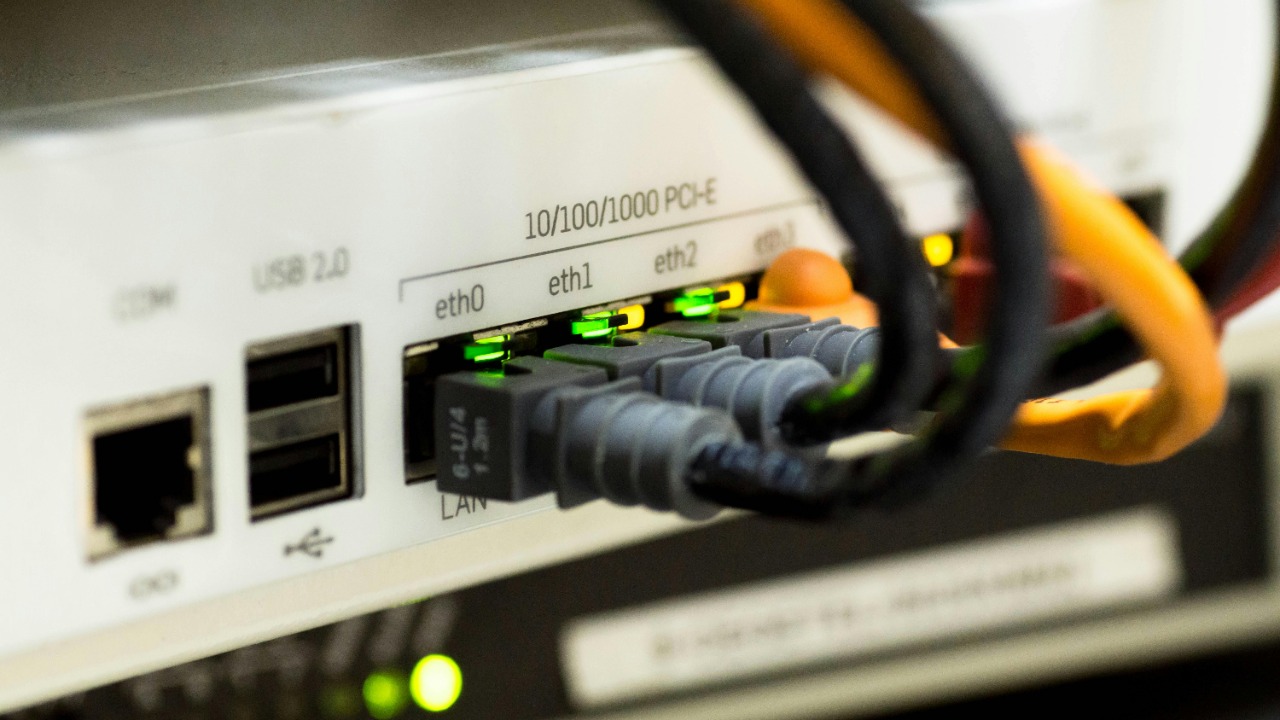
Old routers and modems can severely limit your internet speed. Technology evolves rapidly, and your equipment might not support the latest internet standards. Upgrading to a newer model can improve performance and ensure compatibility with faster speeds. If you’re unsure whether your equipment is outdated, check your manufacturer’s website for the latest models and compare their capabilities with your current setup.
Consider investing in a dual-band or tri-band router. These devices can handle multiple devices more efficiently, reducing congestion on your network. If you need help choosing a new router, check out CNET’s guide for optimizing WiFi in your apartment.
2) Interference from Other Devices

Electronic devices such as microwaves, cordless phones, and Bluetooth gadgets can interfere with your WiFi signal. This interference can lead to slower internet speeds and intermittent connectivity issues. Try to keep your router away from such devices and consider changing its channel settings to minimize interference.
Most modern routers automatically choose the best channel, but you can manually set the channel in your router’s settings for potentially better results. For more details on dealing with interference, visit CNET’s troubleshooting tips.
3) Overloaded Network

If everyone in your household is online simultaneously, your network might be overloaded, leading to slow speeds. Streaming, gaming, and downloading large files consume significant bandwidth and can slow down your connection. You can manage this by limiting the number of devices connected to your network or scheduling bandwidth-intensive activities during off-peak hours.
Consider using Quality of Service (QoS) settings on your router to prioritize traffic for certain applications or devices. This ensures that critical applications get the bandwidth they need. Learn more about managing network load in this academic study on bandwidth management.
4) Poor Router Placement
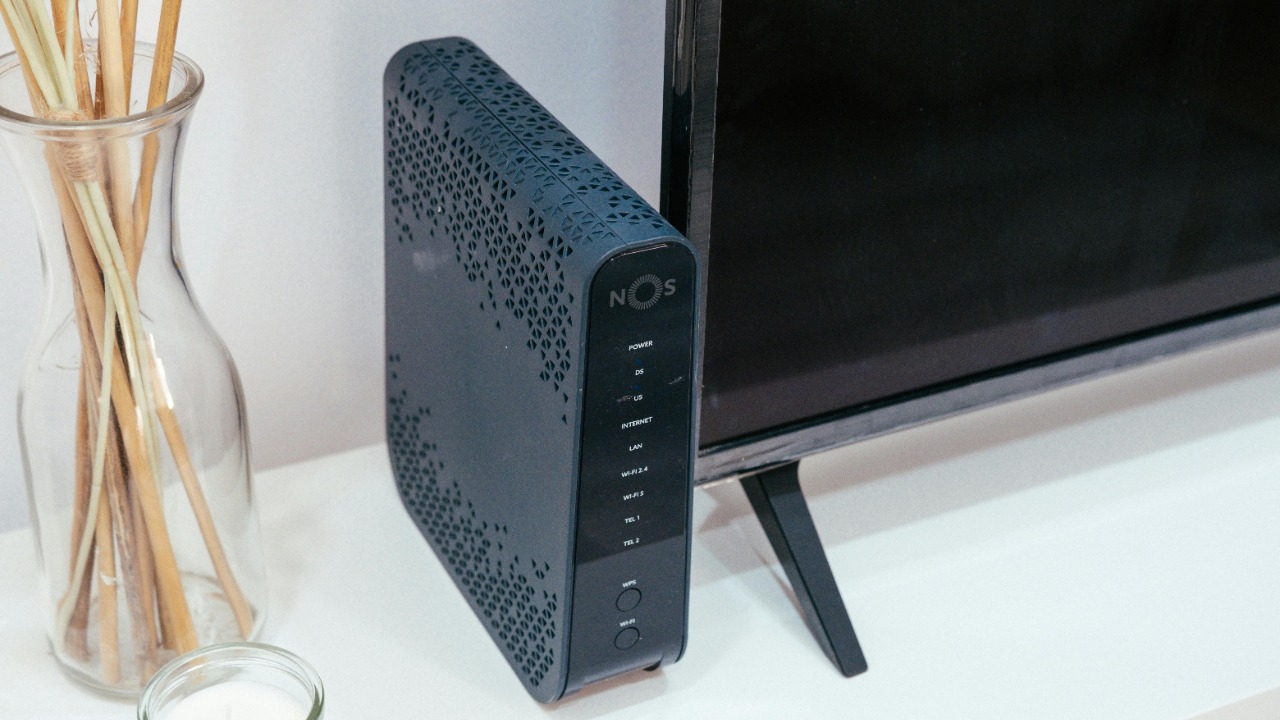
Your router’s placement can significantly impact your internet speed. If it’s tucked away in a corner or blocked by walls, your signal might not reach all areas of your home effectively. Place your router in a central, elevated location for optimal coverage throughout your home.
Avoid placing your router near thick walls, metal objects, or mirrors, as these can obstruct signals. If you’re experiencing dead zones, consider installing a WiFi extender or mesh network to improve coverage. For more tips on router placement, check out this CNET article.
5) Internet Plan Limitations
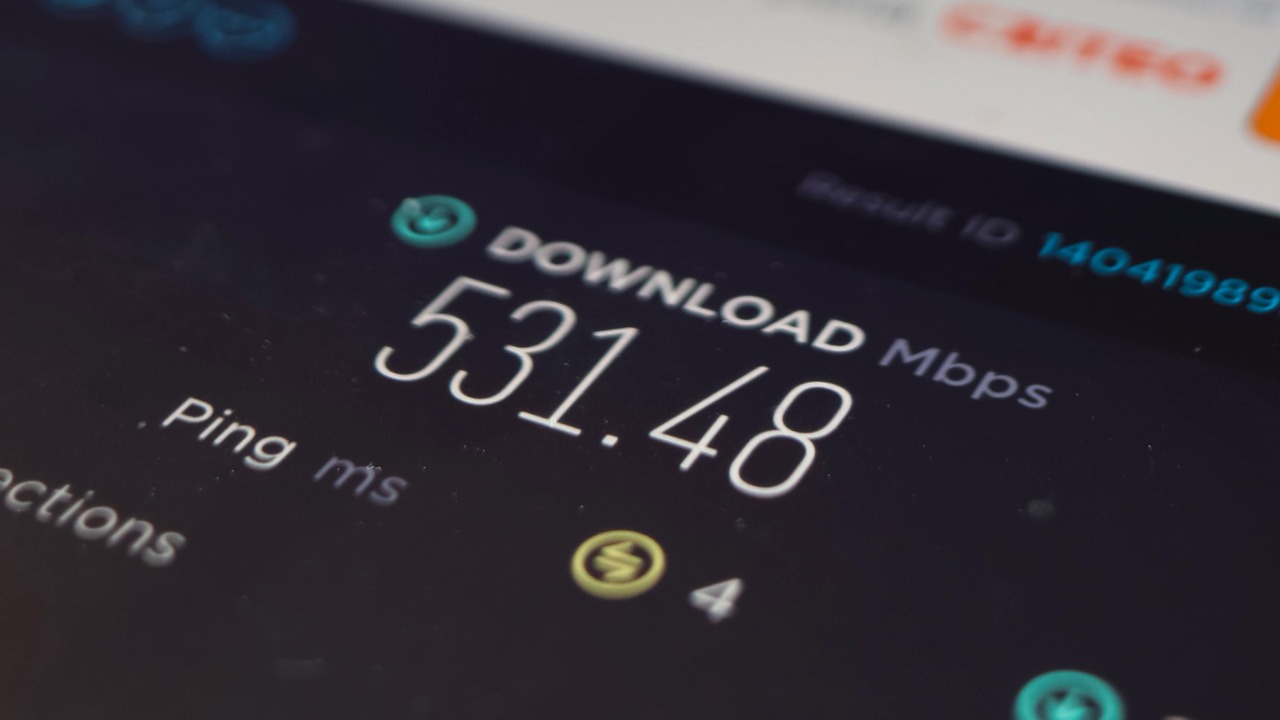
Your internet speed might be slow because of your service plan’s limitations. Many providers offer tiered plans with different speed caps, and you may have outgrown your current plan. Check your plan details and consider upgrading if your usage exceeds its limits.
If you’re unsure whether your provider is throttling your speeds, learn more about how to detect and stop throttling in this CNET guide. You may need to contact your provider to discuss options or switch to a plan that better suits your needs.
6) Malware or Viruses

Malware and viruses can hijack your bandwidth, leading to slower internet speeds. Regularly scan your devices with reliable antivirus software to detect and remove any harmful programs. Keeping your software up to date is crucial for protecting against new threats.
Consider using a VPN for added security, but be aware that some VPNs can cause connectivity issues if they frequently disconnect. If you’re experiencing this problem, consult this guide on VPN disconnection issues for potential solutions.
7) Network Configuration Issues

Incorrect network settings can also contribute to slow internet speeds. Check your router’s configuration to ensure it’s optimized for your specific setup. You may need to update firmware or adjust settings like MTU size and DNS servers.
Resetting your router to factory settings and reconfiguring it can resolve persistent issues. However, ensure you back up your current settings before making any changes. For a deeper understanding of network configurations, explore this research study on network management.
