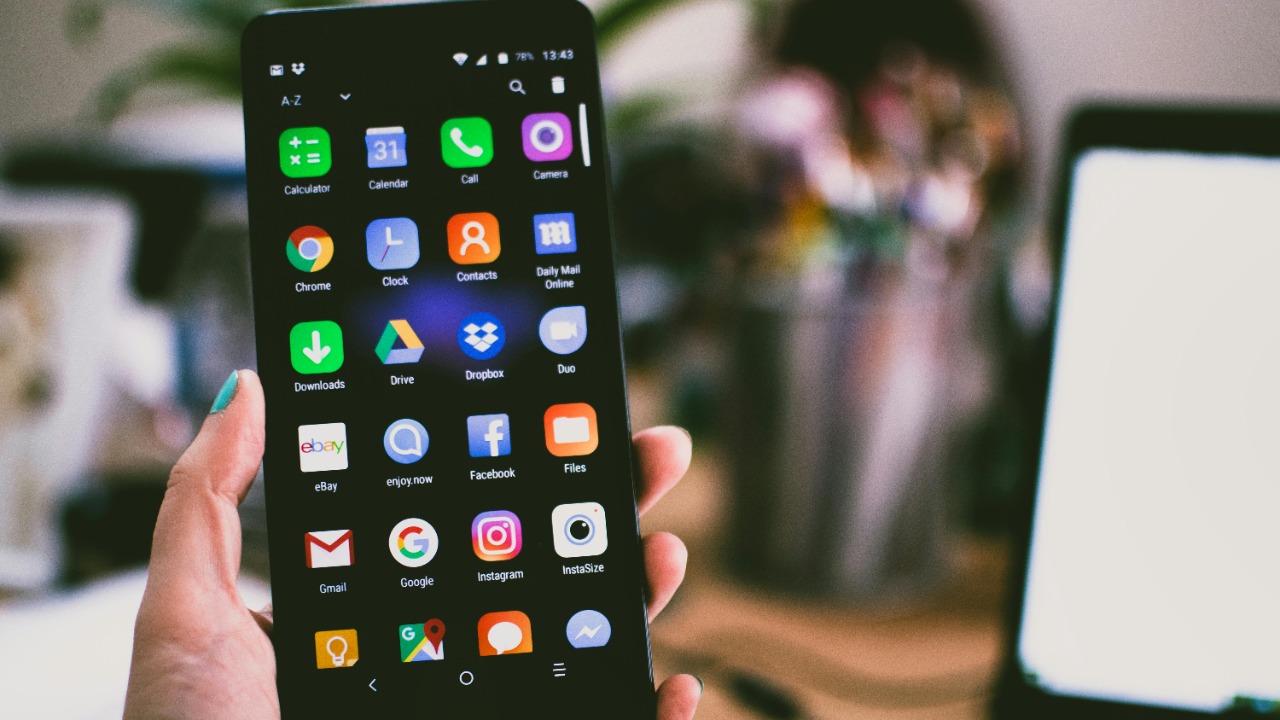

Android phones rarely slow down overnight. Performance usually erodes in small, frustrating steps as apps pile up temporary files, browsers hoard old images, and the system juggles more cached data than it can comfortably handle. Clearing that clutter is one of the fastest ways to restore some snap to an aging device, and it is a fix that does not require a factory reset or a new phone.
I see cache maintenance as basic hygiene for any Android user, on the same level as installing updates or deleting unused apps. With a few minutes in Settings and a couple of targeted tools, you can reclaim storage, cut down on random glitches, and keep slowdowns from becoming a permanent condition.
Why cache builds up and drags Android down
Every time you open Instagram, scroll Google Maps, or refresh Gmail, your phone quietly saves bits of data so those apps can load faster next time. That cached information is useful, but over weeks and months it can swell into gigabytes of thumbnails, temporary files, and outdated data that your device still has to index and manage. When storage gets tight, Android spends more time shuffling those files around, which is one reason a phone that felt quick out of the box can start to stutter when you open the camera or switch between apps.
Security and performance guides on how to Clear Cache on Android describe this buildup as a predictable side effect of everyday use, not a sign that anything is broken. They point out that cached data lives in a separate area from your photos or documents, so clearing it is a low risk way to free space and reduce the workload on your phone’s storage system. The key is to target the right caches, at the right time, instead of nuking everything out of habit.
When clearing cache actually speeds things up
Not every slowdown is a cache problem. If your phone is overheating, running dozens of apps at once, or struggling with a weak signal, clearing temporary files will not magically fix those issues. Where cache cleaning does help is when specific apps feel sticky, animations lag as storage fills up, or the browser takes longer than it should to load sites you visit daily. In those cases, trimming cached data can remove corrupted files and give Android more breathing room, which often translates into smoother scrolling and faster app launches.
Performance advice on how to make an Android phone faster puts cache management alongside other basics like restarting the device and uninstalling bloatware. The same guidance stresses that clearing cache is not a one-time miracle but part of ongoing maintenance, especially on phones with limited internal storage where even a few hundred megabytes can make the difference between a responsive system and one that constantly pauses to think.
Start with a simple restart before you dig into settings
Before I touch any settings menu, I usually start with the most old-fashioned fix available: a restart. Power cycling an Android phone flushes temporary memory, closes background processes that may have gone rogue, and can clear minor glitches that feel like slowdowns but are really just stuck tasks. It is surprising how often a device that feels hopelessly bogged down perks up after a clean reboot.
Guides on why an Android phone feels slow consistently put Restarting near the top of the troubleshooting list, precisely because it is quick, safe, and does not touch your stored data. If a restart brings only a brief improvement or no change at all, that is when it makes sense to move on to more targeted cache clearing for individual apps and the browser.
Clearing app cache from Android Settings
The most controlled way to deal with cached clutter is to clear it on a per app basis from the system Settings. I usually start by opening Settings, heading to the Apps section, and tapping “See all apps” so I can sort by storage use. From there, picking a heavy hitter like TikTok, Facebook, or Chrome and opening its Storage or Storage & cache page reveals exactly how much space its cached data is consuming. Tapping “Clear cache” wipes only those temporary files, leaving logins and personal content intact.
Step by Step Instructions for how to clear cache on an Android device walk through this same route, starting with Open Settings and then drilling down into Apps or Applications. Other how to guides on How to clear your app cache on Android highlight that this method is ideal when a single program, such as Instagram or a game, is misbehaving or hogging storage. I find it is also the safest approach for less technical users, because it avoids the risk of deleting app data or system files by mistake.
Using Android’s browser tools to purge web cache
Even if you never touch app settings, your browser is quietly building its own stash of cached images, scripts, and cookies. Over time, that web cache can grow large enough to slow down page loads or cause odd behavior on sites that have changed their layout or login systems. Clearing it periodically can fix stubborn loading errors and reduce the amount of storage your browser occupies, especially if you spend a lot of time in Chrome, Firefox, or Samsung Internet.
On Android, the official guidance on Clearing cache and cookies starts with Step one: Open the Settings menu in your browser, then move into privacy or history options to wipe cached images and site data. More detailed instructions on how to clear cache on Android Chrome explain that you open the app, tap the three dot menu, go to History, then Clear browsing data and use the dropdown to choose a time range before hitting Clear Cache. Video explainers that focus on Your phone’s browser cache frame this as reclaiming “useful storage” that is better spent on new content than on stale website files.
Step by step: clearing cache on modern Android phones
On recent Android versions, the exact labels can vary slightly between Samsung, Google Pixel, and other manufacturers, but the general flow is consistent. I typically start in Settings, tap Storage or Device care, then look for a section that breaks down how much space apps, photos, and cached data are using. From there, I either jump into individual apps from the list or use any built in “clean up” suggestions that target temporary files and junk, avoiding options that mention personal data or backups.
Walkthroughs on how to See all the apps installed on an Android 16 device emphasize that the first step is opening Settings, then Apps, then using the three dot menu or filters to sort by size so you can quickly identify the worst offenders. A related guide on how to See and clear Android phone cache without unlocking it notes that some devices even expose limited cleaning tools on the lock screen or in quick settings, although the underlying process of targeting cached data remains the same.
When to use tools like Files by Google instead of manual cleaning
Manual cache clearing is precise, but it can be tedious if you have dozens of apps. That is where a good file manager or storage helper earns its keep. On many phones, the default file manager already includes a “junk” or “temporary files” section that scans for leftover cache, thumbnails, and other clutter you can remove in one tap. I tend to favor tools that explain exactly what they are deleting and give me a chance to review the list before I confirm.
One widely recommended option is the official Google Files app, which surfaces cards suggesting that you clear temporary app files, large downloads, or duplicate media. Performance roundups on ways to make an Android faster note that the file manager installed on your device, such as Google Files, provides an easy way to do this, and that there are also dedicated junk cleaner apps for Android that focus specifically on cache and residual files. I prefer sticking with trusted tools from major developers, because they are less likely to overreach into personal data or bombard you with aggressive ads.
Understanding what cache does so you do not overdo it
It is tempting to treat cache like pure garbage and wipe it daily, but that can backfire. Cached data exists for a reason: it lets apps and websites reuse images, scripts, and other assets instead of downloading them every time. If you clear everything too often, you may notice that your favorite apps briefly feel slower as they rebuild their caches, and you might use more mobile data as a result. The trick is to strike a balance, targeting problem apps and doing broader cleanups only when storage is genuinely tight.
Explanations that aim to Optimize Your Android describe cache as a type of temporary storage that helps Android Devices run more smoothly by keeping frequently used data close at hand. They recommend clearing the cache for individual apps that are running slowly or behaving erratically, rather than wiping everything on a rigid schedule. I have found that approach keeps performance benefits without constantly forcing apps to start from scratch.
How often you should clear cache and what to avoid
There is no universal calendar reminder for cache cleaning, but there are clear warning signs. If your phone regularly complains about low storage, if large apps like WhatsApp or Spotify balloon in size, or if the browser starts freezing on familiar sites, it is time to intervene. In practice, I treat cache clearing as a monthly or quarterly task, with extra attention right before installing a major system update or a big game that needs several gigabytes of free space.
Guides that teach you to Learn How to Clear Cache in Easy Steps consistently warn against confusing “clear cache” with “clear storage” or “clear data,” which can log you out of apps or erase offline content. Official advice on how to Open Chrome and clear browser cache on Android also stresses choosing the right checkboxes so you remove cached images and files without necessarily wiping saved passwords. I avoid third party “RAM boosters” or cleaners that promise dramatic speed gains but offer little transparency about what they delete.
Putting cache cleaning in context with other speed fixes
Cache maintenance is powerful, but it is only one piece of the performance puzzle. If your phone is still sluggish after a careful cleanup, the next steps are to uninstall apps you no longer use, disable animations in developer options if you are comfortable doing so, and check for system updates that might include performance improvements. On older devices with limited memory, even simple changes like switching to a lighter launcher or using “lite” versions of social apps can make a noticeable difference.
Broader performance checklists on how to Methods to Clear Cache on Android often pair cache cleaning with other storage management tips, such as moving media to cloud services or an SD card. Advice on how to make an Android faster also highlights that the file manager installed on your device can help you delete large downloads and unused files, which often has a bigger impact on speed than obsessively clearing tiny caches. Used together, these habits keep slowdowns from creeping back as quickly.
More from MorningOverview