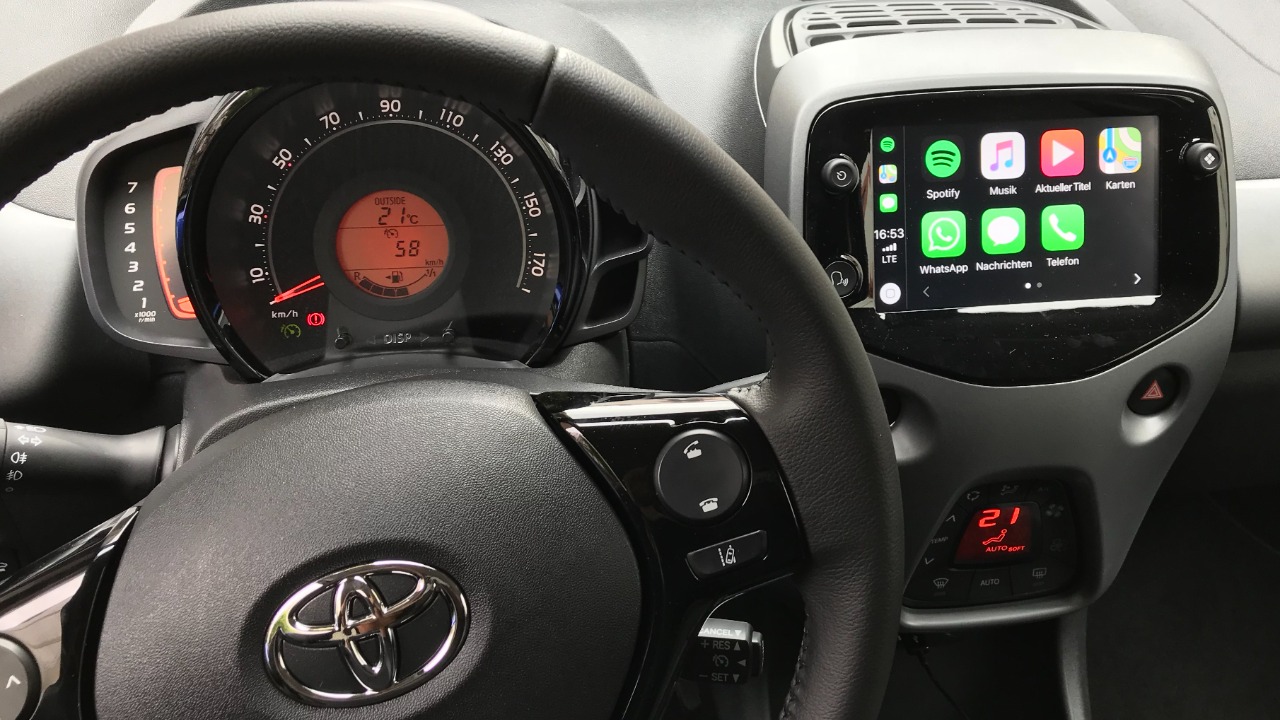

Apple’s iOS 26 update quietly turned CarPlay into a far more capable co‑pilot, adding tricks that only reveal themselves once you start tapping around your dashboard. I will walk through seven of the most useful changes, from visual upgrades to smarter widgets, to show how they reshape everyday driving without demanding a new car. Together, they prove that CarPlay is no longer just a projection of your iPhone, but a fast‑evolving software platform living inside your vehicle.
Liquid Glass UI that finally matches your iPhone
The new Liquad Glass look brings the same glossy, depth‑filled interface from iOS 26 directly to your dashboard, so icons and widgets now feel like an extension of your phone instead of a separate system. Coverage of the Liquad Glass redesign explains that app icons, controls, and background blur have been reworked to be more legible at a glance. In practice, that means less hunting for the right app tile when you should be watching the road.
Hands‑on footage from Car Confections shows how this Liquid Glass treatment also smooths transitions between screens, so switching from Apple Music to navigation feels more like sliding between iPhone home screens. I find that consistency matters for safety, because your brain no longer has to adapt to a different design language when you plug in. It also hints at Apple’s longer‑term plan to make CarPlay the default interface in more cars, not just a mirrored phone screen.
Widgets and Live Actions on the CarPlay home screen
Widgets and Live Actions are no longer limited to your phone, with iOS 26 bringing both to the CarPlay home screen. Reporting on Widgets and Live notes that you can pin up to two Widgets at once, surfacing essentials like calendar, weather, or battery status without opening full apps. Live Actions, which on your iPhone track things like timers or sports scores, now update in real time on the dash.
That means a ride‑share driver can keep navigation full‑screen while a compact Live Action shows an ongoing trip timer or charging status. Apple has already used Widgets in CarPlay to create more customizable, glanceable dashboards, as detailed in broader Apple coverage of the update. I see this as Apple quietly turning CarPlay into a true information hub, where you design the layout around your commute instead of accepting a fixed grid of icons.
New compact view that stops calls from hijacking maps
Compact view is one of the most practical new tricks, because it prevents incoming calls or Siri prompts from taking over your entire navigation screen. Analysis of the Compact interface explains that alerts now slide into a narrow strip at the bottom of the display, leaving maps or media controls visible. One of the key benefits is that turn‑by‑turn directions keep running uninterrupted, even while you decide whether to accept a call.
In daily driving, that change reduces the cognitive load of juggling navigation and communication. You no longer lose your next turn because a phone call splashed across the screen at the wrong moment. I view this as Apple quietly admitting that full‑screen pop‑ups were a safety hazard, and Compact view is the course correction that keeps CarPlay focused on the primary task of getting you where you are going.
Multi‑Touch Maps that finally behave like your iPhone
Multi‑Touch Maps bring familiar pinch, swipe, and rotate gestures from your phone directly to supported in‑car displays. A detailed Multi Touch Maps breakdown notes that CarPlay users can now interact with mapping apps using multi‑touch gestures just like on an iPhone. That means zooming into a complex highway interchange or rotating the map to match your direction of travel feels instantly intuitive.
Earlier coverage of Specifically how Apple framed this change highlights that it is limited to vehicles with compatible touch hardware, but the impact is still broad. I see Multi‑Touch Maps as a quiet quality‑of‑life upgrade that reduces the number of taps needed to adjust your route, which in turn shortens the time your eyes are off the road.
Video playback in park using AirPlay
CarPlay can now play video on your car’s screen when the vehicle is safely parked, turning the dashboard into a mini entertainment display. A feature rundown explains that When your car is parked, CarPlay lets you watch video using the vehicle’s display, relying on AirPlay technology to stream content. Separate reporting notes that Apple is quietly adding this video playback capability to CarPlay in iOS 26, with automakers able to decide whether to enable it.
There is a clear safety line here, because playback is restricted to park and, in some cases, to the parking brake being engaged. I see this as Apple responding to drivers who already prop phones on dashboards to watch content while waiting, but doing it in a controlled way. It also gives automakers a new perk to market in electric vehicles where drivers spend more time charging.
Smarter widgets and settings that turn CarPlay into a hub
Beyond the headline features, iOS 26 quietly improves how you configure and use widgets inside CarPlay. A practical guide to Settings explains that you can go to Settings, then General, then CarPlay, select your vehicle, and tap Widgets to customize the layout. That control lets you decide whether your home screen prioritizes navigation, media, or communication tiles.
Apple’s own overview of what is New in iOS 26 emphasizes that the refreshed design makes CarPlay an easier and safer way to use your iPhone while you drive. I interpret these widget and settings tweaks as the connective tissue that makes the flashier features usable. By letting drivers tailor the interface, Apple reduces clutter and helps ensure that the most important information is always one tap or glance away.
Messaging upgrades with Tapbacks and cleaner UI
Messaging inside CarPlay also gets a quiet but meaningful overhaul, centered on Tapbacks and a cleaner layout. Apple’s CarPlay roundup lists Features like Siri voice control and Apple Music, and iOS 26 builds on that with richer Messages support. Apple’s own documentation highlights Tapbacks in Messages, which make it easy to quickly react to texts without dictating a full reply.
Automaker‑focused guidance on Quick Message Replies emoji reactions directly from the CarPlay screen underscores how this reduces distraction. I see these changes as Apple acknowledging that drivers will always feel pressure to respond, so the safest option is to make that interaction as short and structured as possible. Combined with the new UI, CarPlay messaging now feels closer to the iPhone experience while still respecting the realities of driving.
More from Morning Overview