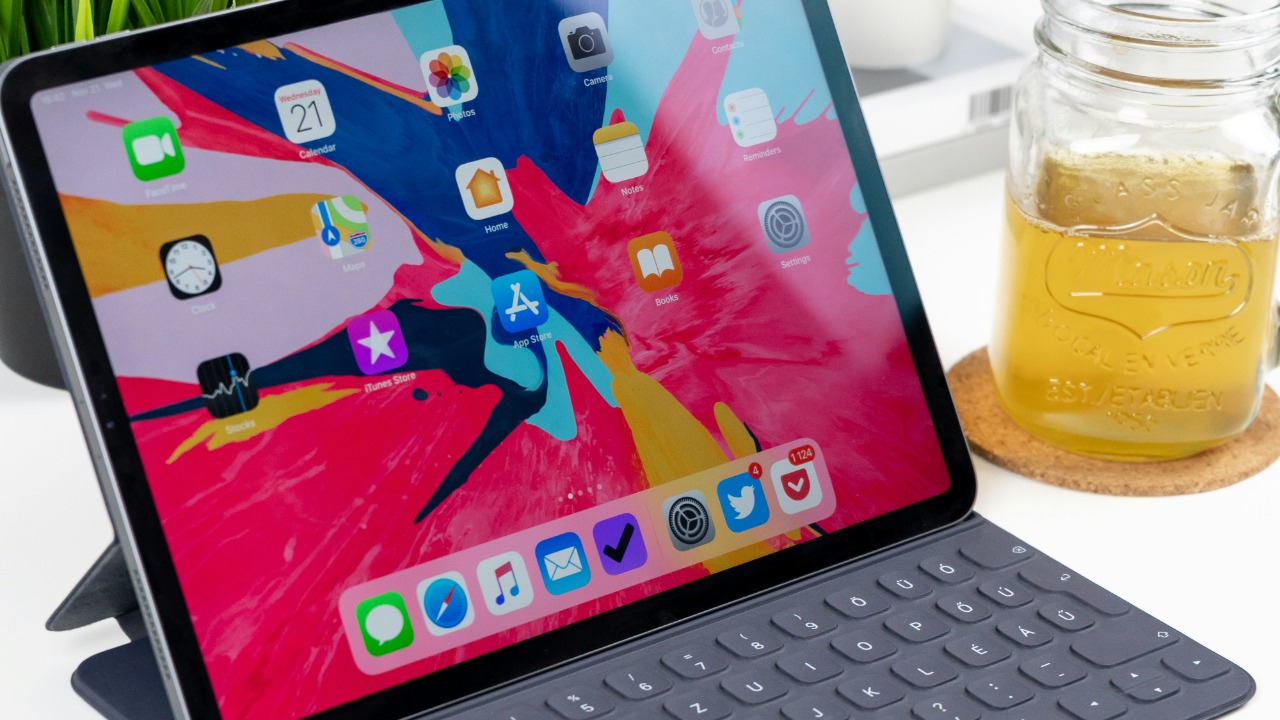

I rely on my iPad for work, reading, and streaming, so when the battery started dipping before the end of the day, I went hunting for fixes. By changing just six settings, I gained several extra hours of screen time without babying the device. Here is exactly what I tweaked, why it works, and how you can mirror the same changes in a few minutes.
Lower Screen Brightness
Lower Screen Brightness was the first and most dramatic win, because the display is usually the single biggest power draw. Detailed guidance on how Lower Screen Brightness shows that even a small reduction can translate into many extra minutes of screen‑on time. I stopped letting the iPad sit at near‑maximum brightness and instead pulled Control Center down to keep the slider around 30 to 40 percent indoors.
To keep things comfortable, I left Auto‑Brightness on so the tablet can still react to a bright office or a dark bedroom. That way, I am not constantly fiddling with the slider, but the baseline is far lower than the factory default. For anyone who streams video or games for long stretches, this single change can be the difference between finishing a movie and scrambling for a charger.
Shorten Auto‑Lock
Shorten Auto‑Lock was my next move, because I realized how often the iPad sat on a desk with the screen glowing while I was doing something else. The same analysis that highlights brightness also stresses how a quick Shorten Auto Lock interval cuts wasted idle time. I changed Auto‑Lock in Settings from several minutes down to 2 minutes, which means the display now sleeps quickly whenever I put the tablet down.
This adjustment barely affects how I use the device, since waking it with Face ID or Touch ID is almost instant. Yet over a full day, those saved minutes of unused screen time add up to a meaningful battery buffer. For shared iPads in offices, classrooms, or kiosks, a shorter Auto‑Lock also reduces the risk of someone walking up to an unlocked device, so the power savings come with a small security bonus.
Turn on Low Power Mode
Use Low Power Mode became my safety net whenever I knew I would be away from an outlet for hours. Apple explains that When the Low switch is on, the system reduces background activity, mail fetch, and some visual effects to stretch remaining charge. I added the Low Power toggle to Control Center so I can flip it on as soon as the battery dips below 40 percent or when I start a long flight.
Other power guides echo that turning on Low Power Mode is one of the simplest ways to extend an iPad’s life between charges without changing how you use apps. In my experience, performance remains perfectly fine for browsing, reading, and note‑taking, while the battery graph in Settings shows a noticeably flatter decline. For anyone who travels or works on the go, this setting is an easy habit that pays off every day.
Disable Background App Refresh for power hogs
Disable Background App Refresh for the worst offenders was the next logical step, because constant background updates quietly drain energy. One practical walkthrough recommends using battery statistics to spot apps that are staying active when you are not using them, then selectively Disable Background App those titles. I opened Settings, checked Battery, and found that social networks and news apps were consuming a surprising share of background time.
Instead of turning the feature off system‑wide, I left it enabled only for essentials like messaging and calendar sync. Everything else, from shopping apps to games, now updates only when I open it. The impact is twofold: the battery lasts longer, and the iPad feels less chatty, with fewer random notifications pulling me back into apps I did not intend to check.
Tame notifications and location services
Turn Location Services for non‑essential apps and rein in notifications helped me stop a lot of invisible battery drain. One configuration guide points out that you can Turn Location Services only the apps that truly need your position, such as maps or ride‑hailing, while setting others to “While Using” or disabling access entirely. I also went through Notification settings and stripped badges and alerts from games, shopping tools, and random utilities.
These tweaks matter because every location ping and push alert wakes the processor and radios, which slowly chips away at your charge. After the cleanup, my iPad not only lasted longer but also felt calmer and less distracting. For people who use the tablet as a focused reading or work device, this kind of pruning supports both productivity and battery health.
Charge smarter to protect long‑term health
Reduce unnecessary full charges was the final change, aimed at preserving the battery over months, not just a single day. A detailed hardware guide notes that keeping lithium‑ion cells away from constant 100 percent charging can slow wear, and even recommends limiting the charge to about 80% when possible. I enabled Optimized Battery Charging and stopped leaving the iPad plugged in overnight on my desk.
To complement that, I also followed advice from Jan, who described how small behavioral shifts, like unplugging once you hit a comfortable level and avoiding extreme heat, can add up across hundreds of cycles, as outlined in battery tips. Combined with Jan’s reminder that there are many ways to save power if you do not keep them enabled across multiple apps, which is reflected in these settings, smarter charging has helped my iPad hold strong throughout long workdays.
More from Morning Overview