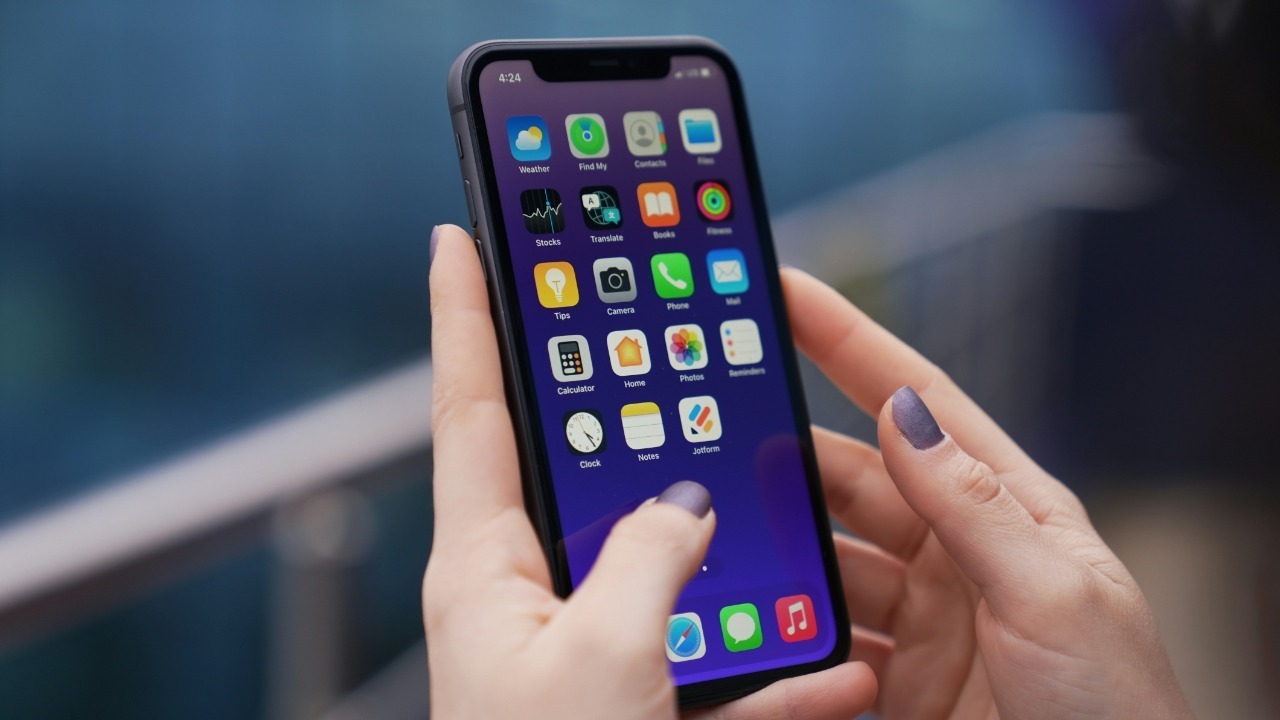

Apple quietly built a system-wide sleep timer into the iPhone years ago, and it works perfectly with Netflix even though the streaming app never mentions it. By leaning on the Clock app’s “Stop Playing” option, I can tell my phone exactly when to cut off a show so I drift off without waking up to an auto-play marathon or a dead battery. The trick takes less than a minute to set up, and with one extra step it can live as a shortcut in Control Center so it feels like a native Netflix sleep timer.
Why Netflix fans need a real sleep timer
Falling asleep to a comfort show is one of the most common ways people use Netflix, but the app still does not offer a proper sleep timer. Instead, it relies on the “Are you still watching?” prompt, which is designed to save bandwidth and power, not to match your bedtime routine. I find that prompt unpredictable, and it often pops up long after I have fallen asleep, which means my iPhone can keep streaming for hours before anything stops it.
That gap is why iPhone owners have been hunting for workarounds, from Reddit threads in the Comments Section of Netflix discussions to short how-to clips that show how to use iOS’s Clock with apps that lack built-in timers. Instead of waiting for Netflix to add the feature, the smarter move is to use the iPhone’s own tools to control any media app, including YouTube Premium, Hulu, or Spotify, with the same simple countdown.
The hidden iPhone feature that quietly controls Netflix
The key to this trick is that the iPhone’s system timer is not just for alarms or pasta water, it can also tell the device to stop all media playback at a specific time. When I set a countdown in the Clock app and change the “When Timer Ends” action to “Stop Playing,” iOS treats that as a global command. Whatever is streaming, whether it is Netflix, a podcast, or a YouTube video, will pause automatically when the timer hits zero.
People have been sharing this discovery for years, from a Life Pro Tip that explains how to go to the CLOCK app and select the TIMER to social posts that spell out the steps for a Secret Sleep Timer for Netflix on iOS and iPadOS. The power of this approach is that it does not depend on any one app, so even if Netflix changes its interface or adds more autoplay features, the system-level timer still has the final say.
Step one: Set up the Clock app’s “Stop Playing” timer
To turn your iPhone into a Netflix sleep timer, the first job is to configure the Clock app correctly. I open Clock, tap the Timer tab, and choose how long I expect to stay awake, whether that is 30 minutes for a single sitcom episode or 90 minutes for a movie. The crucial part is not the duration but what happens when the countdown ends, which is controlled by the “When Timer Ends” setting at the bottom of the screen.
Instead of leaving that option on a sound like “Radar,” I scroll all the way down and pick “Stop Playing,” which tells iOS to cut off any audio or video that is currently running. Guides that walk through this process spell it out clearly, explaining how to Set the desired time and then change “When timer ends” so the clock will start ticking down and eventually silence the stream. Once I tap “Set,” that behavior is saved, so every future timer I start will default to stopping playback instead of ringing.
Step two: Turn it into a one-tap Netflix sleep shortcut
Manually opening Clock every night works, but it is not as smooth as a built-in Netflix button, so I prefer to bring the timer into Control Center. On an iPhone with Face ID, I swipe down from the top right corner, press and hold in an empty area, and tap “Add a control” to customize the grid. From there I scroll until I see the option labeled After you’ve swiped down, press and hold in an empty area of the screen and tap ‘Add a control’ and find Timer, then add it so the timer icon is always just a swipe away.
Once that is in place, starting a Netflix sleep countdown becomes a two-step habit: I begin playing my show, swipe down to open Control Center, and tap the Timer control to start the preconfigured “Stop Playing” countdown. Detailed walkthroughs describe how to Find the sleep timer in Control Center and adjust it depending on how long I think I will need. The result feels like a native Netflix feature, even though it is really the Clock app doing the work behind the scenes.
How creators turned a buried setting into a viral trick
What started as a quiet system feature has turned into a minor social media phenomenon, as tech creators show how to repurpose the iPhone timer as a sleep tool. In one clip, a presenter says, “do you need to listen to something as you’re falling asleep then this one’s for you,” before walking through how to set up a countdown that stops whatever is playing when it hits zero. That video, titled Use the TIMER on iPhone as a SLEEP TIMER with the …, captures the appeal perfectly: no extra apps, no subscriptions, just a smarter use of what is already on the phone.
Another segment from the same creator breaks the process into simple instructions, starting with “Step – Swipe top right to access C…” and emphasizing the “Stop Playing” option as the secret ingredient. The tutorial literally spells out how to Use the TIMER as a SLEEP tool by pairing the TIMER with “Stop Playing,” turning a basic countdown into a full media cutoff. I see the same pattern in other videos, including one that opens with “so I found this really cool trick that you can do with your iPhone,” in which the host explains that when you set a timer, “whatever you’re play…” will stop automatically, a point reinforced in the clip about an iPhone Sleep Timer to Stop Playing Media Automatically.
Real-world use: from Netflix binges to YouTube Premium
Once the timer is configured, it works across almost any app that plays audio or video, which makes it more flexible than a single Netflix setting could ever be. I can start a documentary on Netflix, queue up a playlist in Apple Music, or let a podcast run in Overcast, and the same countdown will shut everything off at once. Social posts that walk through the process highlight that it even covers services like YouTube Premium, noting that if you want to carry on watching but the app does not have a built-in sleep timer, the Clock app can fill the gap for Premium subscribers and free users alike.
That universality is why the trick shows up in so many different communities, from Netflix fans who want to fall asleep without worrying about the next episode to people who listen to audiobooks or white noise. One Redditor explains that you can go to the CLOCK app, select the TIMER, and then under the “When timer ends” section choose “Stop Playing,” a method that works whether you are streaming Netflix, Hulu, or a meditation app. Another user-focused guide on social media summarizes the process as “Play whatever video you want. Go to the Cl…” and then set up a There style system timer that quietly takes over for Netflix on iOS and iPadOS.
Why this beats waiting for Netflix to add a timer
Netflix could eventually roll out its own sleep timer, just as some podcast apps already have, but relying on a single app’s feature set has obvious limits. If you split your viewing between Netflix, Disney Plus, and YouTube, you would need to learn three different interfaces and hope each one remembers your last setting. By contrast, the iPhone timer approach gives me one consistent control that behaves the same way no matter which streaming app I am using on a given night.
Commentary on this topic often points out that while having sleep timers bundled as in-app features is convenient, the system-level option is more reliable. One analysis notes that While
Fine-tuning your nightly routine with iOS
Once you get comfortable with the basic timer, it is easy to refine the routine so it fits your sleep habits. I often set a shorter countdown on weeknights, like 25 or 30 minutes, so I do not get sucked into another episode, and a longer one on weekends when I am more relaxed. Because the Clock app remembers the last duration, I can quickly adjust it before I hit play, and if I wake up and want more background noise, I simply restart the timer for another block of time.
Some guides suggest experimenting with different lengths until you find the sweet spot, a process that mirrors how one writer describes using the Clock app to judge “how long I’ll need” before nodding off. That same walkthrough explains how to You can set a custom sleep timer for Netflix in the Clock app, then tweak it night by night. Over time, the combination of a predictable cutoff and a familiar show can turn Netflix from a sleep disruptor into a reliable part of a wind-down routine.
What this says about hidden iOS features
The Netflix sleep shortcut is a reminder that some of the most useful iPhone tricks are not flashy new features but quiet options buried in default apps. Apple did not market the “Stop Playing” timer as a streaming tool, yet users quickly realized it could solve a very specific problem: falling asleep to media without losing control of the night. I see the same pattern with other iOS tools, where a setting designed for one purpose ends up powering a completely different workflow once people experiment with it.
In this case, the community did the work of surfacing and refining the idea, from early posts that told people to Open the Clock app and use “Stop Playing,” to newer videos that package the steps into 30-second clips. A more recent explainer even frames it as a hidden feature in iOS and iPadOS, noting that you can Decide exactly when your Netflix session should end without touching the app itself. For anyone who falls asleep to streaming, that kind of quiet control is far more valuable than another autoplay trailer.
More from MorningOverview