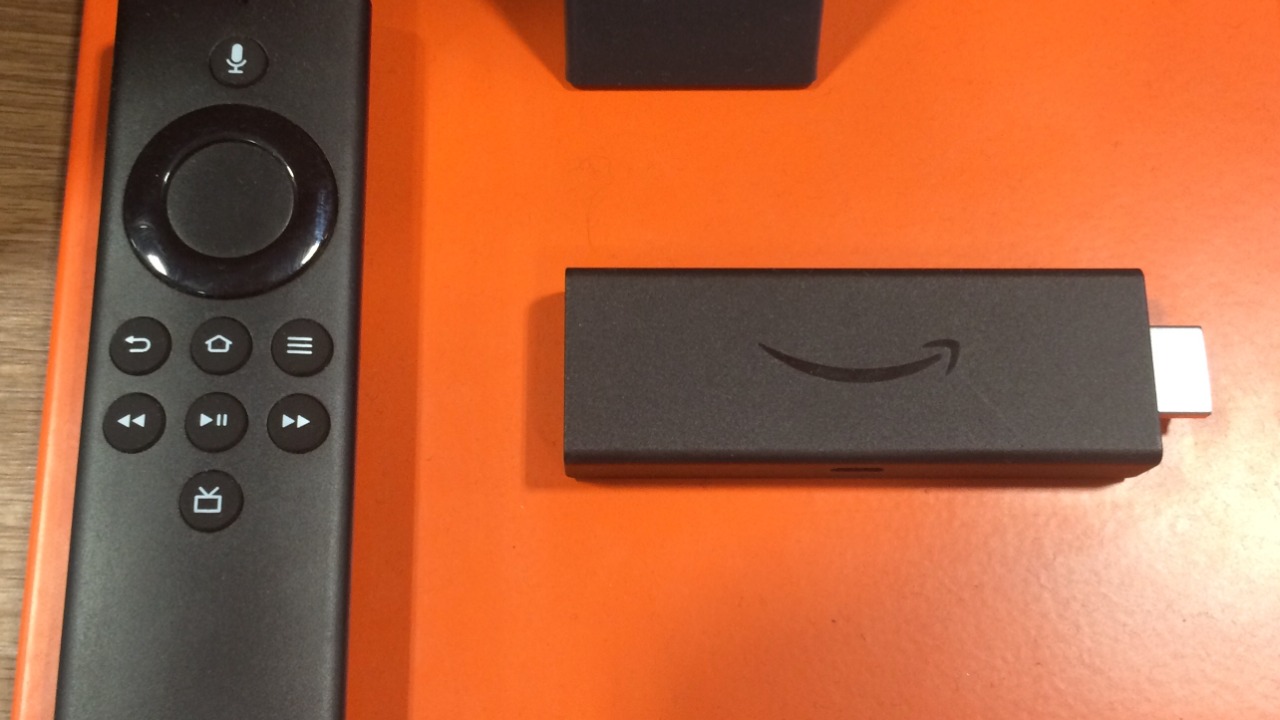

Amazon’s streaming dongle is built for life online, but a patchy connection or a data cap does not automatically turn it into a useless stick of plastic. You can still boot a Fire TV Stick, open apps, play locally stored media, and even mirror another screen when the internet drops, as long as you understand its limits. The real question is not whether it works at all without Wi‑Fi, but which features survive and what you need to set up in advance while you are still online.
I look at the Fire TV Stick the same way I look at any smart-home gadget: it is designed to be cloud-first, yet it can fall back to local tricks when the network disappears. Once you know which parts of the interface are just a shell for online services and which can run on the device itself, you can plan for flights, cabins, or outages instead of being surprised by a “Home is Currently Unavailable” message at the worst possible moment.
What “offline” really means for a Fire TV Stick
At its core, a Fire TV Stick is a small streaming computer that expects a constant connection to Amazon’s servers, so the default experience assumes Wi‑Fi is always on. That is why guides that ask “Can You Use An Amazon Fire TV Stick Without Internet” stress that Amazon Fire TV Sticks are meant to deliver a plug‑and‑play experience tied to online video apps and cloud services, not a fully self‑contained media player. When the network disappears, the operating system still boots, but the home screen, app store, and most streaming tiles are just front doors to content that now sits out of reach.
That does not mean the hardware shuts down or becomes unusable. Once the device has been activated and signed in, it can still launch installed apps, read from local storage, and talk to other devices on the same local network, even if that network has no path to the wider internet. Reporting that asks whether you can use Amazon Fire TV Sticks without internet makes clear that Wi‑Fi is fundamental for streaming, but it also notes that offline use is possible if you prepare the right apps and files in advance, then treat the stick more like a local media hub than a streaming portal.
Why initial setup still requires a connection
The one part of the Fire TV Stick experience that you cannot realistically move offline is the first‑time setup. Out of the box, the stick needs to download updates, register to an Amazon account, and pull in the basic interface, which is why coverage of whether you can use Amazon Fire TV Sticks without internet repeatedly points out that activation assumes a live connection. Without that first handshake, you cannot reach the settings menus that control app installation, storage permissions, or developer options, all of which are crucial for offline tricks later.
Once that initial setup is complete, the device becomes much more flexible. You can install key apps, sign into services, and even configure options that allow sideloaded software, then keep using those pieces later when the network is gone. Tutorials that walk through how to sideload apps on a Fire TV Stick start from the assumption that you can scroll to Settings from the Fire TV Stick home screen, then toggle options like “Allow installation” from unknown sources, and those toggles only exist after the stick has been fully registered and updated. In other words, you need to spend a few minutes online so you can spend hours offline later.
What still works when Wi‑Fi drops
Once the Fire TV Stick has been set up, the most important offline capability is the ability to open apps that are already installed and do not require a live server to function. Owners who have experimented with Fire TV without Internet describe a predictable pattern: when you press Home, the interface warns that “Home is Currently Unavailable,” but if you click the Settings icon to the right, then click Applications and click Manage, you can still launch individual apps and games that live on the device. That path bypasses the cloud‑dependent home screen and talks directly to the software stored in local memory.
Local media playback is the other big win. If you have a media server on the same local network, or you plug in storage through an adapter, the Fire TV Stick can browse and play those files without ever touching the wider web. Users who follow the “Press Home” workaround to reach the Applications menu report that they can still access everything on a media server as long as the router is up, even if the internet connection is down. In practice, that means you can keep watching downloaded movies, listening to music, or opening offline games while the rest of the house complains about the outage.
Using screen mirroring and casting without internet
One of the most underrated offline features is screen mirroring from a phone or tablet directly to the Fire TV Stick. You can mirror your mobile device’s screen to your Fire TV Stick without a Wi‑Fi network that has internet access, as long as both devices can see each other on the same local connection or through a direct wireless link. Guides that explain how to cast to your Fire TV Stick from your iPhone or Android device note that the stick and the phone can talk over a local network while the phone itself uses mobile data to stream content, so the stick becomes a dumb display for whatever is on your handset.
In practice, that means you can open Netflix, Prime Video, or a downloaded movie on your phone using LTE or 5G, then mirror it to the television even if the home broadband is down. The same casting tutorials answer the question “Does a Fire Stick need Wi‑Fi to mirror?” by pointing out that the Fire Stick does not need an active internet connection to receive a mirrored screen, it just needs a way to communicate with the phone. If you are traveling, you can even create a hotspot on your phone, connect the Fire TV Stick to that hotspot, and then mirror or cast content while the phone’s mobile data does the heavy lifting.
Turning the Fire TV Stick into an offline media player
If you know you will be offline for a while, the most powerful strategy is to treat the Fire TV Stick like a portable media player instead of a streaming dongle. That starts with installing apps that can read local files, such as VLC or Kodi, while you are still online, then giving those apps access to storage. Tutorials that show how to use your Firestick without internet often highlight one key app that can browse downloaded movies and shows, then walk through the process of pointing it at a folder of files that live on a USB drive or a network share.
Hardware matters here too. Some Fire TV Stick models can draw enough power and bandwidth through an OTG cable to read from external storage, which is why walkthroughs that promise to let you take your TV anywhere, even offline, spend time on the physical setup, including OTG cables and compatible drives. In those guides, the host explains that you can watch your shows and movies wherever you go, whether you are staying at a hotel or crashing on a friend’s couch, by loading content onto a drive in advance and letting the Fire TV Stick read it without ever signing into a streaming app.
Offline apps, sideloading, and the “one app” strategy
Beyond mainstream media players, there is a whole ecosystem of offline‑friendly apps that you can install or sideload before you lose connectivity. The idea is simple: while you still have Wi‑Fi, you prepare the Fire TV Stick with software that can run entirely on the device, then you rely on that software later when the internet is gone. One popular walkthrough on how to use your Firestick without internet leans on a “one app” strategy, where a single, well‑chosen app becomes the hub for all your offline content, from downloaded episodes to personal video files.
Getting that kind of app onto the stick sometimes requires sideloading, which is where the official instructions on how to sideload apps on a Fire TV Stick come in. From the Fire TV Stick home screen, you scroll to Settings, then follow the steps that allow installation from unknown sources so you can load software that is not in the standard app store. Once that is done, you can keep that sideloaded app on the device indefinitely, even if you later take the stick to a cabin with no broadband, and it will still open and play whatever content you have stored locally.
Using a Fire TV Stick as a travel companion
Travel is where the Fire TV Stick’s offline and semi‑offline tricks really shine. Hotel Wi‑Fi is often unreliable, captive portals can confuse streaming devices, and some locations charge per device, which makes it tempting to avoid connecting the stick at all. Guides that promise to let you take your TV anywhere, even offline, show how a Fire TV Stick 4K can be paired with OTG cables, portable routers, and preloaded storage so you can watch your own library of shows and movies without depending on the hotel network at all.
In those travel setups, the Fire TV Stick becomes the center of a small, private ecosystem. You plug it into the hotel television, power it from the wall or a USB port, then either connect it to a tiny travel router that has your media on a local server or attach a USB drive full of content. Tutorials that start with “Want to watch your shows and movies wherever you go” walk through the whole setup, including OTG cables and storage, and the end result is a portable entertainment kit that works whether the hotel Wi‑Fi is fast, slow, or completely offline.
How this compares to other smart-home gear
The Fire TV Stick’s behavior without internet fits a broader pattern that shows up across smart-home devices. Many connected gadgets can keep doing basic local tasks when the cloud disappears, but their most advanced features vanish until the connection returns. Explainers that ask whether a smart home can function with no internet put it bluntly in a section titled “Your Smart Home Probably Needs Internet Access,” then add that some local control is still possible if an internet connection is maintained for initial setup and configuration.
In that sense, the Fire TV Stick is less like a traditional DVD player and more like a smart thermostat or voice assistant. It can keep running the software that is already on the device, and it can talk to other gadgets on the same local network, but it depends on the cloud for updates, app downloads, and most streaming services. If you plan ahead, you can lean on its local strengths, such as offline apps and local media playback, in the same way that a smart-home hub can keep running routines locally when the broadband line is cut.
Choosing the right Fire TV Stick and accessories
Not every Fire TV Stick model behaves identically when it comes to power draw, storage support, or performance with sideloaded apps, so hardware choices matter if offline use is a priority. Product listings for the Fire TV Stick family highlight differences in processing power, memory, and supported resolutions, and those specs translate directly into how smoothly the device can handle local 4K files, heavy media libraries, or complex offline apps. When you compare a current Fire TV Stick 4K to an older basic stick through a detailed product page, you can see why the newer hardware is better suited to acting as a portable media player.
Accessories are just as important. An OTG cable can unlock USB storage, a compact travel router can create a private local network in a hotel room, and a high‑capacity flash drive can hold an entire season of shows. If you are building an offline kit, it is worth checking a comprehensive Fire TV Stick product listing to confirm which models support external storage reliably and which power adapters or cables are recommended, then matching your accessories to that specific hardware so you do not discover compatibility problems when you are already off the grid.
Practical limits: streaming, updates, and expectations
Even with all these workarounds, it is important to be realistic about what a Fire TV Stick cannot do without internet. Coverage that asks whether you can use Amazon Fire TV Sticks without internet is clear that considering Wi‑Fi is fundamental to how these devices are designed, you should not expect to stream new episodes from major services or browse fresh recommendations when the connection is gone. The stick cannot fetch new app updates, refresh content catalogs, or verify certain subscriptions, so anything that depends on a live server will either fail outright or behave unpredictably.
There are also security and maintenance trade‑offs. If you spend long stretches offline, the Fire TV Stick will miss firmware updates and app patches that fix bugs or close vulnerabilities, which is another reason to reconnect it periodically even if you mostly use it as an offline player. Guides that dig into the question “Can You Use An Amazon Fire TV Stick Without Internet” note that when you use client apps that were sideloaded or installed long ago, you are relying on software that may not have the latest protections, so it is worth bringing the stick back online from time to time to let it catch up.
Step‑by‑step: preparing your Fire TV Stick for offline use
For anyone who wants a concrete checklist, the process of preparing a Fire TV Stick for offline use starts while you are still on a stable connection. First, complete the standard setup, sign into your Amazon account, and make sure the device can reach the home screen without errors. Then, install key offline‑friendly apps from the store or sideload them using the official method that begins from the Fire TV Stick home screen, scrolls to Settings, and toggles the options that allow installation from unknown sources so you can load the tools you need.
Next, configure your media sources. If you plan to use a local server, test that the Fire TV Stick can see it on your home network and that your chosen app can browse and play files. If you are going the USB route, connect an OTG cable and a drive, then verify that the stick can read the storage and that your media player can open the files. Finally, practice the offline navigation path by disconnecting the internet, pressing Home to trigger the “Home is Currently Unavailable” message, then using the Settings icon, Applications, and Manage menus to launch your apps, just as users describe in the Fire TV without Internet forum thread. Once you can do that comfortably, you will be ready the next time the connection drops or you head somewhere with no Wi‑Fi at all.
There is one more niche scenario that some power users explore: using a single, specialized app as the central hub for all offline content and controls. Video guides that focus on how to use your Firestick without internet, including the one that leans on the “one app” approach, show how you can consolidate local files, downloads, and even some mirrored content into a single interface that is easy to reach from the Applications menu. Combined with the casting techniques that let you mirror a phone’s screen to your Fire TV Stick without a traditional Wi‑Fi network, and the travel setups that use OTG cables to keep shows and movies available even when you are offline, that kind of preparation turns a small streaming dongle into a surprisingly capable offline entertainment system.
More from MorningOverview