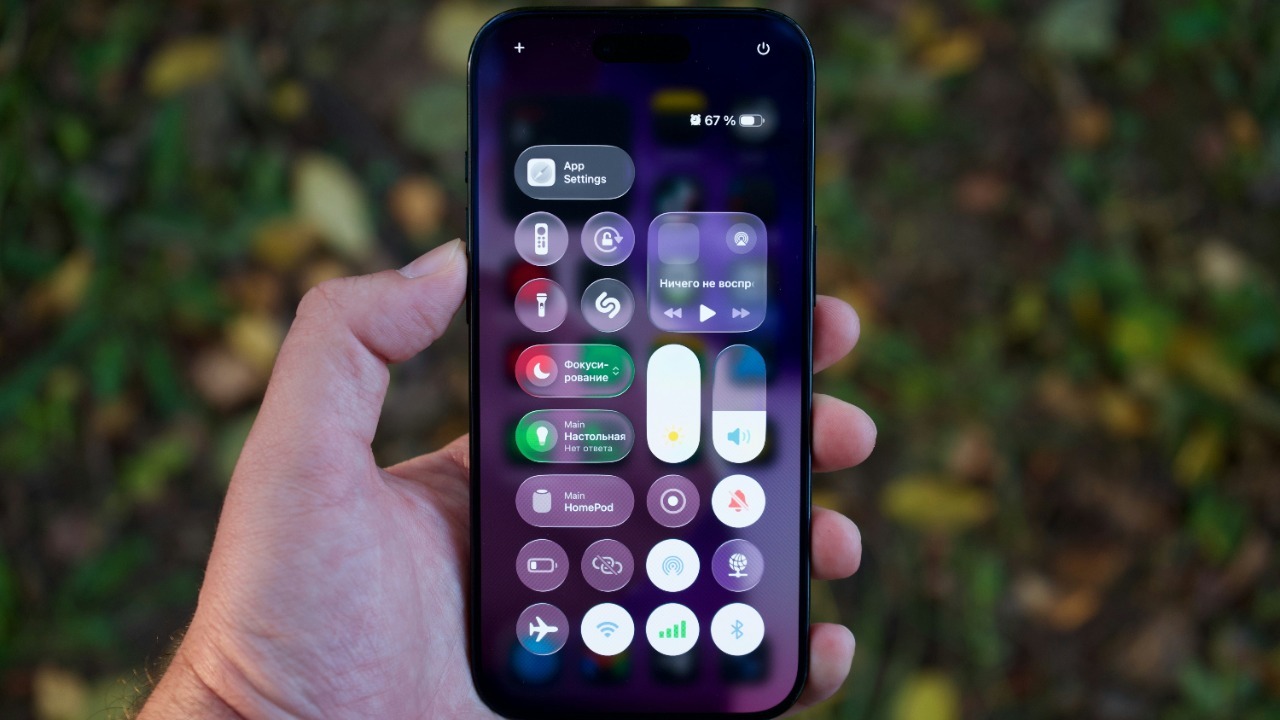

Turning on your iPhone flashlight without touching the screen is one of those small upgrades that can quietly change how you move through your day. With a few minutes of setup, you can call up a bright beam in a dark stairwell, parking garage, or bedroom using only your voice or a quick tap on the back of the phone. The trick is learning how Apple’s shortcuts, accessibility tools, and hardware buttons fit together so the flashlight feels as hands-free as possible.
I am going to walk through the most useful options, from Siri voice commands to a clever Back Tap shortcut that lets you double tap the rear of your iPhone to light the way. Along the way, I will also explain how to fine-tune brightness, shut the light off quickly when you no longer need it, and decide when a dedicated flashlight app or the Action Button on newer models might still earn a place in your setup.
Why a hands-free flashlight shortcut matters more than you think
The iPhone’s LED has quietly replaced the keychain torch for many people, but the default controls still assume you have a free hand and a clear view of the screen. In real life, you are often juggling grocery bags, holding a child’s hand, or trying not to drop your coffee while you fumble for the Control Center icon. A hands-free or near-hands-free trigger cuts through that friction, turning the flashlight into something you can rely on instinctively instead of a feature you remember only when it is convenient.
There is also a safety angle that is easy to underestimate. If you are walking through a dim parking lot or trying to navigate a power outage, shaving even a few seconds off the time it takes to light your surroundings can make you feel more in control. That is why I focus on options that either respond to your voice or use a simple gesture like tapping the back of the phone, rather than burying the flashlight behind menus. Once you understand how these shortcuts work, you can combine them with the standard brightness controls to get a beam that is not just easy to trigger, but also comfortable to use in different environments.
Start with the basics: how the standard flashlight controls work
Before you set up any tricks, it helps to know what the iPhone flashlight can already do. On most models, the LED on the back of the phone doubles as a torch that you can toggle from the Lock Screen or Control Center. The default tile in Control Center is a simple on and off switch, but if you press and hold it, you can adjust the intensity so the light is not blinding in a dark bedroom or too weak in a backyard. Guides that walk through Changing the brightness make clear that this long-press gesture is the key to unlocking more precise control.
However, the standard interface still expects you to swipe, tap, and press on-screen buttons, which is exactly what you want to avoid when your hands are full or you are trying not to look away from where you are walking. The Lock Screen shortcut is faster than digging through apps, but it can still be awkward if your fingers are wet or you are wearing gloves. That is why the rest of this guide leans on tools like Siri, Back Tap, and hardware buttons, which sit on top of these basic controls and let you trigger the same LED with far less effort.
Use Siri to turn the flashlight on and off completely hands-free
The most obvious way to go hands-free is to let Siri do the work. If you have “Hey Siri” or the newer “Siri” wake phrase enabled, you can simply say “Hey Siri, turn on the flashlight” and your iPhone will light up without any taps at all. Voice command roundups highlight this exact phrase, noting that “Hey Siri, turn on the flashlight” is one of the most practical everyday prompts and that it is especially useful when you are already in the dark and do not want to hunt for icons, since you can just Hey Siri and let the assistant handle it.
Turning the light back off is just as simple. If the beam is still on and you no longer need it, you can say “Hey Siri, turn off the flashlight” and the LED will shut down even if the screen is locked. Tutorials that explain how to deal with a stuck torch list this as a dedicated method, sometimes under headings like “Method 3. Ask Siri Too dark to find the screen? Just say: ‘Hey Siri, turn off the flashlight’,” which underlines how useful it is when the interface is hard to see. When you cannot easily reach the display, being able to Ask Siri Too dark to find the screen and rely on your voice instead is exactly the kind of hands-free control that makes the flashlight feel like a real tool rather than a buried feature.
Turn the back of your iPhone into a secret flashlight button
For those moments when speaking out loud is not ideal, the Back Tap feature gives you a discreet way to trigger the flashlight with one hand and almost no movement. Back Tap lives in Accessibility settings and lets you assign actions to a double or triple tap on the rear of the phone, near the Apple logo. A detailed list of iPhone tips describes “Back Tap shortcuts” as a way to “Trigger Actions by Tapping the Back of Your Phone This iPhone hack feels like magic,” and walks through how to go to Settings and Set it up so a quick tap can launch a shortcut or system function. Once you know where Back Tap lives, you can point it at a flashlight shortcut and effectively turn the back glass into a hidden switch.
Short video tutorials show how simple this feels in practice, with captions that spell out that you can Double tap the back of your iPhone to switch on the flashlight and then repeat the gesture to turn it off again. One clip explicitly overlays the instruction to Double tap the back of your iPhone to switch on the flashlight, which captures the appeal: you do not need to unlock the phone, find a button, or even look at the screen. As long as the feature is configured, a quick tap on the back with your index finger becomes a near-instant, semi-hidden way to light your path.
How to set up Back Tap so a double tap toggles the flashlight
To turn that idea into a working shortcut, you start in the Accessibility menu. The path is straightforward once you know it: Just go to Settings, then Accessibility, then Touch, and finally Back Tap and you will see options to assign actions to Double Tap or Triple Tap. A popular reel breaks this down step by step, emphasizing that you can choose either gesture and that this trick boosts your speed and productivity instantly when you map it to something you use often. The key is that Back Tap can be linked to a shortcut that toggles the flashlight, so the rear of the phone becomes a physical control for the LED without any extra hardware.
Once you have created or selected a shortcut that turns the torch on and off, you simply assign it to Double Tap or Triple Tap in that Back Tap and menu. The same reel that walks through “Just go to Settings → Accessibility → Touch → Back Tap and assign your favorite shortcut to Double Tap or Triple Tap” makes clear that you can experiment with which gesture feels more natural and less prone to accidental triggers. By following those Just go to Settings instructions, you end up with a setup where a quick tap on the back of the phone is all it takes to summon or dismiss the flashlight, even when the screen is off.
Use the Action Button on newer iPhones as a dedicated torch switch
If you are using a recent iPhone with an Action Button, you have another powerful way to control the flashlight without digging through menus. The Action Button replaces the old mute switch and can be customized to trigger specific features when you press and hold it. Official guidance explains that you can Use the Action button to turn the flashlight on or off by opening the Settings app, tapping Action Button, and then swiping through the available options until you reach Flashlight. Once you select it, a long press on that side button becomes a direct hardware control for the LED.
The same instructions note that In the Settings menu you can revisit the Action Button configuration at any time, and that you literally Swipe through the carousel until you see the Flashlight icon, which confirms that Apple expects people to treat this as a first class shortcut. When you follow the steps to configure the Use the Action Button and map it to the torch, you end up with a setup where you can keep the phone in your pocket, press and hold the button by feel, and have the light come on without ever waking the display. It is not fully hands-free in the sense of voice control, but it is as close as you can get with a single finger and no visual attention.
When a dedicated flashlight app still makes sense
Apple’s built-in torch is usually enough, but there are still scenarios where a dedicated app earns its place on your Home Screen. Some people want strobe modes, SOS patterns, or extra-large on-screen buttons that are easier to hit in a hurry. One long-standing example is an app described as a Quick and Simple LED Flashligh Turn your iPhone 4 into a handy LED flashlight for FREE, which highlights how third party tools have been turning the camera LED into a torch since the early days of the platform. That app promises to start super fast and to let you control the light with a simple touch of the screen, which can be reassuring if you want a single, obvious interface that anyone in the family can understand.
Even if you rely on Siri or Back Tap most of the time, keeping one of these utilities installed can give you a backup in case system settings change or you hand your phone to someone who is not familiar with your shortcuts. The fact that the description emphasizes LED and FREE shows how these apps compete on both hardware control and cost, offering a no-frills way to get a bright beam without digging into settings. By installing something like the Quick and Simple LED Flashligh Turn app, you give yourself one more path to a fast flashlight, which can be handy if you ever reset your device or lend it to someone who just wants a big on button.
Combine Back Tap and shortcuts for more advanced control
Once you are comfortable with Back Tap and Siri, you can start to combine them with the Shortcuts app for more nuanced behavior. For example, you might want a double tap on the back to toggle the flashlight at a specific brightness level, while a triple tap launches a different action entirely. A broad list of iPhone tips points out that Back Tap can Trigger Actions by Tapping the Back of Your Phone This iPhone hack feels like magic, and that you can go to Settings to Set up different responses for Double Tap and Triple Tap. That flexibility means you can reserve one gesture for the torch and another for something like taking a screenshot or opening a favorite app.
Because Back Tap is treated like any other shortcut trigger, you can also build automations that tie the flashlight to other conditions, such as time of day or focus modes, although those more complex setups go beyond what the current sources spell out. What matters for a hands-free feel is that you can map the simplest possible gesture to the most common need, which is getting light quickly. By leaning on the same Back Tap and Trigger Actions framework described in the Back Tap tips, you can fine tune your setup so the flashlight responds exactly the way you expect, whether you are tapping the back, pressing the Action Button, or calling out to Siri.
More from MorningOverview