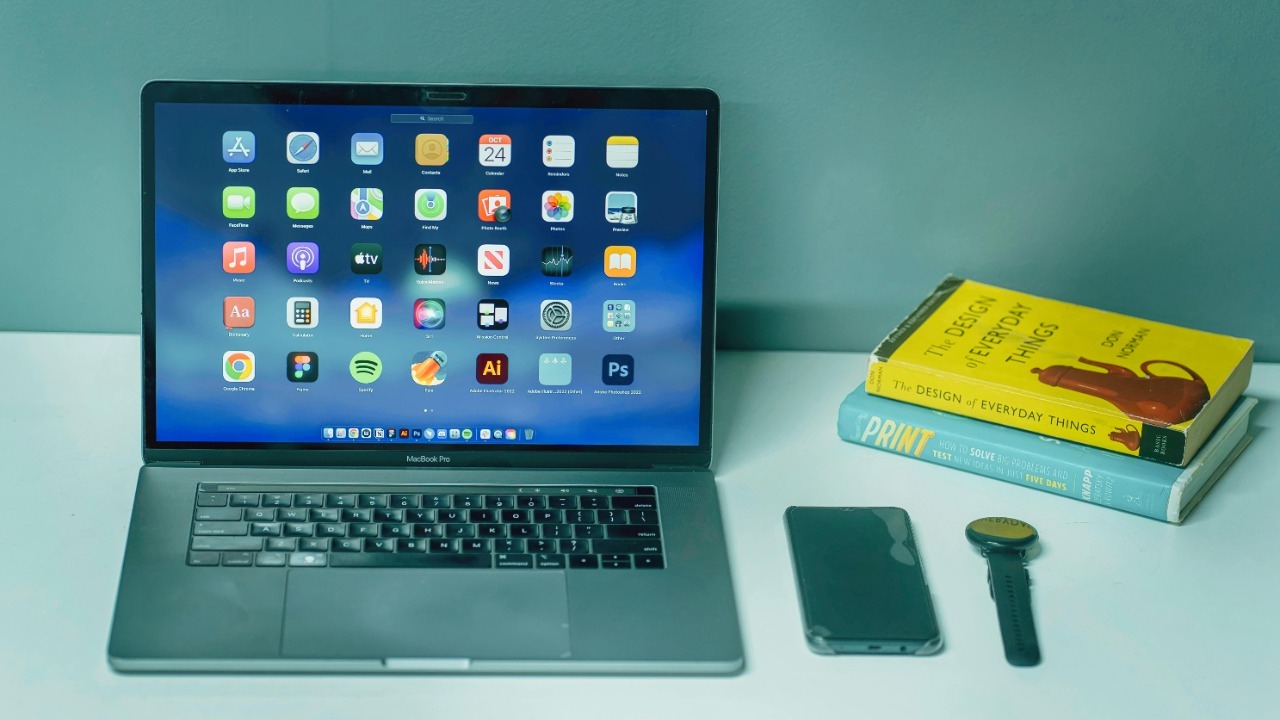

My 2025 Mac setup only started to feel truly “supercharged” when I stopped chasing every new utility and focused on a small stack of apps that quietly handle the work behind the work. Each of the five tools below reshaped a different layer of my day, from how I launch apps to how I secure passwords, and together they form a workflow that feels faster, calmer, and far more intentional.
1. Raycast as the Ultimate Spotlight Replacement
Raycast has become the command center of my Mac, replacing Spotlight with a launcher that feels purpose-built for modern 2025 workflows. Reporting on turbocharged Mac setups highlights Raycast as a core upgrade because it layers AI-driven search, extensible commands, and deep system integration on top of the familiar “type to launch” pattern. Instead of just opening apps, I can trigger scripts, control system settings, search files, and even interact with web services from a single keyboard shortcut. The AI features matter in practice: natural-language search lets me find a document or contact by describing it, and AI commands can summarize text or generate boilerplate without leaving the current app. In a year when context switching is the biggest drag on knowledge work, that kind of inline intelligence is not a novelty, it is a structural advantage.
What makes Raycast feel like an ultimate Spotlight replacement rather than just another launcher is its ecosystem of extensions and the way it respects keyboard-first habits. I can install community extensions to manage GitHub issues, control task managers like Things, or trigger automation workflows that would otherwise require Shortcuts or shell scripts. This aligns with broader lists of Mac utilities that “supercharge” productivity, where launchers and automation tools consistently sit near the top because they multiply the value of every other app. In my own day, Raycast is the glue: I use it to jump into project folders, append notes, start timers, and even peek at my calendar without opening a full calendar window. For teams and solo workers alike, the implication is clear, the more you centralize routine actions in a fast, searchable palette, the more mental bandwidth you free up for actual thinking.
2. Things 3 for Seamless Task Management
Things 3 is the backbone of my planning system, and its status as the top pick in 2025 task manager reviews reflects how well it balances power with clarity. The app is built as a native experience for Mac, iPad, and iPhone, and that tight integration shows up in small but crucial details like fast sync, keyboard shortcuts, and support for system features. The developer, Cultured Code, presents Things as an Apple Design Award Winner, and that pedigree is visible in the clean layout and frictionless interactions that make daily reviews feel less like admin work and more like a quick status check. Independent reviewers who ask “Is Things 3 The Best Ever Task Manager?” describe it as the best standalone productivity app they have used, especially praising how Things for Mac lets you organize projects, areas, and deadlines without burying you in configuration.
What sets Things 3 apart in my workflow is how it supports both high-level planning and granular execution. I can map out a full project with headings, deadlines, and tags, then drop into Today or Upcoming views that show only what actually matters right now. A detailed review of Things emphasizes that it is designed to help you organize tasks and plan them ahead, rather than just capture a chaotic list, and that matches my experience when I break down multi-week initiatives into manageable steps. Video walkthroughs such as the Things 3 review for iOS & Mac underline how the same structure works across devices, so I can capture on my phone and refine on my Mac without losing context. For anyone juggling multiple roles or projects, the stakes are straightforward, a reliable task manager is the difference between reacting to whatever pops up and executing a deliberate plan, and in 2025, Things 3 is the app that keeps my commitments visible and under control.
3. 1Password for Cross-Platform Password Security
1Password is the quiet guardian of my entire digital life, and its inclusion among the essential apps everyone should be using in 2025 underlines how central password management has become. Even though that list focuses on Windows, 1Password’s strength is its cross-platform reach, with full-featured apps for Mac that sync seamlessly with other devices. A separate in-depth look at why people love 1Password for 2025 explains that it remembers all of your online logins so you do not have to, which is more than a convenience when every service demands complex, unique credentials. On my Mac, that translates into one master password unlocking a vault of logins, secure notes, and payment details, all autofilled in Safari or other browsers with a quick shortcut.
The real productivity gain from 1Password is not just faster logins, it is the removal of low-level anxiety about security and access. I can generate long, random passwords without worrying about memorizing them, share specific vaults with collaborators, and store sensitive data like software licenses or server keys in a place that is both encrypted and easy to reach. That reliability is why cross-platform lists of must-have utilities treat password managers as non-negotiable infrastructure rather than optional extras. For Mac users who also touch Windows or mobile devices, 1Password’s consistent interface and sync model mean you are never locked into a single platform, which matters in a 2025 environment where work often spans personal and corporate hardware. The broader trend is clear, as more of our work moves into cloud services, the app that controls your credentials effectively controls your ability to function, and 1Password is the tool I trust with that responsibility.
4. Bartender to Organize Menu Bar Clutter
Bartender is the kind of utility you do not realize you need until your Mac menu bar turns into a chaotic strip of tiny icons. Coverage of Mac apps that skyrocket efficiency singles out Bartender for its ability to declutter interfaces in 2025, and that is exactly how it transformed my desktop. Instead of letting every background app claim permanent space next to the clock, Bartender lets me hide, reorder, and group icons behind a single, tidy menu. That means I can keep critical indicators like Wi‑Fi, battery, and my VPN visible, while tucking away less urgent tools until I actually need them. In practice, this reduces visual noise and makes it easier to spot when something important changes, such as a backup starting or a sync client going offline.
The value of Bartender becomes even clearer when you look at broader roundups of Mac utilities, where menu bar managers are often mentioned alongside launchers and window tools as foundational tweaks. A separate list of amazing Mac apps for productivity notes that you can significantly boost your productivity and achieve your goals by tuning the environment where you work, and Bartender is a textbook example of that principle. By reclaiming horizontal space at the top of the screen, it prevents overlapping icons and accidental clicks, which is especially helpful on smaller MacBook displays. For professionals who run multiple always-on services, from cloud storage to communication clients, the stakes are practical, a cluttered menu bar makes it harder to notice the one icon that signals trouble, while a curated bar, managed by Bartender, keeps attention focused on what actually matters.
5. Arc Browser as MacStories’ Top Pick for Web Productivity
Arc Browser is the app that changed how I think about the web on Mac, turning the browser from a passive window into an active workspace. In annual recognition of standout Mac apps, Arc is highlighted for revolutionizing browser-based workflows, and that framing captures why it earns a permanent place in my dock. Instead of traditional horizontal tabs, Arc uses a sidebar with spaces, pinned tabs, and folders, which makes it much easier to separate client work, personal research, and admin tasks. Features like split view, profiles, and command search mean I can treat the browser as a project hub, with web apps, documentation, and reference material grouped logically rather than scattered across windows.
Arc’s impact on my 2025 workflow is amplified by how it aligns with broader trends in Mac productivity. Many curated lists of best Mac apps emphasize tools that streamline workflows and reduce friction, and Arc fits that pattern by collapsing multiple roles into a single, opinionated interface. I can keep persistent “mini apps” for tools like email or project management pinned in one space, while using temporary tabs for quick searches that auto-archive after a set time, which keeps clutter under control without manual cleanup. Social posts such as the “Mac Apps Will Revolutionize Your Workflow” clip from Geeky Gadgets echo this idea that the right browser can reshape how you work, not just how you surf. For anyone whose job lives in SaaS dashboards and documentation, the stakes are significant, choosing a browser like Arc that treats tabs as structured resources rather than disposable clutter can reclaim hours each week and make complex projects feel far more manageable.
More from MorningOverview