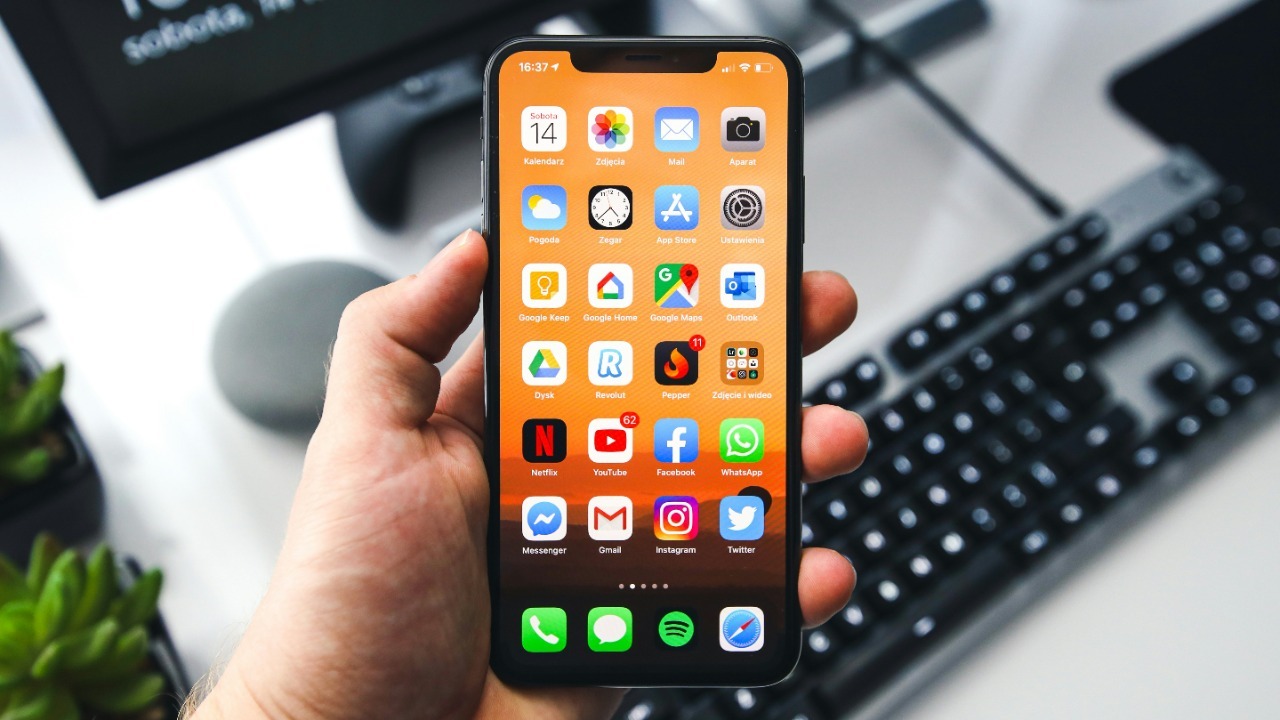

If your iPhone keeps warning that storage is full, there are several settings and system tweaks you can use to reclaim space today without sacrificing the photos, messages, and apps you actually care about. By combining smart tools like offloading apps, optimizing photos, and trimming hidden system data, it is possible to free gigabytes in a few minutes. I will walk through eight quick moves that align with Apple’s own guidance and recent expert reporting so you can clear space with confidence.
1. Offload Unused Apps
Offload Unused Apps is one of the fastest ways to free iPhone storage without losing your personal data. When you enable this feature in Settings, iOS automatically removes the app’s executable files while preserving documents and settings so you can reinstall later without starting from scratch. Reporting on how to adjust iPhone settings explains that you reach this control by going to Settings, then General, then iPhone Storage, where recommendations highlight Offload Unused Apps as a one-tap option. A related Apple discussion thread describes how to free up storage space on iPhone by going to Settings, General, iPhone Storage and tapping on “Offload Unused Apps,” confirming that the system is designed to remove unused or unnecessary data while keeping what matters.
In practice, this setting is ideal for large apps you rarely open, such as games like Genshin Impact or Call of Duty Mobile, which can each consume multiple gigabytes. Because your documents and settings remain intact, you can tap the grayed-out icon later to download the app again and pick up where you left off. Guidance on how to free up storage space on your iPhone or iPad notes that you can also trigger offloading per app from the iPhone Storage list, which is useful if you want to keep some rarely used tools installed while aggressively pruning others. The broader trend here is that Apple is shifting storage management away from manual deletion toward automated, reversible cleanup, which reduces the risk of losing important files while still giving users meaningful control.
2. Review Large Message Attachments
Review Large Attachments is another built-in tool that can unlock surprising amounts of space, especially if you text photos and videos constantly. In the same Settings, General, iPhone Storage menu, Apple surfaces a recommendation labeled “Review Large Attachments,” which lets you scan big photos, videos, and other media stored inside Messages threads and delete them without erasing the entire conversation. An Apple support discussion on how to free up storage space on iPhone explains that you can remove unused or unnecessary data by going to Settings, General, Storage and tapping on “Review Large Attachments,” highlighting that this feature is meant to target the heaviest files first. Reporting on storage adjustment techniques reinforces that Messages attachments can quietly grow into multi‑gigabyte collections if you never clear them.
Cleaning up this content is particularly important for people who share long 4K clips, Live Photos, or large PDFs in group chats. Instead of scrolling through months of conversation history, the Review Large Attachments screen sorts items by size so you can quickly delete a 500 MB video or a batch of high‑resolution photos with a few taps. This approach keeps the text of your conversations intact, which matters for anyone who relies on Messages for work or family coordination. As more people use iMessage as a default way to share media, the stakes of not managing these attachments rise, since a handful of big files can push a 64 GB iPhone into the red and block critical tasks like installing iOS updates or capturing new photos.
3. Enable Photo Optimization
Photo Optimization is designed to tackle one of the biggest storage hogs on any iPhone, the Photos library. When you turn on iCloud Photos and select “Optimize iPhone Storage,” the device keeps smaller, device‑sized versions of your images and videos locally while storing the full‑resolution originals in iCloud. Coverage of iPhone storage settings explains that this option appears in the Photos section of Settings and is often paired with recommendations to “Check Your Photo and Video Use,” since The Photos app typically consumes far more space than users expect. A detailed how‑to on freeing up space on your iPhone or iPad notes that going to Settings, App Store, Offload Unused Apps and then reviewing photo and video usage can reveal just how much room your camera roll occupies.
Once optimization is enabled, you still see your entire library on the device, but large files are downloaded from iCloud only when you open or edit them. This trade‑off is particularly valuable for 128 GB or 64 GB models that are running out of room due to years of 4K video and burst photos. It does, however, depend on having reliable access to iCloud storage and network connectivity, which means some users may need to upgrade their iCloud plan to fully benefit. As more people treat their iPhone as their primary camera, the ability to shift full‑resolution masters off the device while keeping a browsable library on hand has become a central strategy for balancing convenience with finite local storage.
4. Delete Unused Apps and Data
Deleting unused apps and their data remains one of the most direct ways to reclaim space, especially when automatic offloading is not enough. Guidance on how to free up storage on your phone recommends opening the storage breakdown, identifying apps you have not opened in months, and uninstalling them so their documents, caches, and offline content are removed. A separate walkthrough on how to gain back your iPhone’s storage explains that you can go to Settings, then General and then select iPhone Storage to see a colored bar chart breaking down file types, followed by a list of apps sorted by how much space they use. From there, you can tap into an app and choose to delete it entirely, which is more aggressive than offloading because it erases all associated data.
This manual cleanup is particularly effective for streaming apps that cache offline content, such as Netflix, Spotify, or YouTube, which can quietly accumulate gigabytes of downloads. It also matters for productivity tools like Slack or Microsoft Teams that store large message histories and attachments locally. A report on how to free up storage on your smartphone notes that some apps do not provide internal cache‑clearing buttons, so uninstalling and reinstalling is the only way to reset their footprint. The broader implication is that users need to periodically audit their app library, not just their photos, because unused software can crowd out system updates and new apps, undermining both security and day‑to‑day usability.
5. Manage Downloaded Media
Downloaded media is another category that can balloon quickly, and targeted pruning here often yields immediate gains. Advice on how to free up storage on your phone emphasizes reviewing offline videos, music, and podcasts stored inside apps such as Apple TV, Apple Music, Spotify, and Apple Podcasts, then deleting items you have already watched or listened to. The same guidance explains that many apps have a dedicated Downloads section where you can see exactly how much space each show or playlist occupies, making it easier to prioritize removals. A video segment titled Consumer Reports: Here’s how you can clear storage on your phone reinforces that these offline files are low‑risk to delete because you can stream or re‑download them later if needed.
On an iPhone with limited capacity, a single season of a 4K series or a large offline playlist can consume several gigabytes, crowding out new photos or app updates. Regularly clearing this content is especially important for commuters who download episodes for flights or train rides and then forget about them. A separate explainer on how to free up storage on your smartphone notes that managing downloaded media is part of a broader digital hygiene pattern, where users periodically sweep away temporary content that no longer has long‑term value. As streaming services continue to push higher‑resolution formats and lossless audio, the storage stakes will only increase, making disciplined media management a key habit for keeping an iPhone responsive.
6. Identify and Reduce System Data
System Data, sometimes labeled “Other,” can be one of the most confusing parts of the iPhone storage chart, but there are ways to keep it in check. A guide on how to clear iPhone system data explains that this category includes logs, caches, and other temporary files that support iOS and apps, and it recommends checking the System Data line in the iPhone Storage screen to see how large it has become. The same reporting notes that unusually high System Data usage can signal that cached files are not being cleared efficiently, and suggests steps like updating iOS, removing old device backups, and trimming large message attachments to reduce the load. An Apple support thread on how to clear system data on iPhone adds that Your device automatically deletes cached files and temporary files when it needs more space, and that You do not need to delete them yourself, but users still see benefits from managing the content that feeds those caches.
Understanding this category matters because it can swell into double‑digit gigabytes, leaving little room for apps and media on lower‑capacity devices. While iOS handles much of this automatically, the guidance to monitor System Data and address contributing factors, such as oversized Messages or Safari caches, gives users a way to intervene when the automatic cleanup is not enough. A video tutorial on how to clear system data on iPhone and free up storage underscores that the goal is not to erase critical system components, but to encourage the operating system to rebuild leaner caches. As app complexity grows and more services rely on background data, staying aware of System Data trends becomes part of responsible device maintenance.
7. Clear App-Specific Caches
Clearing app‑specific caches can further reduce hidden storage use, especially for browsers and social apps that constantly pull fresh content. The same guidance on iPhone system data tips recommends force‑closing misbehaving apps and using in‑app settings or the iPhone Storage menu to remove cached data that is no longer needed. A forum explanation on how can I clear the cache on my iPhone walks through this process, advising users to go to Settings, Tap General, Tap iPhone Storage, and then review the list of apps. Here, you can select an app that is using a lot of space and Tap Offload or delete it entirely, which effectively wipes its cache and temporary files.
Safari is a prime example, since it stores website data, history, and offline reading lists that can accumulate over time. A separate how‑to on how to clear system storage on iPhone outlines Method 2 as Delete Safari History and Data and Method 3 as Remove Your App Cache, highlighting that browsers and content‑heavy apps are frequent culprits. Social platforms like Instagram, TikTok, and Facebook also cache images and videos aggressively to speed up scrolling, which can inflate their storage footprint into multiple gigabytes. By periodically clearing these caches, users trade a brief period of reloading content for a leaner device that is less likely to hit storage limits at critical moments, such as when capturing an important video or installing a security update.
8. Restart to Flush Temporary Files
Restarting the iPhone is a deceptively simple move that can help flush temporary files and reduce System Data, especially after major updates or heavy app use. Guidance on quick system data solutions explains that a reboot prompts iOS to clear in‑memory caches and some transient logs, which can slightly shrink the System Data category and improve performance. A detailed tutorial on how to clear system storage on iPhone lists Method 1 as Restart Your iPhone, placing it ahead of more invasive steps like Delete Safari History and Data, Remove Your App Cache, and Delete Built In Apple Apps, which shows how foundational a restart is in the troubleshooting hierarchy. Another video guide on how to clear system data on iPhone and free up storage reinforces that a restart is often the first recommendation before users attempt deeper cleanup.
While a reboot will not magically erase gigabytes of photos or videos, it can resolve storage readings that appear stuck or inflated after large downloads or iOS installations. This is particularly relevant when users see System Data spike unexpectedly, since a restart can trigger the operating system to recalculate and discard some temporary items. A broader explainer on iPhone storage full issues notes that when people Need to free up space on iPhone, they should Read the system’s own recommendations in the iPhone Storage screen and combine them with basic maintenance like restarting. In a landscape where users increasingly rely on their phones for banking, navigation, and authentication, keeping the device stable and responsive through simple habits like periodic reboots is a low‑effort way to avoid storage‑related disruptions.
More from MorningOverview