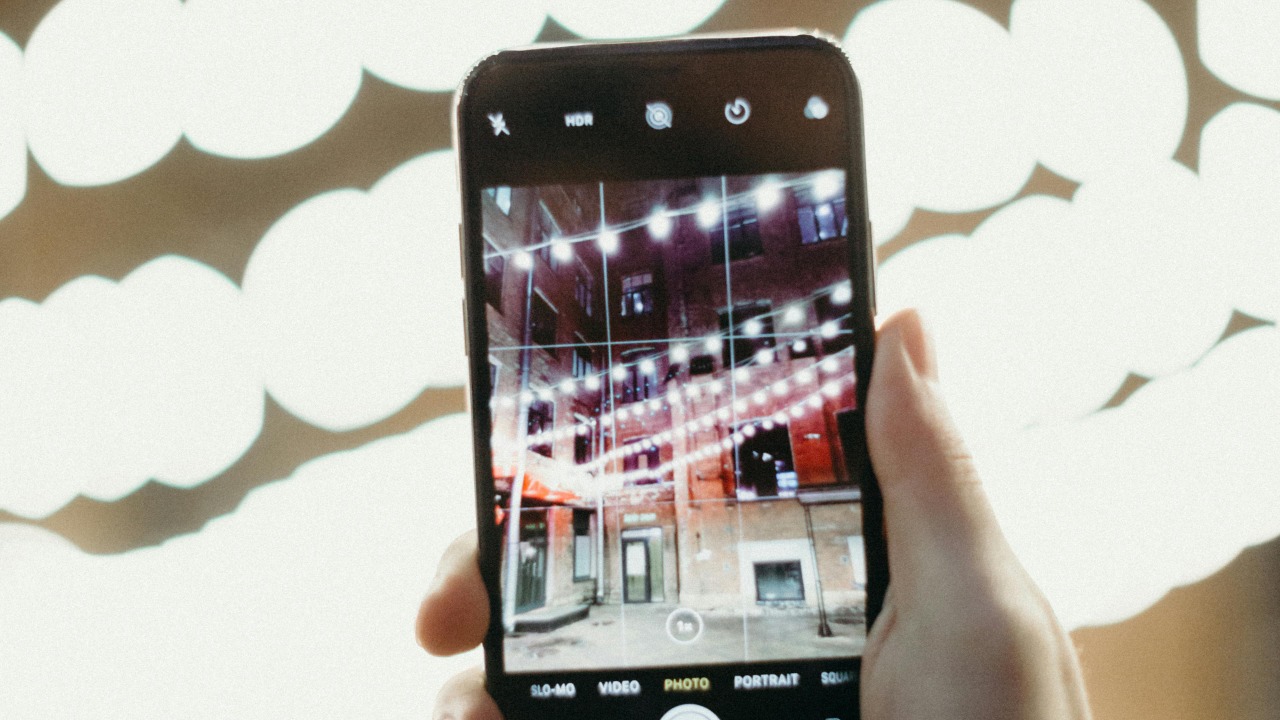

Apple’s iPhone cameras are already good enough to replace a compact camera for many people, but even the best sensor cannot fix a greasy lens. With iOS 26, Apple quietly added a tool that can spot smudges on the glass and nudge you to wipe it before you ruin a shot. The feature hides in the Camera settings, yet it has big implications for how reliably your photos and videos turn out in everyday use.
I see this as part of a broader shift in iOS 26, where the software is increasingly aware of the physical world around the phone, not just what is on the screen. A dirty lens warning sounds like a small tweak, but it shows Apple trying to solve a very human problem at the system level instead of leaving users to guess why their images look soft or hazy.
iOS 26’s quiet camera upgrade
Apple framed iOS 26 as a broad upgrade to the iPhone experience, with new intelligence features, interface refinements, and deeper integration across apps and services. Buried inside that larger release is a subtle but practical change to how the Camera app behaves when the optics are not in ideal shape. Rather than simply capturing whatever the sensor sees, the system can now interpret visual cues that suggest the lens itself is dirty and respond with a targeted hint.
In its overview of iOS 26, Apple emphasizes that the update is about elevating everyday tasks, from communication to media capture, through smarter system features. The lens warning fits that pattern, because it does not add a flashy new shooting mode, it quietly improves the reliability of the photos and videos people already take. Instead of forcing users to troubleshoot blurry images after the fact, the software now steps in at the moment of capture.
Why dirty lenses are such a common iPhone problem
Anyone who has handed their phone to a child knows how quickly fingerprints can cover the camera glass. Reports on the new feature point out that kids have sticky hands and are frequent culprits, but they also stress that it is not just children who cause the issue. Adults slide phones in and out of pockets, toss them into bags, and touch the rear housing when adjusting a grip, all of which can leave a film of oil or dust on the lens that softens contrast and detail.
Coverage of the setting notes that kids have sticky fingers, but it also highlights that Even adults can smudge the glass without realizing it. Another explanation of the tool underlines that it is not always your kids’ fault and that Even routine handling can grind dirt into the area around the camera bump, which is why a system level reminder is useful rather than relying on people to remember to wipe the lens before every shot.
How Lens Cleaning Hints actually works
The new warning lives behind a toggle called Lens Cleaning Hints inside the Camera settings. When it is enabled, the Camera app looks for visual patterns that suggest the optics are obscured, such as a persistent haze, flares that do not match the scene, or a loss of contrast across the frame. If the system decides the problem is likely on the glass rather than in the subject or lighting, it surfaces a short message on screen that effectively tells you to clean the lens before continuing.
Guides to the feature describe a simple path to turn it on. One walkthrough explains that you should Open the Setting app, go to the Camera section, and then look near the bottom of the list for the Lens Cleaning Hints switch, which you can activate with a single tap. Another step by step breakdown phrases it as Open the Setting, scroll through the Camera options, and then look out for a message when the phone detects a problem, which is the system’s way of nudging you to wipe the glass.
Finding the hidden toggle in Settings
Despite its usefulness, Lens Cleaning Hints is not front and center in the Camera interface, which is why many people are only discovering it after living with iOS 26 for a while. To reach it, you have to start in the main Settings app rather than inside the Camera itself. From there, you scroll down through the list of installed apps and system tools until you reach the Camera entry, which opens a long panel of shooting options and formats.
A detailed how to explains that you should Keep scrolling toward the bottom of that Camera menu until you see the option labeled Camera Lens Clean With This Smart Setting, which is where the Lens Cleaning Hints toggle appears. Another description of the same path notes that you should Now scroll down toward the bottom of the Camera list and then tap Lens Cleaning Hints to enable it, which is a one time setup that quietly improves every future shot.
What the on screen warning looks like
Once Lens Cleaning Hints is active, the Camera app behaves normally until it detects something off about the image. At that point, instead of silently capturing a compromised photo, it overlays a short prompt that tells you the lens might be dirty. The message is designed to be brief and unobtrusive, so it does not block the viewfinder for long, but it is clear enough that you understand the phone is asking you to wipe the glass before you keep shooting.
People who have tested the feature describe seeing a small banner near the top of the screen that appears after they deliberately smudge the area around the rear camera lens. One account notes that when the system decides the optics are compromised, it shows a message that effectively says the lens needs cleaning, then disappears once you wipe the glass and the image returns to normal clarity. Another guide advises users to look out for a message after they Apple have enabled the setting, because that is the only visible sign that the detection system is running in the background.
Why this tiny feature matters for everyday photos
On paper, a lens cleaning reminder sounds like a minor tweak compared with headline features like new editing tools or shooting modes. In practice, it can have a bigger impact on image quality than many software filters, because it addresses a physical problem that no algorithm can fully fix. A greasy lens reduces sharpness, flattens colors, and introduces flare, and while computational photography can compensate for some of that, it cannot restore detail that never reached the sensor in the first place.
That is why I see Lens Cleaning Hints as a classic example of a small, system level feature that quietly improves results for everyone, especially people who never dive into manual controls. Guides to the setting emphasize that it is meant for everyday users who simply open the Camera app and shoot, not just enthusiasts who already obsess over optics. One explanation notes that when you are ready to take a photo, you should be able to trust the phone to warn you about obvious problems like a dirty lens, rather than discovering later that an entire batch of vacation shots looks foggy around the edges.
How to enable it step by step
For anyone who wants to turn on the warning, the process is straightforward and takes less than a minute. You start by opening the Settings app, which is where Apple keeps all of the system level toggles that affect how the Camera behaves. From there, you scroll down through the list until you find the Camera entry, tap it, and then look toward the lower part of the menu where the more specialized options live.
One walkthrough breaks the process into a simple checklist: How to enable Lens Cleaning Hints is to Tap Settings, Tap Camera, and then Tap the Lens Cleaning Hints toggle near the bottom of the screen. Another explanation of the same steps uses slightly different wording, telling users to Lens Cleaning Hints by first using Tap Settings, then Tap Camera, and finally Tap the Lens Cleaning Hints switch, which confirms that the feature is meant to be accessible even for people who rarely adjust their phone’s configuration.
Where Lens Cleaning Hints fits in the broader iOS 26 picture
Lens Cleaning Hints does not exist in isolation, it is part of a larger push in iOS 26 to make the system more context aware and proactive. The update includes a range of new capabilities across the operating system, from interface tweaks to connectivity improvements, all organized under a feature list that breaks down the changes into sections like Contents, Features, System, User, Home, and Battery. Within that structure, the camera improvements sit alongside other quality of life upgrades that are meant to make the phone feel more responsive to real world conditions.
The official documentation for Contents notes that the Features section is divided into System features with subsections such as 1.1, which cover areas like User interface, Home screen and lock screen, and Battery behavior. While Lens Cleaning Hints is not called out by name in that high level overview, it fits squarely into the philosophy of using system intelligence to smooth out everyday friction points, whether that is managing power use more intelligently or making sure the camera warns you when the optics are not ready for a critical shot.
More from MorningOverview