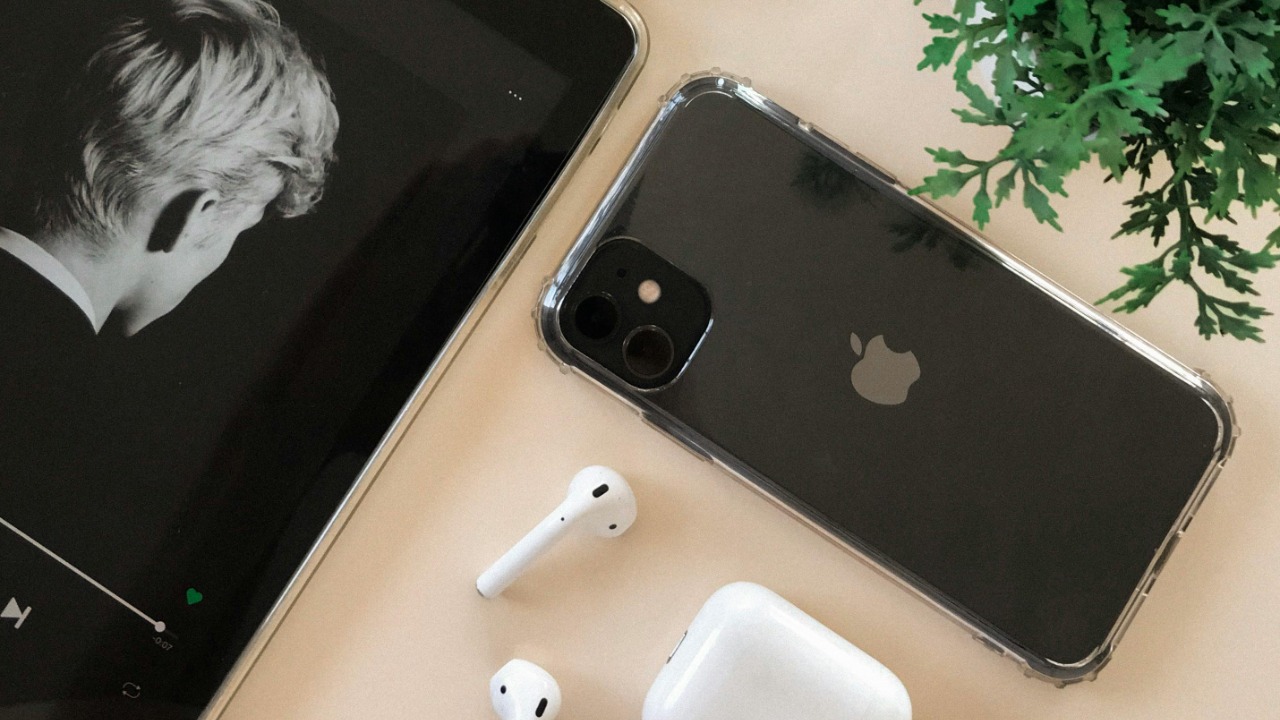

Apple’s iOS 26 update quietly turns AirPods into a far more powerful accessory for iPhone video, shifting them from passive earbuds into active tools for creators. Instead of headline-grabbing redesigns, the most meaningful changes sit in the Camera app and AirPods firmware, where they reshape how people record, monitor, and control footage without touching the phone.
I see these upgrades as a stealth rethinking of the iPhone shooting rig, one that leans on wireless audio, remote controls, and smarter automation rather than bulky gear. For anyone who records TikTok clips, YouTube videos, or family moments, iOS 26 effectively upgrades both AirPods and the iPhone camera without asking you to buy a new lens or microphone.
AirPods as a wireless Camera mic change how iPhone video sounds
The most transformative tweak in iOS 26 is the ability to use AirPods as a dedicated microphone inside the Camera app while recording video. Instead of relying on the iPhone’s built-in mics, I can now capture my voice directly from my ears, which dramatically improves clarity when I am in front of the lens or standing away from the phone. This turns AirPods into a lightweight alternative to clip-on wireless mics, especially for vloggers and mobile journalists who want cleaner dialogue without extra hardware.
Creators who shoot a lot of content on iPhone are already calling the new Camera app mic option a game changer, because it keeps audio locked to the subject even when the phone is on a tripod or across the room. The feature lives quietly inside the Camera interface, but once enabled it routes video audio through the AirPods connection so my voice stays consistent as I move, rather than fading with distance or room noise, a shift highlighted in coverage of hidden iOS 26 tools that spotlight AirPods as Camera audio gear.
Remote shutter and framing tools turn AirPods into a pocket camera assistant
iOS 26 also promotes AirPods from simple earbuds to a hands-free camera remote, letting me trigger the shutter or start and stop recording without touching the iPhone. When the Camera app is open, AirPods can act as a remote shutter button, which is especially useful if the phone is mounted on a tripod or propped on a shelf. Instead of running back and forth to tap the screen, I can stay in position and fire off a photo or video with a subtle gesture or press, effectively turning my earbuds into a pocket-sized remote.
This remote capability is not limited to Apple’s own Camera app, it also extends to compatible third party camera and video tools, which makes it more than a party trick. Guides to iOS 26’s lesser known additions point out that AirPods now serve as a Camera Remote for both photo and video apps, and that they can double as a remote shutter when the Camera app is open and the phone is set up across the room, a scenario that makes group shots and solo filming far easier.
Seven new AirPods Pro upgrades quietly reshape everyday use
While the Camera tricks grab attention, iOS 26 also delivers a broader set of AirPods enhancements that change how often and how confidently I can rely on them. AirPods Pro in particular receive up to seven new features, including smarter battery charging notifications and automatic behaviors that adapt to how they are used. Those battery alerts help me avoid dead earbuds in the middle of a shoot, while automation reduces the friction of switching between calls, music, and recording sessions.
The cumulative effect is that AirPods Pro feel less like accessories and more like an integrated part of the iPhone experience, especially when I am juggling video, calls, and background listening. Reporting on the firmware tied to iOS 26 notes that AirPods Pro benefit the most from these seven upgrades, with features like Battery charging notifications and Aut style automations tuned to their most common use cases, which increasingly include video capture and conferencing.
Hidden settings in iOS 26 make AirPods video features easy to miss
Part of what makes these changes feel stealthy is how deeply they are buried in iOS 26’s menus and Camera options. The system update does not push a big splash screen about AirPods as a mic or remote, so unless I go hunting through settings or watch a walkthrough, it is easy to keep using AirPods the old way. That low profile fits Apple’s pattern of shipping powerful but quiet tools that reward users who dig into the software rather than relying only on default behavior.
Guides to iOS 26’s hidden tools walk through exactly where to find these toggles, from the Camera app’s audio input selector to AirPods settings that unlock new controls. One breakdown of seven lesser known additions spells out how to Use AirPods as a camera remote and mic, while another list of 18 tucked away options highlights the ability to Take a photo with AirPods when the Camera app is open and the phone is on a tripod across the room, underscoring how much of this upgrade lives behind small switches rather than flashy banners.
Firmware 8A356 and USB-C models bring the same tricks to more AirPods
These camera centric features are not limited to the very latest earbuds, they roll out through a shared firmware that covers a wide slice of the AirPods lineup. With iOS 26, AirPods Pro 3, AirPods Pro 2 in both USB-C and Lightning versions, and AirPods 4 with active noise cancellation all receive a new public update that unlocks capabilities like Live Translation, Sleep Mode, and the camera focused tools. That means a lot of existing owners suddenly gain creator friendly features without buying new hardware.
Even the over ear AirPods Max with USB-C are pulled into the same ecosystem, receiving the latest firmware 8A356 alongside the iOS 26 release so they can participate in the same audio and control improvements. Video walkthroughs of the rollout emphasize that the Update for AirPods Pro 3, AirPods Pro 2 (USB-C and Lightning), and AirPods 4 with AN introduces features like Live Translation and Sleep Mode, while a companion segment notes that AirPods Max with USB-C are all receiving the new public update alongside iOS 26 on the iPhone 16 Pro, ensuring that the video and audio upgrades reach both in ear and over ear listeners.
Real world creators are already using AirPods as on-set mics
For people who record video regularly, the difference between phone audio and AirPods audio is not theoretical, it shows up immediately in clips. When I use AirPods as the Camera app mic, my voice stays present even if I turn away from the phone or walk a few steps back, which is exactly the kind of movement that can ruin a take with built in microphones. That reliability makes AirPods a practical on set mic for quick shoots, especially when I do not want to rig up a full lavalier system.
Short video demos of the feature show how simple it is to enable, with creators explaining that you just update the iPhone to iOS 26, connect AirPods, and then select them as the audio source while recording. One clip spells out that Apple brought this capability with iOS 26 so you can use your AirPods as a mic while you are recording videos with your iPhone, and the creator is explicit about how much they love the convenience of this Nov feature in everyday shooting.
iOS 26’s broader media intelligence supports the new camera workflow
The AirPods and Camera upgrades sit inside a wider push in iOS 26 to make media playback and capture more adaptive and intelligent. A new AutoMix feature, for example, uses on device intelligence to transition from one song to another using time stretching and beat matching, which hints at how deeply Apple is now willing to let software shape audio. That same philosophy shows up in how the system manages screen brightness and battery life while recording, dimming when it can to preserve power without interrupting the shot.
These under the hood changes matter because they make it more realistic to treat the iPhone as a primary camera for longer sessions, without worrying as much about battery drain or jarring audio transitions between clips. Overviews of iOS 26’s capabilities describe how AutoMix uses intelligence to transition from one song to another with time stretching and beat matching, and how the system adjusts brightness to preserve battery life, both of which support the idea that Apple is tuning the entire stack for smoother media creation and playback.
Action Mode and iPhone 14 era tools pair neatly with the new audio tricks
These audio and control upgrades land on top of video features Apple has been building since the iPhone 14 era, which makes the combination more powerful than any single update. Action Mode, for instance, lets me stabilize footage by swiping to Video mode in the Camera app and tapping the Action Mode icon before recording, which smooths out walking shots and handheld pans. When I pair that with AirPods as a mic, I can move more freely through a scene while keeping both the picture and the sound under control.
Guides to earlier iPhone models still emphasize how to Activate Action Mode by swiping to Video and tapping the icon before recording, and that same workflow now benefits from the wireless audio and remote shutter tools in iOS 26. The result is that even users on older hardware can feel like they have a much more capable rig, simply by combining stabilization, AirPods audio, and remote controls into a single shooting routine.
Hidden iOS 26 tools reward users who treat AirPods as more than earbuds
What ties all of these changes together is a quiet shift in how Apple expects people to think about AirPods. Instead of treating them as simple headphones, iOS 26 positions them as a multi purpose interface for the iPhone, handling audio capture, remote input, and even translation and sleep features in the background. For video, that means I can walk onto a shoot with nothing but an iPhone and AirPods and still have a credible setup for talking to camera, recording B roll, and grabbing stills without touching the screen.
Roundups of useful but easily overlooked additions to iOS 26 repeatedly come back to these AirPods tricks, highlighting how they improve content creation, calls, and everyday convenience. One breakdown of hidden tools singles out Camera focused upgrades like AirPods as a Camera app mic, while another guide to seven hidden features explains exactly where to find the settings that let you Here are the options to use AirPods with iOS 26. For buyers browsing new hardware, even generic product listings now sit in a context where software upgrades can dramatically change what those devices can do after purchase.
Why these “stealth” upgrades matter for the next wave of iPhone gear
The quiet nature of these features also hints at where Apple might be heading with future accessories and iPhone camera gear. If AirPods can already act as a mic, remote, and control surface, it is easy to imagine more specialized versions tuned for creators, or tighter integration with tripods and mounts that assume earbuds will handle audio and input. That would shift the market away from bulky cages and dedicated remotes toward lighter setups that lean on the devices people already wear all day.
Even now, the combination of iOS 26 and updated AirPods firmware changes how I evaluate new accessories, because I have to factor in what the software already covers. Listings for camera friendly cases, tripods, and microphones increasingly compete with the idea that a standard product like AirPods can already handle much of the job, and that even more specialized product bundles will have to offer something beyond what iOS 26 already delivers for free.
More from MorningOverview