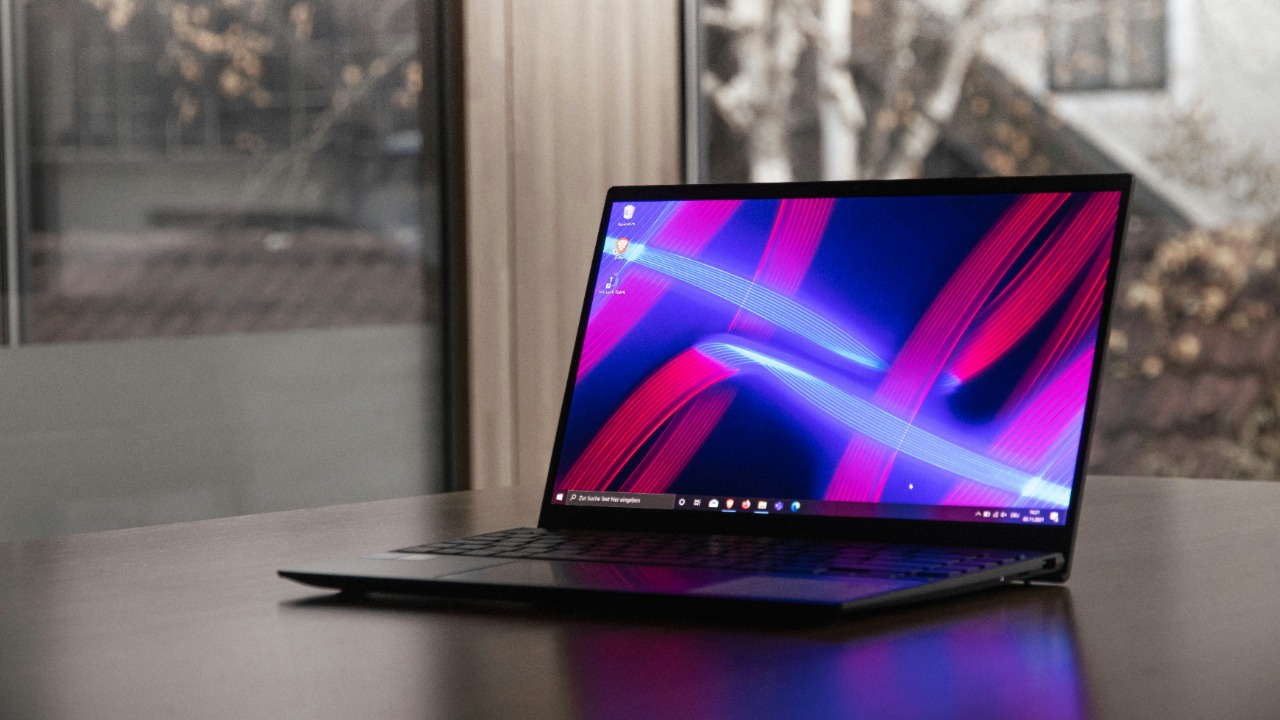

macOS Tahoe 26.2 looks like a routine point release, but tucked behind the headline features are quiet changes that reshape how you time upgrades, lean on Apple Intelligence, and connect an Apple Watch. I want to walk through ten of these under‑the‑radar capabilities so you can decide when to install 26.2, how to configure it for stability, and where it meaningfully improves your daily workflow.
1. Hidden upgrade timing tools in macOS 26.2
Hidden upgrade timing tools in macOS 26.2 matter because the decision of when you should upgrade is no longer a simple “install on day one” choice. Guidance in When Should You Upgrade to Apple’s OS 26 Releases? stresses that the right moment depends on your hardware, apps, and tolerance for early bugs, and macOS now quietly reflects that nuance. In 26.2, Apple refines Software Update behavior so you see clearer separation between security patches and full feature upgrades, which makes it easier to delay a major OS 26 jump while still staying protected.
Because OS 26 spans Mac, iPhone, iPad, and Apple Watch, the stakes are higher if you move too early and discover a mission‑critical app is broken. I treat 26.2’s more granular controls as a quiet acknowledgment that professionals, IT admins, and even home users want to stage upgrades across devices. The result is a system that better supports staggered rollouts, where you can test OS 26 on a secondary Mac first, then schedule the rest of your fleet once you are confident the timing is right.
2. Stability sweet spot in macOS 26.2
The stability sweet spot in macOS 26.2 lines up with long‑standing advice to wait for a “.1” or “.2” release before upgrading, letting the first wave of bugs shake out. The same caution runs through When Should You Upgrade to Apple’s OS 26 Releases?, which frames early OS 26 releases as best suited to testers and non‑critical machines. By the time you reach a .2 build, the ecosystem of apps, drivers, and cloud services has usually caught up, and Apple has already addressed the most disruptive regressions.
macOS Tahoe 26.2 benefits from that pattern. Earlier coverage of the 26.2 Update on YouTube notes that Apple is already treating this as a substantial Tahoe Update, not a token patch, which reinforces the idea that 26.2 is a consolidation moment. If you have been holding off on the broader OS 26 releases for stability reasons, this is the point where I would seriously evaluate your backups, confirm your core tools are compatible, and then plan a weekend upgrade window so you can test everything before Monday.
3. Quiet Apple Intelligence hooks in macOS 26.2
Quiet Apple Intelligence hooks in macOS 26.2 are easier to appreciate once you remember that Apple Intelligence was hardly mentioned at the iPhone 17 event, and I’m worried captured a real sense of uncertainty about the roadmap. The piece points out that Apple Intelligence, despite being heavily trailed earlier in the year, was hardly mentioned at the iPhone 17 event, which left power users wondering whether the initiative had stalled. On the Mac, though, 26.2 quietly expands the plumbing that Apple Intelligence will rely on, including on‑device processing paths and tighter integration with system‑level services.
Because Apple Intelligence is meant to span devices, these macOS hooks matter even if they never appeared on the iPhone 17 stage. I see 26.2 as Apple’s way of preparing Macs for future features without overpromising timelines. For developers and researchers, the new low‑latency connections between Macs and the broader emphasis on local processing hint at how Apple Intelligence workloads might be distributed, which is crucial for anyone planning AI‑heavy workflows on desktop hardware.
4. macOS 26.2 features that ease the “I’m worried” feeling
macOS 26.2 features that ease the “I’m worried” feeling start with transparency. In Apple Intelligence was hardly mentioned at the iPhone 17 event, and I’m worried, the author repeats the phrase “I’m worried” to capture how the absence of detail can undermine trust, especially when Apple Intelligence was hardly mentioned at a marquee launch. On the Mac, 26.2 counters that anxiety by surfacing clearer privacy controls around on‑device analysis, giving you more explicit toggles for what data can be processed locally and what never leaves your Mac.
That matters because the concern that “Apple Intelligence was hardly mentioned” is really a concern about direction and control. By letting you see which apps are allowed to tap into system‑level intelligence features, and by tying those permissions to standard macOS security prompts, 26.2 makes Apple Intelligence feel less like a black box. For professionals handling sensitive documents, that combination of capability and explicit consent is what turns a worrying unknown into a tool you can actually deploy in client work.
5. Better Apple Watch handoff in macOS 26.2
Better Apple Watch handoff in macOS 26.2 becomes more compelling when you look at how watch upgrades are framed in Upgrading From an Older Apple Watch? Here’s How the New Features Stack Up. That guide breaks down how each generation adds capabilities, and it highlights that the question “Upgrading From an Older Apple Watch?” is really about whether the New Features Stack Up enough to justify the cost. macOS 26.2 quietly tips the scales by making watch‑to‑Mac handoff more seamless, so features like unlocking your Mac, approving password prompts, and handing off workouts feel faster and more reliable.
When those New Features Stack Up across devices, the value of a new watch is no longer confined to your wrist. In 26.2, continuity prompts appear more consistently when you move from a watch‑tracked run in Apple Fitness to reviewing metrics on your Mac, and notification mirroring respects focus modes more intelligently. For anyone juggling a MacBook Pro, an iPhone, and a newer watch, that tighter loop means fewer missed alerts and a more coherent sense of where your health and productivity data actually lives.
6. macOS 26.2 health and fitness tie‑ins
macOS 26.2 health and fitness tie‑ins are particularly helpful if you are not ready to buy a new watch yet. The same guide that explains Upgrading From an Older Apple Watch? Here’s How the New Features Stack Up also shows how much capability is still locked inside an “older Apple Watch.” By improving how Health and Fitness data syncs and is visualized on the Mac, 26.2 makes those existing sensors feel fresher, especially when you can review long‑term trends on a larger display and export them for a trainer or physician.
On top of that, macOS 26.2 leans into the watch’s “new features” like advanced heart metrics and sleep stages by giving you more flexible charts and better integration with productivity apps. You can, for example, line up sleep quality against calendar events in a desktop view to see how late‑night work on Xcode or Final Cut correlates with recovery. For people trying to justify keeping an older Apple Watch for another year, these Mac‑side improvements extend the watch’s useful life and reduce the pressure to upgrade purely for software perks.
7. Smarter macOS 26.2 update controls
Smarter macOS 26.2 update controls are a direct response to the nuanced advice in When Should You Upgrade to Apple’s OS 26 Releases?, which treats every major upgrade as a strategic decision. In 26.2, Software Update gives you clearer labels for feature updates versus rapid security responses, and it lets you defer the former while still applying the latter. That separation is crucial if you manage a lab of Macs that must remain on a specific toolchain, such as Xcode 26.2 on macOS Sequoia 15.6 or later, while still staying patched.
For individuals, these controls make it easier to move to Apple’s OS 26 on your own schedule instead of whenever Apple pushes a notification. You can align upgrades with natural downtime, like the end of a semester or a production cycle, and you can keep a secondary Mac on the latest release for testing. That flexibility reduces the risk of being blindsided by compatibility issues and gives small teams a way to mimic the staged rollouts that larger IT departments rely on.
8. Under‑the‑radar Apple Intelligence in macOS 26.2
Under‑the‑radar Apple Intelligence in macOS 26.2 shows up in places that were hardly mentioned at the iPhone 17 event. The analysis that Apple Intelligence was hardly mentioned at the iPhone 17 event, and I’m worried, underscores how little stage time Mac‑specific intelligence features received. Yet 26.2 quietly improves system‑wide suggestions, document understanding in Finder previews, and context‑aware search in Mail, all of which rely on the same underlying Apple Intelligence technologies that were overshadowed on the phone side.
Because these enhancements are Mac‑only, they naturally stayed hardly mentioned at the iPhone 17 event, which focused on handheld use cases. For writers, developers, and analysts who live in desktop apps, that is actually an advantage: you get more powerful local tools without the hype cycle that often accompanies AI launches. Combined with new low‑latency connections between Macs using Thunderbolt, these intelligence features can help multi‑Mac setups share workloads more efficiently, hinting at a future where Apple Intelligence treats your entire desk as a single, distributed system.
9. Continuity boosts in macOS 26.2 for “Upgrading From an Older Apple Watch”
Continuity boosts in macOS 26.2 for “Upgrading From an Older Apple Watch” focus on making Mac features amplify what the watch can already do. The same breakdown in Upgrading From an Older Apple Watch? Here’s How the New Features Stack Up notes that newer models add richer health metrics, faster chips, and better radios, but those gains feel modest if your Mac does not take advantage of them. In 26.2, auto‑unlock is more reliable, watch‑based approvals for password prompts trigger faster, and Handoff between watch apps and their Mac counterparts feels less fragile.
Those continuity improvements mean that when you finally do upgrade from an older Apple Watch, the payoff shows up on your Mac as much as on your wrist. A Series 10 or later can, for example, hand off a complex timer or workout to a Mac‑based dashboard with fewer dropped connections, which is a real benefit for coaches, streamers, or anyone monitoring live metrics. By treating the Mac as a full participant in the watch experience, 26.2 turns what might have been a minor wearable refresh into a broader ecosystem upgrade.
10. Power‑user defaults in macOS 26.2
Power‑user defaults in macOS 26.2 are about preparing your system for the long arc of Apple’s OS 26 Releases, not just the current build. The same strategic mindset that shapes OS 26 Releases guidance, where each point update is part of a broader cycle, applies here. In 26.2, Apple refines default settings around Time Machine, iCloud Drive, and system logging so that future upgrades have cleaner data to work with and rollbacks are less painful if something goes wrong.
For anyone planning to ride out all of Apple’s OS 26 Releases on the same hardware, these defaults are worth auditing. I recommend enabling encrypted external backups before major upgrades, reviewing which analytics you share with Apple, and standardizing settings across multiple Macs so that future OS 26 Releases behave consistently. Combined with the detailed breakdown of the macOS Tahoe 26.2 Update on Let, that preparation turns 26.2 from a routine patch into the foundation for a more predictable, controllable upgrade path over the entire 26.x cycle.
Supporting sources: macOS Tahoe 26.2 Adds New Features.. But Are the Issues ….
More from MorningOverview