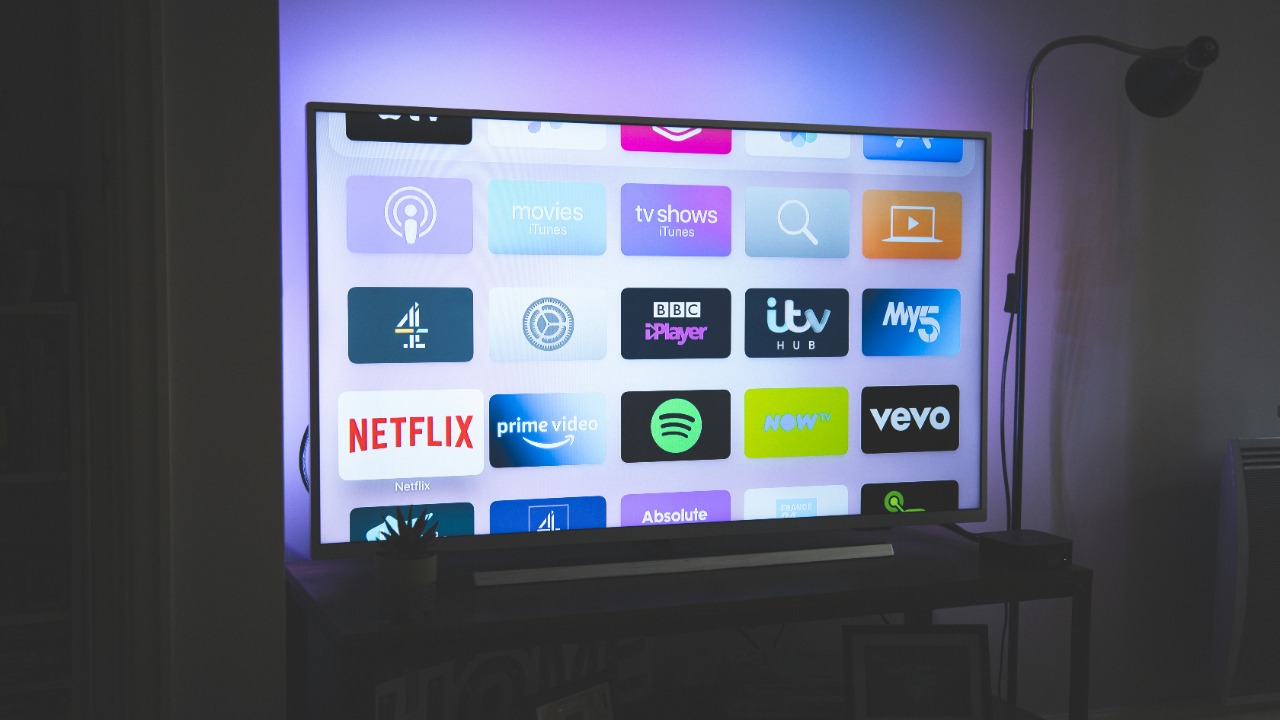

Most modern TVs ship with a powerful picture upgrade hiding in plain sight: a single HDMI option that is often disabled or set to a safer, lower‑bandwidth mode. Turn it on and the screen can suddenly unlock richer color, sharper 4K detail and smoother motion from the devices you already own. Instead of buying a new television, I focus on this one setting first, because it is usually the fastest way to make a living‑room setup look instantly more expensive.
Manufacturers give this feature different names, but the idea is the same: allow the HDMI port to accept a higher quality signal so the TV can show more of what a PlayStation 5, Xbox Series X, Apple TV 4K or high‑end streaming box is capable of. Once you know where to find it and how to match it with the right cable and source, the improvement is obvious on everything from Netflix dramas to big‑screen sports.
What “HDMI Enhanced” actually does to your picture
At the heart of this upgrade is a mode often labeled HDMI Enhanced, which tells the TV to accept a higher bandwidth signal over the same physical port. Instead of limiting the connection to a conservative format, the enhanced option opens the door to full‑fat 4K, higher frame rates and more detailed color information that standard settings can choke off. When I enable this mode on a capable set, the image usually snaps into focus with cleaner edges, less banding in skies and smoother gradients in dark scenes, because the TV is finally getting the improved signal it was designed to handle.
On many sets, the default HDMI configuration is tuned for compatibility rather than quality, which is why flipping to an enhanced format can feel like removing a bottleneck. Reporting on HDMI Enhanced explains that this improved signal format is specifically designed to carry more data per second, which is what allows features like deeper color and higher resolution to reach the panel intact, instead of being compressed or downsampled before they ever hit the screen. In other words, the panel itself might be 4K and HDR‑ready, but until the HDMI port is set to an enhanced mode, you are not seeing everything it can do.
The many names of the same hidden feature
The confusing part is that TV makers rarely agree on what to call this setting, even though they are all chasing the same goal. One brand might literally label it HDMI Enhanced, another might tuck it under a phrase like Ultra HD Deep Colour, and a third might describe it as an enhanced picture format or an HDMI EDID option. I have seen all of these variations on different living‑room sets, and they all boil down to the same question: should this HDMI port accept a basic signal or a high‑bandwidth one that can fully feed a 4K or gaming source.
Support documentation for set‑top boxes and TVs lists HDMI, Ultra HD Deep Colour, HDMI UHD Enhanced, picture format and HDMI EDID as the most common names manufacturers use for this feature on each HDMI port on the TV, which is why it is easy to miss if you are scanning menus in a hurry. The trick is to recognize that any option promising an “enhanced” or “deep color” HDMI mode is almost certainly the one that unlocks better picture quality, even if the label is wrapped in brand‑specific jargon.
Why your TV ships with the better mode turned off
It is tempting to assume that a premium television would ship with every performance option already maxed out, but HDMI settings are often conservative out of the box. Manufacturers have to assume that some buyers will plug in older cable boxes, legacy Blu‑ray players or budget streaming sticks that cannot handle a high‑bandwidth signal. If the TV defaulted to an aggressive enhanced mode on every port, those older devices might show a blank screen, flicker or throw up error messages, which would look like a defect even though the panel is working as intended.
To avoid that support headache, many brands leave the HDMI signal format in a standard or “compatibility first” mode until you explicitly tell the TV that a given port is connected to a modern 4K or gaming device. Guides for Sony sets, for example, walk through changing the HDMI signal format setting for each input terminal to a suitable format, which makes clear that the TV expects you to match the port mode to the device you are using. Once you do, the panel can stop holding back and start accepting the full signal that a newer console, streaming box or PC is trying to send.
How to find the HDMI signal format menu on popular TVs
Finding the right menu is usually the hardest part, because the option is buried under layers of settings that most people never touch. On many Sony models, the path starts with the HOME button on the remote, then dives into Settings, followed by Channels and Inputs, then External inputs, where an HDMI signal format option appears for each port. From there, I can select the specific HDMI input I am using and switch it from a default mode to an enhanced one that is tuned for higher quality signals.
Some models add an extra layer for 4K and HDR, placing the HDMI signal format under Settings, then Watching TV, then Advanced settings and Video options, which again reinforces that this is a per‑port choice rather than a global toggle. Other brands use different menu labels, but the pattern is similar: open the main Settings, look for a section tied to Inputs or General, then drill into the HDMI port you care about and change its format from a standard mode to something that explicitly mentions enhanced, deep color or 4K. Once you know that structure, it becomes much easier to hunt down the right switch on any new set.
Deep Color, HDR and why this toggle matters so much
The reason this single HDMI option has such an immediate impact is that it controls whether the TV can accept advanced color formats and HDR signals without dumbing them down. When the port is stuck in a basic mode, the set may quietly reduce color depth, limit chroma or even fall back to standard dynamic range, which flattens highlights and crushes shadow detail. Turn on the enhanced or Deep Color mode and the same movie or game can suddenly show more nuanced skin tones, brighter specular highlights and smoother gradients in dark corners.
Guides that explain where to find HDMI Deep Color typically instruct you to open Settings on the TV, then go to General or Connections before toggling the feature for the relevant port, underscoring that this is a deliberate choice rather than an automatic upgrade. Once enabled, the TV can accept the full HDR and wide color gamut signal that devices like an Apple TV 4K or a PlayStation 5 are capable of sending, instead of forcing them into a compatibility mode that leaves picture quality on the table. In practice, that means less banding in sunsets, more detail in bright stadium lights and a more convincing sense of depth in everything from nature documentaries to big‑budget blockbusters.
Pairing the right HDMI port with the right device
Even before I touch the signal format menu, I pay attention to which HDMI port I am using, because not all of them are created equal. Many TVs reserve their highest bandwidth capabilities for one or two specific inputs, which might be labeled HDMI 2.1, 4K 120 or eARC, while the others are limited to older standards. Plugging a PlayStation 5 or Xbox Series X into a lower‑spec port can quietly cap frame rates or disable certain HDR modes, even if the TV itself supports them on a different input.
Practical setup guides emphasize this point by listing “Choose the right HDMI port” as the first step when you are setting up your TV and devices, explaining that the port you pick determines which features are available. On some Sony models, for instance, HDMI 2.0 full bandwidth is only possible on HDMI inputs 2 and 3, and only when HDMI Enhanced Format is enabled, which means a high‑end console or PC should be plugged into one of those inputs instead of a random port on the back. Matching the most demanding device to the most capable HDMI input, then turning on the enhanced mode for that port, is the foundation for getting the best performance out of any modern TV.
HDMI 2.1, bandwidth and what your gear can really do
Under the hood, all of this comes down to how much data the HDMI connection can move every second. The jump from older standards to HDMI 2.1 dramatically increases that bandwidth, which is what enables features like 4K at 120 frames per second, variable refresh rate and more robust HDR formats. If the TV port, the cable or the source device is stuck on an older standard, the chain falls back to what the weakest link can handle, no matter how advanced the panel might be.
Beginner‑friendly explainers on HDMI 2.1 make it clear that you will not be able to get all the benefits of 2.1 unless the devices support the features, and that your current setup might already be capable of more than you are seeing if the right options are enabled. Additionally, they stress that HDMI is a system, not just a socket on the TV, so a high‑bandwidth port needs to be paired with a compatible console, streaming box or PC and a cable rated for the same standard. Once those pieces line up and the enhanced mode is switched on, even a midrange TV can start to showcase the most advanced technologies available today instead of behaving like a much older set.
Step‑by‑step: flipping the enhanced mode on a Sony TV
On Sony televisions, the process of turning on this hidden performance mode is a good example of how much control you have over each HDMI input. If I open the External Inputs section inside All Settings, then go to Channels and Inputs and finally External inputs, I find an HDMI signal format setting that can be adjusted for each individual HDMI port. The menu typically offers a choice between a standard mode and an enhanced one, sometimes with extra labels for Dolby Vision or 4K 120, depending on the model.
Official help guides explain that to change the HDMI signal format setting, you press the HOME button, then select Settings, followed by Channels and Inputs, then External inputs, and finally choose the HDMI input terminal to set it to a suitable format. On some 4K models, the same documentation notes that you can also reach HDMI signal format by going through Settings, then Watching TV, then Advanced settings and Video options, which again highlights that this is a per‑port decision. Once I flip the relevant HDMI input to its enhanced format, the TV is ready to accept full‑bandwidth 4K and HDR from a compatible device without further tweaking.
Real‑world gains: streaming boxes, consoles and PCs
The payoff for this small bit of menu diving shows up immediately in everyday use. A high‑end streaming device like an Apple TV 4K, a Roku Ultra or a Chromecast with Google TV can output 4K HDR with high bitrates, but only if the HDMI path is clear from end to end. When the TV port is locked in a basic mode, those boxes often fall back to 4K SDR or even 1080p, which softens detail and flattens highlights. Switch the port to an enhanced format and the same apps, from Netflix to Disney Plus, suddenly deliver crisper text, more detailed faces and brighter, more controlled specular highlights.
The difference is just as stark with gaming hardware. A PlayStation 5 or Xbox Series X can push 4K at high frame rates with HDR and advanced color formats, but only when the HDMI port is configured to accept that full signal. Reviews of sets like the Sony X940E note that HDMI 2.0 full bandwidth is only possible on specific inputs and only when HDMI Enhanced Format is enabled, which is why some players see a dramatic improvement in sharpness and responsiveness after moving their console to the right port and flipping that one setting. PC gamers connecting a powerful graphics card to the living‑room TV can see similar gains, with cleaner text, reduced color banding and smoother motion once the HDMI pipeline is no longer throttled.
Compatibility checks: when flipping the switch is not enough
There is one important caveat: turning on an enhanced HDMI mode will not magically upgrade a device that cannot output a better signal in the first place. A decade‑old cable box or a budget streaming stick locked to 1080p SDR will look essentially the same, because the source itself is the limiting factor. In some cases, pushing a legacy device through an enhanced port can even trigger handshake issues or error codes, which is why I keep older gear on standard HDMI inputs and reserve the enhanced ones for modern hardware.
Guides that break down HDMI Enhanced remind you that you still need a compatible source device, like one of the best streaming devices, a gaming console, a receiver, a computer or another modern source, to get the improved signal and enjoy a noticeably better picture. That is why I treat the enhanced HDMI toggle as the final step in a chain that starts with checking the capabilities of the TV, then the port, then the cable and finally the device. When all four line up, flipping that one option transforms the screen in a way that no amount of generic “vivid” or “dynamic” picture presets can match.
More from MorningOverview