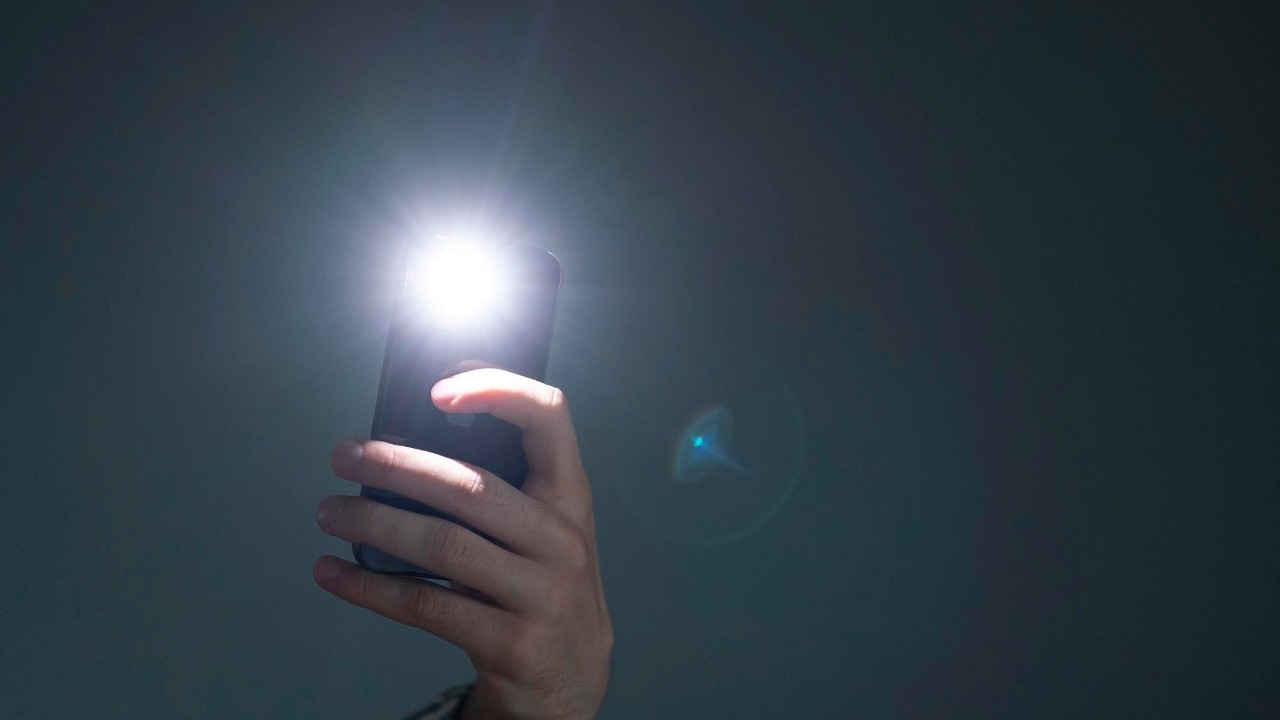

Apple has quietly turned the iPhone’s flashlight into a hands‑free tool, letting you light your way without swiping, tapping or even unlocking the screen. With the right settings, you can trigger the LED on the back of the phone using your voice, the physical buttons or taps on the rear casing, so the light comes on even when your hands are wet, gloved or full. I am going to walk through the most reliable options, explain what each one is good at and show how to set them up in a few minutes.
Instead of hunting for the on‑screen icon in the dark, you can lean on Siri, Back Tap, the Action Button and a few lesser‑known shortcuts that live under the surface of iOS. Each method has trade‑offs in speed, privacy and accessibility, and the smartest approach is to combine two or three so you always have a backup when one fails. I will focus on the techniques that let you avoid touching the display entirely, then briefly flag the classic on‑screen controls for context.
Why you should stop fumbling for the on‑screen flashlight
The iPhone’s LED flash is one of the most used features on the device, yet most people still reach for it the slowest way possible, by waking the screen and digging through icons. That habit is not just inconvenient, it is risky when you are on a staircase, crossing a street or trying to unlock a door in the rain, because it forces you to look down and juggle the phone instead of watching your surroundings. I find that once you shift the flashlight to a voice or hardware trigger, it starts to feel like a built‑in safety tool rather than a buried camera setting.
Apple’s own documentation makes clear that the LED on the back of the phone is designed to double as a dedicated light, not just a camera flash, and it can be switched on from several places in the system without ever opening the Camera app. Official support pages describe how the LED flash on an iPhone or iPad Pro works as a torch and can be controlled through Siri, Control Center and hardware features like the Action Button, confirming that the The LED is meant to be a first‑class light source. That design choice is what makes the hands‑free tricks in the rest of this guide possible.
Use Siri to turn the flashlight on without touching the screen
The most straightforward way to light up your iPhone without touching it is to talk to Siri. If you have “Hey Siri” or “Siri” voice activation enabled, you can leave the phone on a table or in a pocket and still ask it to turn the flashlight on or off, which is especially useful when your hands are dirty, wet or in gloves. In my experience, this is the best default option because it works across a wide range of models and does not require any extra setup beyond the usual Siri configuration.
Apple’s support material spells out that you can say phrases like “Hey Siri, turn on my flashlight” or “Hey Siri, turn off my flashlight” to control the LED without touching the device, and that this works alongside other methods like Control Center and the lock screen shortcut. One guide explicitly notes that You can ask Siri to switch the light on or off, while another explains that you can Use Siri to control the flashlight as an alternative to on‑screen controls. Users have also popularized more playful commands, with one discussion pointing out that you can tell Siri Lumos and Nox to toggle the phone’s flashlight using Harry Potter‑style spells, which shows how flexible the voice interface has become.
Turn the flashlight on by tapping the back of your iPhone
If you prefer a silent, physical gesture, Back Tap is the most elegant way to trigger the flashlight without touching the display. With this feature, you can double‑tap or triple‑tap the rear of the phone, near the Apple logo or camera module, and iOS will treat that as a shortcut to run a specific action, including turning the torch on. I like this option because it works even when the phone is locked and it feels natural to tap the back as you pull the device out of a pocket.
Back Tap arrived with iOS 14 on the iPhone 8 and newer, and detailed walkthroughs show how to assign the flashlight to this gesture so that a quick double‑tap toggles the light. One step‑by‑step guide explains that with iOS 14 or later on an iPhone 8 or newer you can quickly turn the flashlight on and off by tapping the back, and it walks through the Accessibility settings needed to map the torch to a Back Tap shortcut, encouraging users who are Tired of fumbling in the dark. Another explainer notes that the feature is called Back Tap and that, like the Action Button on newer iPhones, it lets you trigger actions by tapping anywhere on the back of the phone, including on the camera module, which makes it ideal for a quick flashlight toggle.
Set up the Action Button or side button for instant light
On newer iPhones that include the Action Button, Apple has effectively given users a dedicated hardware key that can be pointed at the flashlight. Mapping the torch to this button means a single press on the side of the phone can light up the LED, even when the screen is off, which is as close as the iPhone gets to a traditional flashlight switch. I find this especially useful in situations where voice commands are awkward, like in a quiet theater or a shared bedroom at night.
Apple’s support pages for the torch explain that the Action Button can be configured to control the light alongside other options like camera or focus modes, and they highlight that you can press the button to turn the torch on or off without needing to unlock the device. One guide notes that you can turn the torch on or off on your iPhone or iPad Pro and that the LED flash doubles as a torch so you can use the Action Button or ask Siri to say Turn the torch on or off. For older models without the Action Button, Apple still supports hardware‑based control through the side button and volume keys in combination with on‑screen shortcuts, which keeps the flashlight within thumb’s reach even if you cannot rely on Back Tap.
Tap‑to‑flashlight tricks and hidden shortcuts
Beyond the official Back Tap feature, there are creative ways to simulate a tap‑to‑flashlight gesture using automation. By combining Back Tap with Shortcuts, you can build a custom routine that toggles the flashlight, adjusts brightness or even starts a timer when the light comes on, all triggered by a double‑tap on the rear casing. I see this as the power‑user version of the basic Back Tap setup, because it lets you chain multiple actions to a single physical gesture.
Video tutorials walk through this process in detail, showing how to create a new Shortcut that toggles the flashlight and then assign that Shortcut to a Back Tap gesture in Accessibility settings. In one walkthrough, the host Tmenture explains in a clip labeled “How to Turn On iPhone Flashlight By Tapping” that he is going to show viewers how to tap the phone to activate the light, and the demonstration confirms that a simple tap on the back can be turned into a flashlight trigger using Shortcuts and Back Tap together, as seen in the Apr video. Another creator, Jaquille, presents “5 Ways To Turn On The Flashlight On Your iPhone!” and describes himself as a guide to living with Apple every day while walking through multiple methods, including tap‑based shortcuts, in the Jaquille tutorial, which underscores how flexible these tap‑to‑flashlight tricks have become.
Why shaking your iPhone will not reliably turn on the flashlight
Owners of older Android phones often expect to be able to shake an iPhone to turn the flashlight on, but that gesture is not officially supported in iOS. There is no system‑level setting that lets you toggle the torch by shaking the device, and trying to approximate it with third‑party apps usually runs into limitations around background access and battery life. From a safety perspective, relying on a shake gesture can also be risky, because it is easy to trigger accidentally while walking or running.
Users who have migrated from Android models like the 2019 Motorola g stylus sometimes express frustration that they could shake that phone left and right to activate the flashlight but cannot do the same on an iPhone. One support thread titled “Is there a way to shake an iPhone to make the flashlight turn on?” includes a post where someone notes that on their last phone, a Motorola g stylus, they were able to shake the phone to have the flashlight come on, and they are looking for a similar feature on iOS. Another comment in the same discussion points out that if you have an iPhone you can instead tell More commands like “Siri Lumos and Nox” to turn the flashlight on and off, which reinforces that Apple has chosen voice and tap‑based controls rather than motion gestures for this feature.
Lock‑screen and Control Center options as a backup
Even if your goal is to avoid touching the screen, it is worth understanding the lock‑screen and Control Center flashlight controls, because they act as a fallback when voice or hardware triggers fail. The lock‑screen icon is particularly useful when you are already holding the phone, since a firm press on the flashlight symbol near the bottom of the display can turn the light on without unlocking the device. I treat this as a secondary option, but it is still faster than hunting for the icon inside the camera or a third‑party app.
Guides to the iPhone flashlight consistently list Control Center, Siri and the lock screen as the three primary ways to toggle the light, with one breakdown of “7 Smart Ways To Turn Flashlight On or Off on iPhone” explicitly naming methods like Smart Ways To Turn Flashlight On and Off, Through the Control Center, Through Siri and Via Lock Screen as core options. Another walkthrough highlights a hidden trick that lets you skip the lock screen entirely by using a feature tucked away inside Apple’s software menus, explaining that on a compatible iPhone you can configure the device so that pressing certain hardware controls or tapping the back cover will bypass the lock screen and trigger the flashlight, which is described as a Not widely known feature. Together, these options ensure that even if you cannot use hands‑free methods, the flashlight is never more than a swipe or press away.
How to choose the right hands‑free method for your routine
With so many ways to trigger the iPhone’s flashlight, the real question is which combination fits your daily life. If you often need light while your hands are occupied, such as when carrying groceries or walking a dog at night, voice control through Siri is the most practical choice, because it works even when the phone is buried in a coat pocket or bag. For people who keep their phones on silent or in shared spaces, a physical gesture like Back Tap or the Action Button offers a discreet alternative that does not disturb anyone nearby.
Apple’s own guidance suggests that there are a few ways you can turn your flashlight on or off, including asking Siri, using Control Center or relying on hardware controls, and that flexibility is the point. Tutorials that walk through “7 Smart Ways To Turn Flashlight On or Off on iPhone” and video guides like the one from Apple enthusiast Jaquille show that no single method is perfect, but combining two or three gives you redundancy when one fails. In practice, I recommend enabling “Hey Siri” for true hands‑free use, setting up Back Tap as a silent backup and, if your model supports it, mapping the Action Button to the torch so you always have a physical switch under your thumb.
The bigger trend: turning your iPhone into a physical tool
What ties all of these tricks together is a broader shift in how Apple wants the iPhone to behave, moving it closer to a physical tool that responds to taps, presses and voice rather than just a slab of glass. Features like Back Tap and the Action Button blur the line between software and hardware, letting you treat the phone like a Swiss Army knife that can become a flashlight, camera or remote control with a single gesture. I see the flashlight as the clearest example of this trend, because it is a simple function that benefits enormously from being fast and tactile.
Explainers on Back Tap emphasize that the feature is designed to give you one more way to interact with your phone, including on the camera module, and that it can be used to open apps, run shortcuts or toggle system features like the flashlight, which is why the Action Button and Back Tap are often discussed together. Official support pages that describe how to turn the torch on or off on your iPhone or iPad Pro, and how the LED flash doubles as a torch, reinforce that Apple expects people to lean on these hardware‑adjacent features rather than treating the flashlight as a buried camera setting. As more of these controls arrive, from Back Tap to the Action Button and beyond, the iPhone’s flashlight is becoming less of a hidden extra and more of a core, hands‑free tool that you can rely on in the dark without ever touching the screen.
More from MorningOverview